


Text-to-video AI generators: 13 options by workflow
Editorial update: October 1, 2026. The best text-to-video AI generator depends on the video you need. A generated scene, a presenter reading a script and an edited marketing video are different products. This updated shortlist separates them rather than treating every tool as interchangeable.
This is a current, use-case-based update. The original article is retained below for reference; its older prices, ratings and availability should not be treated as current. Check the linked provider before signing up or paying.
Quick comparison
- Runway: Generated scenes and footage editing.
- Adobe Firefly: Generated clips within an Adobe workflow.
- Pika: Text-to-video and visual transformations.
- Luma: Prompt and image-based scene generation.
- Magic Hour: A browser-based text-to-video starting point.
- Synthesia: Presenter-led explanations and training.
- HeyGen: Avatar and narrated business video.
- Canva: Generated clips inside a design project.
- VEED: Generation plus editing and captions.
- invideo: Prompt-to-assembled video workflows.
- Google Flow: Scene-led generation with references.
- Kapwing: Generation and editing in a browser.
- Descript: Generated media alongside existing footage.
1. Runway: Generated scenes and footage editing
Its product page supports starting from text, images or existing clips, then refining, extending and exporting. Consider it when you need to iterate on a shot rather than only assemble stock footage. View Runway.
Use it for a short scene that needs visual revisions, then compare successive outputs against the same brief. The generation and editing routes are related but do different jobs, so decide whether you need new footage or changes to footage you already own. Check character consistency, unwanted objects and text frame by frame. The browser product page is a starting point, not proof that every model has identical features.
Before choosing: Check the selected model, credit allowance, output length and export settings before committing to a plan.
2. Adobe Firefly: Generated clips within an Adobe workflow
Firefly offers text-to-video and image-to-video, with Adobe and partner models in the same workspace. It is a useful starting point for teams already editing in Adobe products. View Adobe Firefly.
It fits a creator who wants generated footage within an Adobe-centered workflow rather than a separate presenter-only product. Start with a clearly described scene and inspect the generated clip before adding it to a larger edit. Check which generation options your account includes and whether the selected output works with your intended project. A vendor’s commercial-use language should still be read alongside the current terms and your rights to any uploaded reference.
Before choosing: Commercial-use claims for the Adobe model should not be assumed to cover every partner model or every uploaded asset.
3. Pika: Text-to-video and visual transformations
The official model documentation lists text-to-video, image-to-video and video transformation tools. It gives a clearer picture of supported inputs than a broad claim that one model does everything. View Pika.
Pika’s official model page separates video generation and visual transformations. That makes it useful to test a specific short visual idea rather than expect a full, finished business presentation from one prompt. Choose the relevant operation and inspect motion, faces and transitions before export. Model documentation and consumer-app access are different routes, so confirm the interface and account you intend to use rather than assuming an API feature is included in every plan.
Before choosing: API per-second pricing is not the same as a consumer subscription. Check the route and model you will actually use.
4. Luma: Prompt and image-based scene generation
Luma describes generating video from text descriptions and images, with motion controls and access to multiple models. Compare it for scene-led work where camera movement matters. View Luma.
Luma is worth comparing when the creative task begins with a scene or reference image and needs generated motion. Describe the action and camera intention clearly, then assess whether the result preserves the important details. Do not judge only the opening frame; motion errors may appear later. Check account access and the available model before using a sample as evidence of the output you will get. Keep reference-image permissions separate from the ability to upload it.
Before choosing: Treat speed and quality statements as vendor claims, not guaranteed results for your prompt.
5. Magic Hour: A browser-based text-to-video starting point
Magic Hour offers a dedicated text-to-video generator alongside other video tools. It is an option for trying a prompt without selecting an enterprise production suite first. View Magic Hour.
The browser-based product route is useful for exploring a prompt without first building a complex editing workflow. Begin with one manageable shot and decide how it will fit into the eventual video. Review faces, motion and any generated text before exporting. Check output format and the current account allowance before a large batch. A convenient generation screen does not automatically include the sound, captions or sequence editing needed for a finished deliverable.
Before choosing: Check current free limits, watermark rules and usage rights. There is no single universally best tool in this list.
6. Synthesia: Presenter-led explanations and training
Synthesia turns text into videos built around AI presenters and narration. That makes it a different choice from a model generating a cinematic scene frame by frame. View Synthesia.
Synthesia fits an explanation or training script where a presenter delivers information, rather than a cinematic scene that must show precise physical action. Review the script before generating, then check pronunciation, pacing and on-screen material. A presenter can sound confident even when the supplied facts are wrong, so factual review remains your job. Check supported languages and avatar permissions in the current account. Treat the browser creation workflow separately from what an API or enterprise plan offers.
Before choosing: Review avatar consent, pronunciation, supported languages and the video-minute allowance.
7. HeyGen: Avatar and narrated business video
HeyGen focuses on AI video creation including avatars. Consider a presenter workflow when the message and spoken script matter more than a newly generated environment. View HeyGen.
HeyGen’s avatar and narration approach suits an instructional or business message more directly than a landscape or action shot. Prepare a short script and identify the audience before selecting a voice or presenter. Watch the result for pronunciation, lip movement and a tone that matches the message. Obtain permission for any likeness or voice you supply. Current account features determine which options you can use; a homepage example is not a guarantee of every plan’s access.
Before choosing: Confirm voice and likeness permissions, translation quality and export limits for the chosen plan.
8. Canva: Generated clips inside a design project
Canva combines its AI video generator with templates, graphics and video editing. It can suit a social or presentation project that needs the clip placed into a finished layout. View Canva.
Canva is useful when the generated clip is only one part of a design containing text, graphics or other media. Its product route describes creation and then editing within a project. Check the clip’s visual detail before applying branding or captions, and choose a layout suitable for the eventual screen. Browser and app access can differ by feature and account. A short generation capability is not evidence that a long presentation can be completed accurately from one prompt.
Before choosing: Access and allowances can depend on the account and selected feature. Check them inside your current plan.
9. VEED: Generation plus editing and captions
VEED places AI video tools alongside editing features. Compare it when your task includes preparing the output for publication, not only generating an initial clip. View VEED.
VEED can fit a browser workflow that needs both generated media and follow-up editing. Decide whether the missing piece is a new shot, captions or changes to existing footage before choosing a tool. Check subtitle accuracy and the visual sequence after assembly, not only whether the generation succeeds. Review supported export options and account limits in the current interface. A tool collection does not imply that every function uses the same model or includes the same allowance.
Before choosing: Check watermark, resolution, caption and generation limits separately.
10. invideo: Prompt-to-assembled video workflows
invideo describes generating a script, visuals, voiceover, subtitles and music from a video idea. It is aimed at assembling a fuller video rather than returning only one isolated shot. View invideo.
invideo is useful to compare when your brief is a topic or script that needs an assembled video, rather than a single generated cinematic shot. Read the proposed sequence, replace unsuitable media and check narration against the facts you intend to communicate. Stock selection and generated footage are different sources with different review needs. Verify the current export and usage conditions. A prompt-to-video workflow can save assembly steps but does not remove editorial responsibility for the finished message.
Before choosing: Inspect each asset and the finished timeline. Automatically assembled does not mean fact-checked.
11. Google Flow: Scene-led generation with references
Google’s Flow documentation covers videos made from text prompts, frames and reference ingredients, as well as editing and building scenes. It is an option for a sequence rather than only a single isolated clip. View Google Flow.
Flow is designed around scene creation and references, so it fits a filmmaker exploring related shots rather than only a narrated slide presentation. The official help explains the creation workflow and available inputs. Check eligibility, region and current account access before depending on it. Review continuity across scenes and whether reference details survive the motion. Keep a clear shot plan and export a small test before building a larger sequence around a particular model’s behaviour.
Before choosing: Check account eligibility, available models and generation allowances in your location.
12. Kapwing: Generation and editing in a browser
Kapwing combines generation with editing, subtitles, translation and resizing. It accepts prompts, scripts and existing footage, which can suit a workflow that needs several kinds of input. View Kapwing.
Kapwing is a browser editor with AI tools, making it useful when generation must sit beside trimming, layout or other editing work. Start with the actual media requirement rather than treating every AI button as a text-to-video model. Review the assembled sequence, captions and audio timing before sharing. Check upload permissions and export settings for the account used. Collaboration convenience does not establish that private footage is appropriate to upload or that every tool shares one usage limit.
Before choosing: Check the export resolution, watermark and credit rules for the plan you intend to use.
13. Descript: Generated media alongside existing footage
Descript offers prompt-based video generation within its editor. It can fit a project mixing newly generated material with recorded video and an edited script. View Descript.
Descript’s generation route can complement a project that already has footage, narration or an editing structure. Use generated material to fill a defined gap, then inspect how it matches the surrounding scenes and tone. Keep transcript corrections and visual review separate; accurate words do not prove accurate imagery. Check the available generation options, output and account limits before committing to a larger project. Review any uploaded material for rights and privacy rather than assuming access grants permission.
Before choosing: Review the selected model’s allowance and rights, then inspect the output before publishing.
How to compare plans without being misled
Do not compare the monthly headline price alone. Note whether billing is monthly or annual, how credits are consumed, whether unused credits expire, and what happens after the allowance runs out. Then check resolution, clip duration, watermarks, commercial terms and voice or avatar permissions. A free trial can help you assess your own prompt, but it is not evidence of unlimited free production.
Can these tools create a complete video from one prompt?
Some return a short generated clip; others assemble scenes or produce a presenter reading a script. Plan for editing, captions and a final factual review. This comparison is based on official descriptions, not a hands-on benchmark.
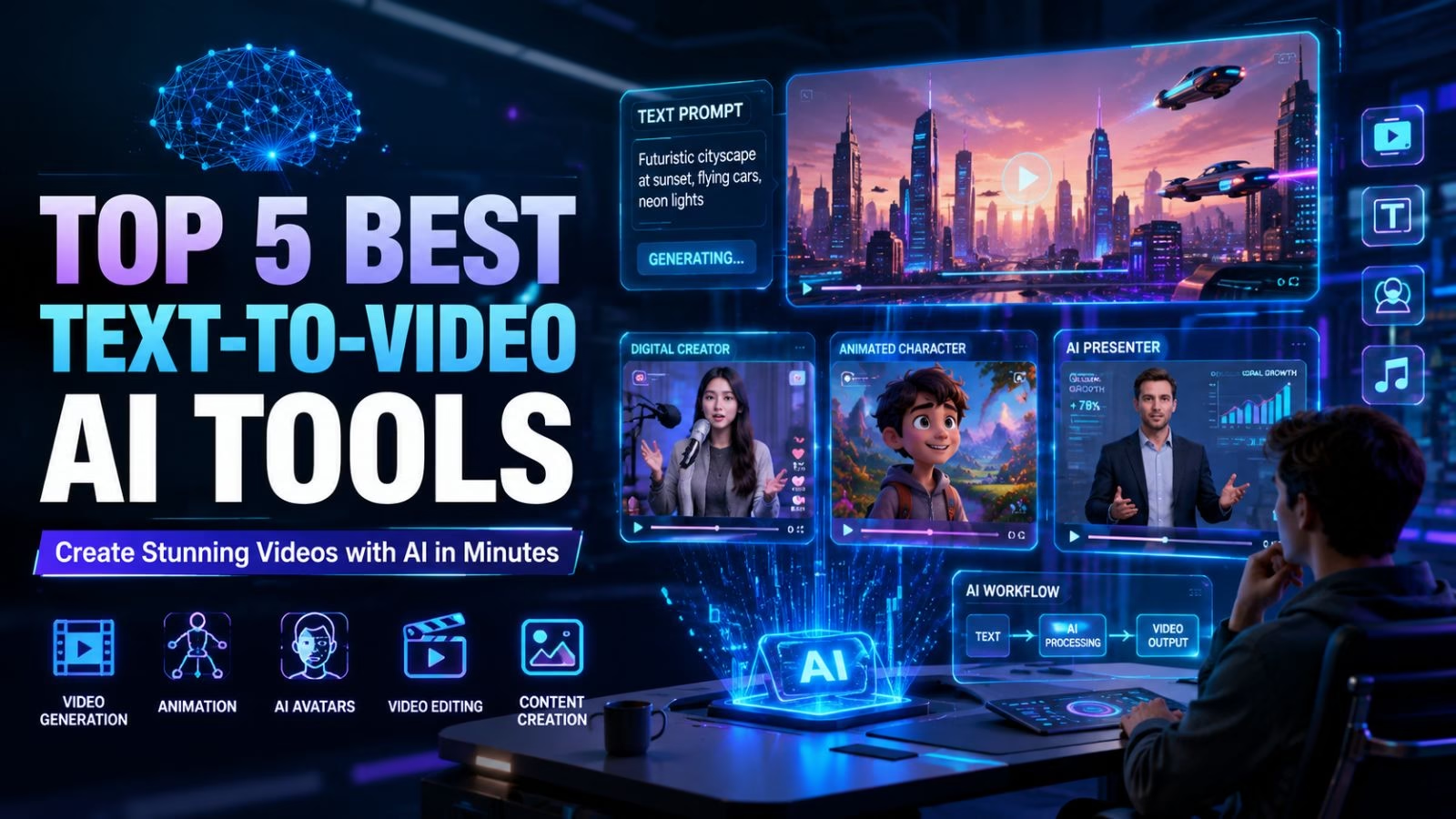
Making videos with AI has become much more accessible in recent years. Creators, marketers, businesses, and social media managers can express their ideas and concepts through videos in a matter of minutes. AI tools offer effortless creation and editing and can generate videos in a fraction of the time for many use cases, including, but not limited to, product advertisements, short social media posts, training videos, and stories. With the vast number of applications and tools available, picking the right one for your use case can be time consuming. In this article, we will discover the best text-to-video AI tools in 2026.
Also read: Hot & Top 10 Graphic Designing Companies in the USA
Why Text-to-Video AI Is Growing in 2026
Video content has taken over social media, marketing strategies, and online educational platforms. Traditionally, making videos from scratch required a significant amount of time and expensive software, as well as video editing skills. Text-to-video AI platforms allow users to turn text into a video, which eliminates these pain points.
The accessibility of video creation accelerates with text to video AI tools that include real-time lip sync, talking photos, animated images, face swap, and AI-driven editing workflows.
Top 5 Best Text-to-Video AI Tools in 2026
2026 is shaping up to be another milestone year for AI video tools. With these tools, creators can produce content more quickly. Based on creativity, quality, usability, and overall performance, these five tools are the best available for content creation.
1. Magic Hour

Magic Hour is a creative AI platform designed to help users create a range of video content, animations, and visual media from short text prompts. Most tools on the market today are designed to solve a single problem, but Magic Hour combines tools that let creators move seamlessly from ideation to final production of media content.
Key Features
- Text-to-video generation
- AI face swap technology
- AI lip sync
- Talking photos
- Image animation
- Video upscaling
- Click-to-create templates
- Multi-step automated workflows
- Parallel generations
- API access
Pricing
- Basic: Free
- Creator: $15/month
- Pro: $39/month
- Business: $99/month
2. Runway
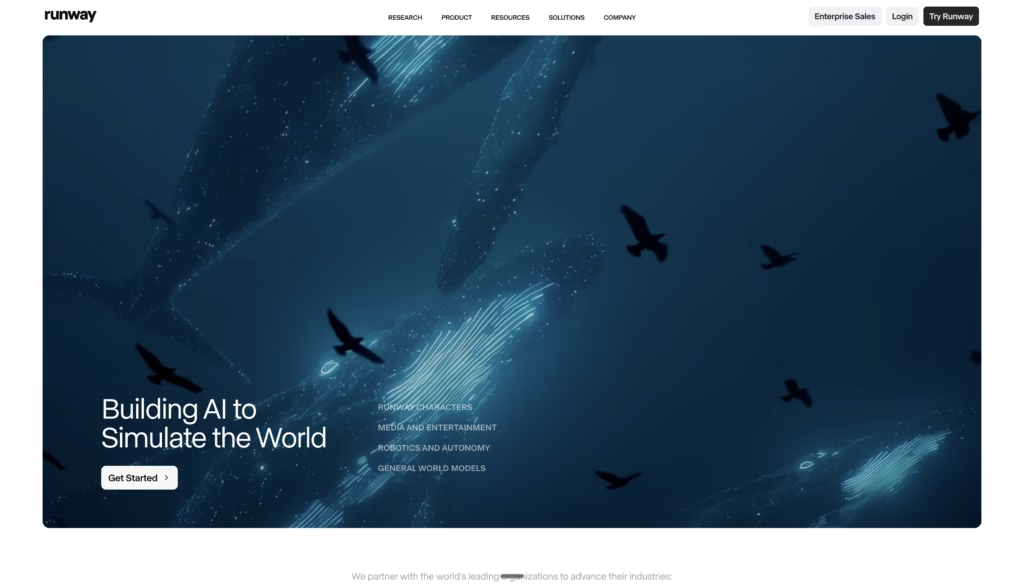
Runway is a great AI video platform for advanced production and professional creatives. This platform is very useful for commercial projects, short films, and branded visual storytelling that requires a high level of creative control.
Key Features
- AI video generation
- Motion brush controls
- Object removal
- Camera movement controls
- Video expansion tools
- Image-to-video conversion
- Green screen effects
Pricing
- Free: $0/month
- Standard: $12/user/month
- Pro: $28/user/month
- Unlimited: $76/user/month
3. Pika
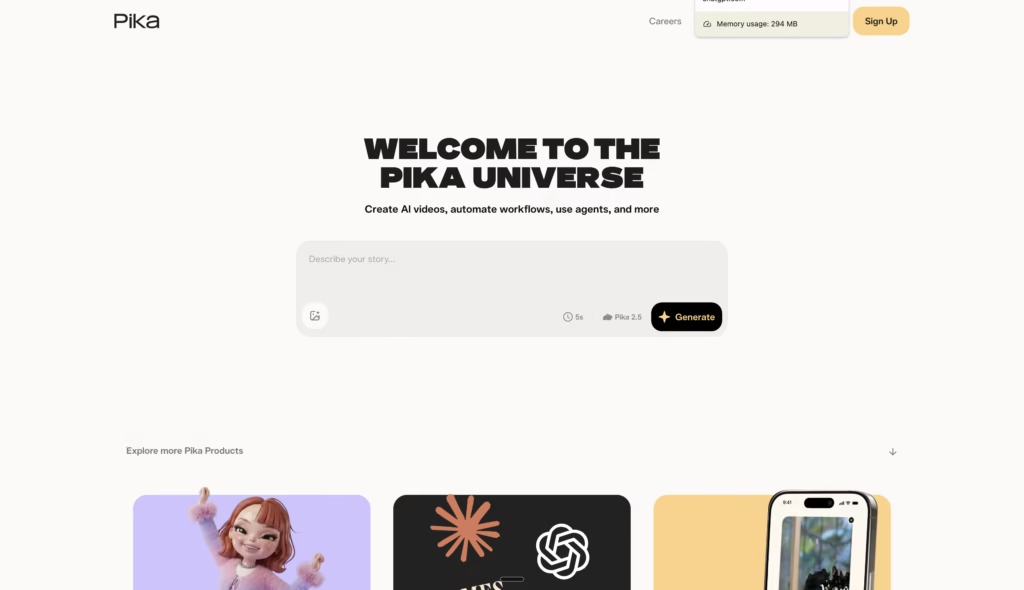
Pika strives to make AI video generation possible for everyone. The platform is quick, simple, and designed to help users turn ideas into engaging video clips without getting bogged down in complex workflows or technical setup. It is a practical choice for anyone who wants to communicate a message visually, experiment with creative concepts, or produce polished short-form content without needing advanced editing skills.
Key Features
- Prompt-based video generation
- Animated effects
- Style customization
- Quick rendering
- Video transformations
- Easy sharing options
Pricing
- Basic: Free plan
- Standard: $8/month
- Pro: $28/month
- Fancy: $76/month
4. Luma AI

Luma AI has a unique ability to create realistic looking scenes and lifelike movement. The outputs are incredibly polished and look like professionally made footage.
Key Features
- Dream Machine video generation
- Realistic scene rendering
- Natural motion generation
- High-detail visuals
- Cinematic output quality
- Fast video creation
Pricing
- Plus: $30/month
- Pro: $90/month
- Ultra: $300/month
- Team: Custom pricing
- Enterprise: Custom pricing
5. Synthesia
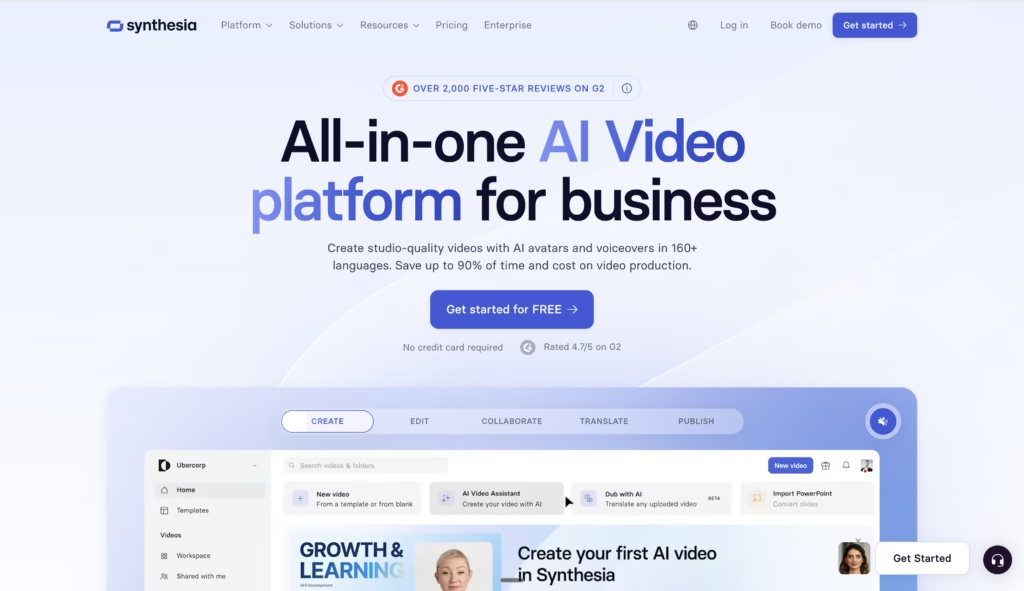
Synthesia specializes in educational video creation and professional communications. Organizations can make presenter style videos without the hassle of hiring actors, employing video crews, or going into the recording studio.
Key Features
- AI presenters
- Multiple avatar options
- Voice cloning
- Multi-language support
- Script-to-video workflow
- Brand customization
Pricing
- Basic: Free,
- Starter: $18/month
- Creator: $64/month
- Enterprise: Custom pricing
How to Choose the Right AI Video Generator
It depends on the purpose. Companies that make training videos might prefer Synthesia, people that want video editing might prefer Runway, and those who want a fast and easy solution to make videos for social media might prefer Pika. However, the people who want AI face swap , lip sync editing, video generation, templates, automated workflows, and everything else in one place might prefer Magic Hour.
Also read: 15 Jaw-Dropping Google Veo3 Prompts That Turn Your Videos Into Mini-Blockbusters
Final Thoughts
AI videos are getting more powerful and can help companies make videos that look great and professional without the hassle of editing. Many features on these platforms are impressive, but in 2026, Magic Hour will stand out as the best due to its comprehensive features, competitive pricing, and powerful, creative capabilities. For all AI video editing needs, it is the best option.






Leave a Reply