

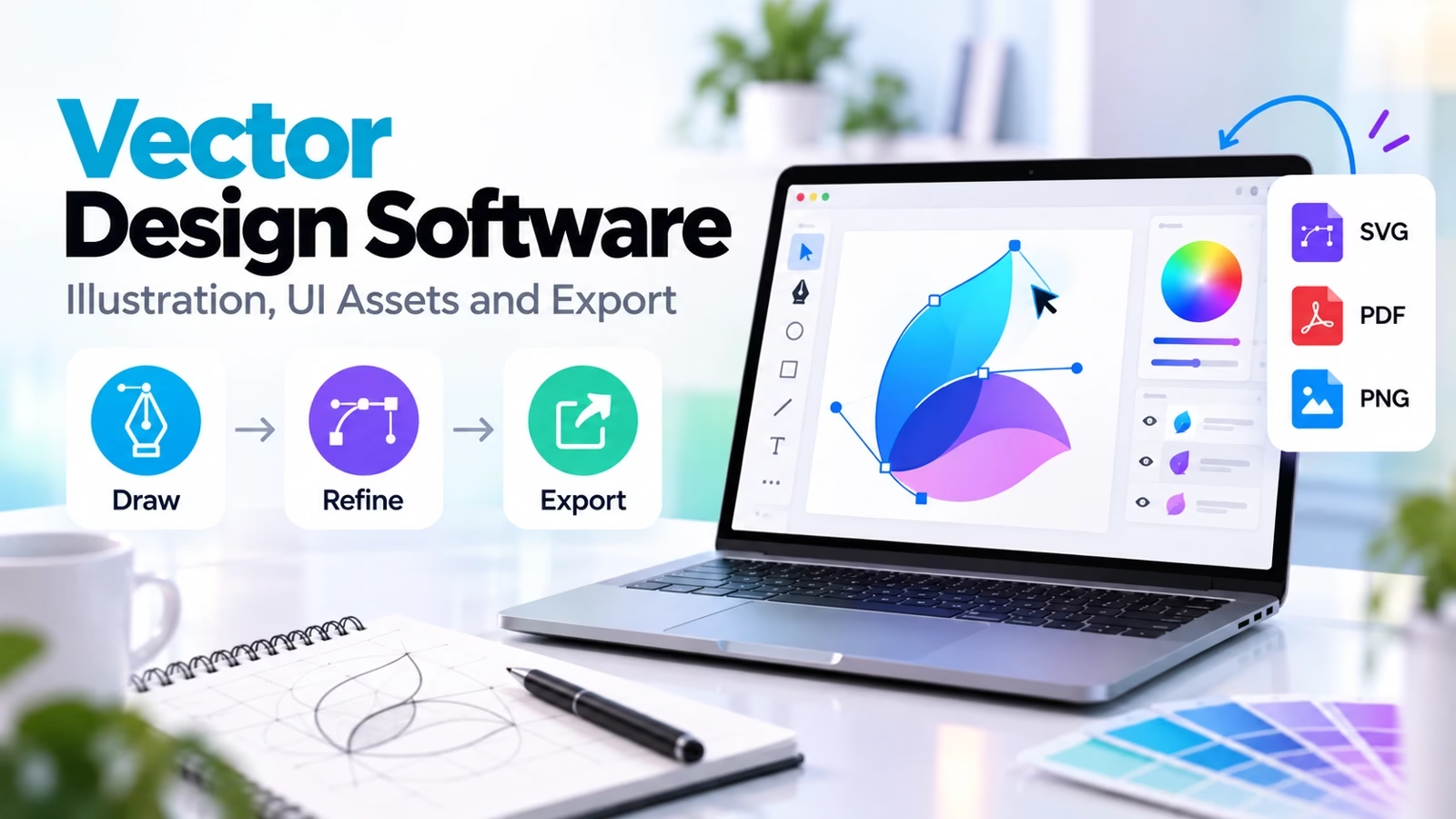

Vector image software draws with math instead of pixels. A logo built from curves and points scales from a business card to a billboard without going soft – which is why logos, icons, and interface assets all start as vectors.
Before you pick, collect references. A board of logos and illustrations you admire – our Pinterest alternatives guide covers good places to build one – tells you which drawing style your tool must be good at.
This guide covers eleven tools worth your time in 2026, from Adobe Illustrator at the professional end to free options that are genuinely good rather than “good for free.” One changed everything since our last update: Affinity is now a single, free app from Canva.
Each entry ends with what to watch out for. Exact prices appear only where we verified them on the vendor’s site today; pricing changes often, so treat the vendor page as the final word.
Choose by the file you must deliver
The right tool is the one that exports what the next person needs. A printer wants press-ready PDF – the same files our PDF editor picks handle downstream. A web developer wants clean SVG. A product team wants shared, commentable files. Start from the deliverable and the choice narrows fast.
If the artwork is mostly photographic, no vector tool will save it – start from our photo editing software guide instead. If the deliverable is everyday social content, the creator apps roundup may be the better starting point.
| Tool | Best for | Platform | How it is sold |
|---|---|---|---|
| Adobe Illustrator | Professional illustration and print | Mac, Windows, iPad | Subscription |
| Affinity | Mixed vector, pixel and layout work | Mac, Windows, iPad | Free (by Canva) |
| Inkscape | Free desktop SVG editing | Mac, Windows, Linux | Free, open source |
| CorelDRAW | Graphics and production design | Windows, Mac | Subscription or one-time |
| Linearity Curve | Drawing on Apple devices | Mac, iPad, iPhone | Free plan plus Pro |
| Figma Draw | Illustration inside product design | Browser, desktop | Free tier plus seats |
| Sketch | Mac-based interface assets | Mac, web | From $12/editor/mo |
| Penpot | Open-source collaborative design | Browser, self-hosted | Free, open source |
| Amadine | Focused Apple vector drawing | Mac, iPad, iPhone | Low-cost one-time |
| Boxy SVG | SVG editing close to the web | Browser, desktop | Low-cost |
| Vectr | Quick cloud vector and logo work | Browser | Free plus Premium |
Vector versus raster: what actually changes
A raster image is a grid of colored pixels; enlarge it and you enlarge the pixels. Screens, phone cameras, and scanners all produce raster files. A vector image is a list of drawing instructions – points, curves, fills – so it re-renders crisply at any size. That is the entire difference, and it is why printers and sign shops ask for vector files – and why professional teams, including the mobile app design companies we track, keep vector masters of every asset.
File size behaves differently too, and it matters more than people expect. A simple vector logo is a few kilobytes at any output size, while a print-resolution raster of the same artwork can be megabytes. On the web that difference shows up as page speed; in print it shows up as email attachments that bounce back from the printer’s inbox.
The catch: vectors suit flat artwork like logos, icons, and illustrations. Photographs are raster by nature. If your work mixes both, plan on owning one tool of each kind.
Know the four file formats that matter
SVG is the web standard: text-based, scriptable, and understood by every tool on this list. It is also future-proof in a way proprietary formats are not – a text editor can open it in fifty years. Keep an SVG master of anything destined for a screen.
AI is Adobe’s native format and still the most-requested handoff file in print and agency work – the shops on our UI/UX design firms shortlist exchange it daily. EPS is its older, more compatible cousin – clunky, but some sign shops and stock sites still insist on it. If a vendor asks for “vector EPS,” that request alone tells you their workflow predates SVG.
PDF is the delivery format: it can embed vectors, fonts, and images in one press-ready package. When in doubt about what a printer wants, a properly exported PDF is usually the safe answer. Learn your tool’s PDF/X presets if print is a regular deliverable.
1. Adobe Illustrator: professional illustration and print
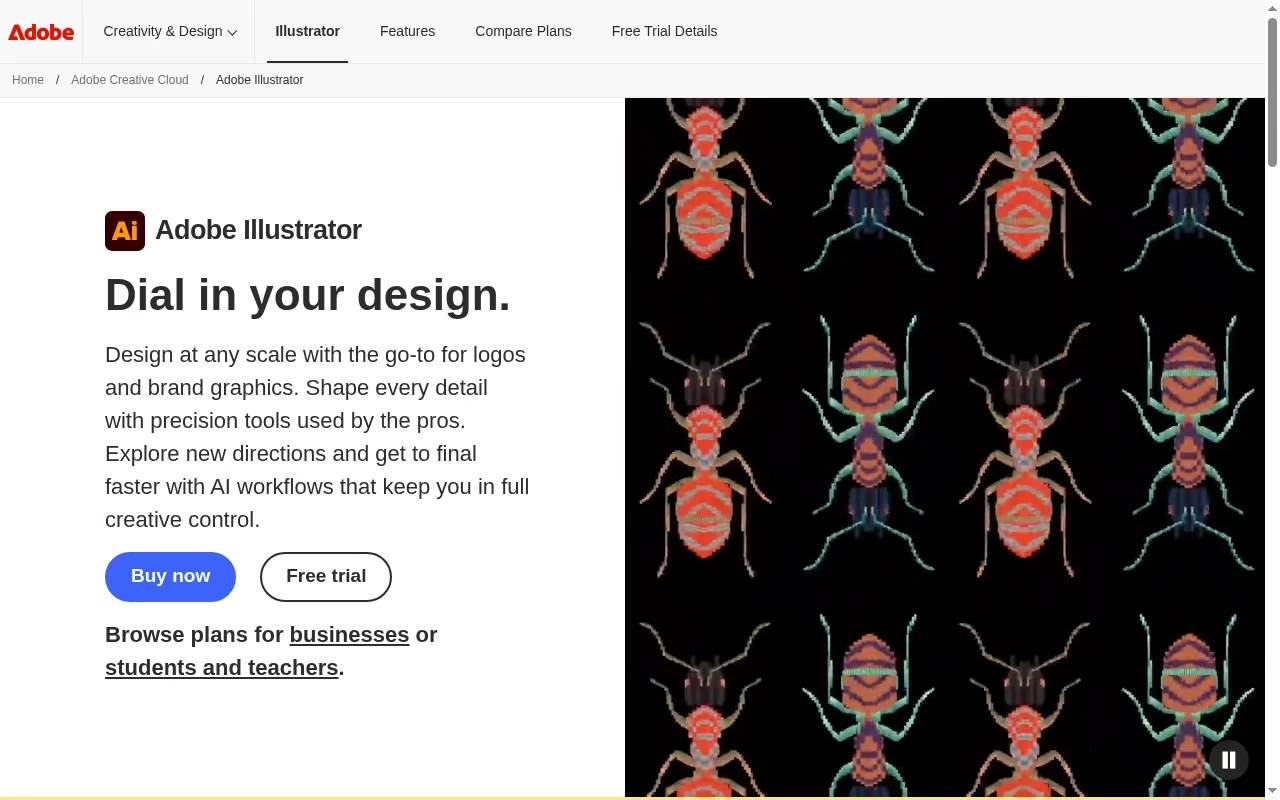
Adobe Illustrator is the industry default for vector work, and has been for decades. Its scripting, actions, and plugin ecosystem mean entire production pipelines run inside it, which is a moat rivals rarely discuss. Its pen and shape tools, color management, and print output are the reference everything else is measured against, and its AI file format is what most printers and agencies expect to receive.
The iPad version is genuinely capable rather than a companion app, with touch-optimized pen and shape tools that many freelancers now use as their main drawing surface. Cloud documents keep work in sync between desktop and tablet. For tablet-first drawing workflows in general, our drawing apps for iPad guide maps the field.
It is sold as a Creative Cloud subscription, billed monthly or annually with regional pricing in your local currency. The value case is strongest when you also use Photoshop or InDesign, since files move between them cleanly.
Watch out: subscriptions stop working when you stop paying, including opening your own AI files in some cases. Confirm the cancellation terms before committing a whole studio to it.
2. Affinity: a mixed vector and pixel workspace
Affinity is the biggest change in this market for years – and the reason every competitor on this list now answers a harder question about price. Canva merged Affinity Designer, Photo, and Publisher into one app with vector, pixel, and layout studios under a single .af file format – and made it free, with enterprise options for larger organizations.
The vector studio is a genuine Illustrator-class drawing environment – full pen and node tools, boolean operations, and CMYK color for print. Being able to switch to pixel editing without exporting is a real workflow advantage for mixed artwork like illustrated social posts and textured logos. For a solo designer, this one app can now replace two or three paid subscriptions at once.
Files are stored locally by default, with optional cloud syncing through Canva accounts – worth understanding before a team assumes otherwise.
Larger organizations get enterprise plans with admin controls – the kind of rollout the shops on our UI/UX design firms shortlist handle daily.
For agencies, the calculus is simple: Illustrator-level output at zero license cost changes what a small studio can charge. For Adobe, this is the most serious competition Illustrator has had in years.
Watch out: free today is a strategy, not a promise. Worth knowing where your files would go if the model changed, though the app’s format support makes exit easier than most.
3. Inkscape: free desktop SVG work
Inkscape is the long-running open-source answer to Illustrator. It edits SVG natively, runs on Mac, Windows, and Linux, and costs nothing, which makes it the default recommendation for students, hobbyists, classrooms, and budget-constrained teams. Its node editing is precise, its text-on-path and clone tools are mature, and the format it saves is the format the web actually uses.
Its path operations, clones, and extension system are deeper than the price suggests, and the SVG it writes is clean enough to hand to developers directly, whether they sit in-house or at one of the mobile app design companies on our shortlist.
The interface feels dated next to commercial rivals, and color-managed print output takes more care. For web-focused SVG work, those gaps matter less.
Development is steady rather than fast, with releases driven by volunteers. The upside is independence: no company can raise the price, because there is no price, and no account is required to open your files.
Watch out: complex files can strain it. Test your real artwork, not a demo shape, before standardizing on it.
4. CorelDRAW: graphics and production design
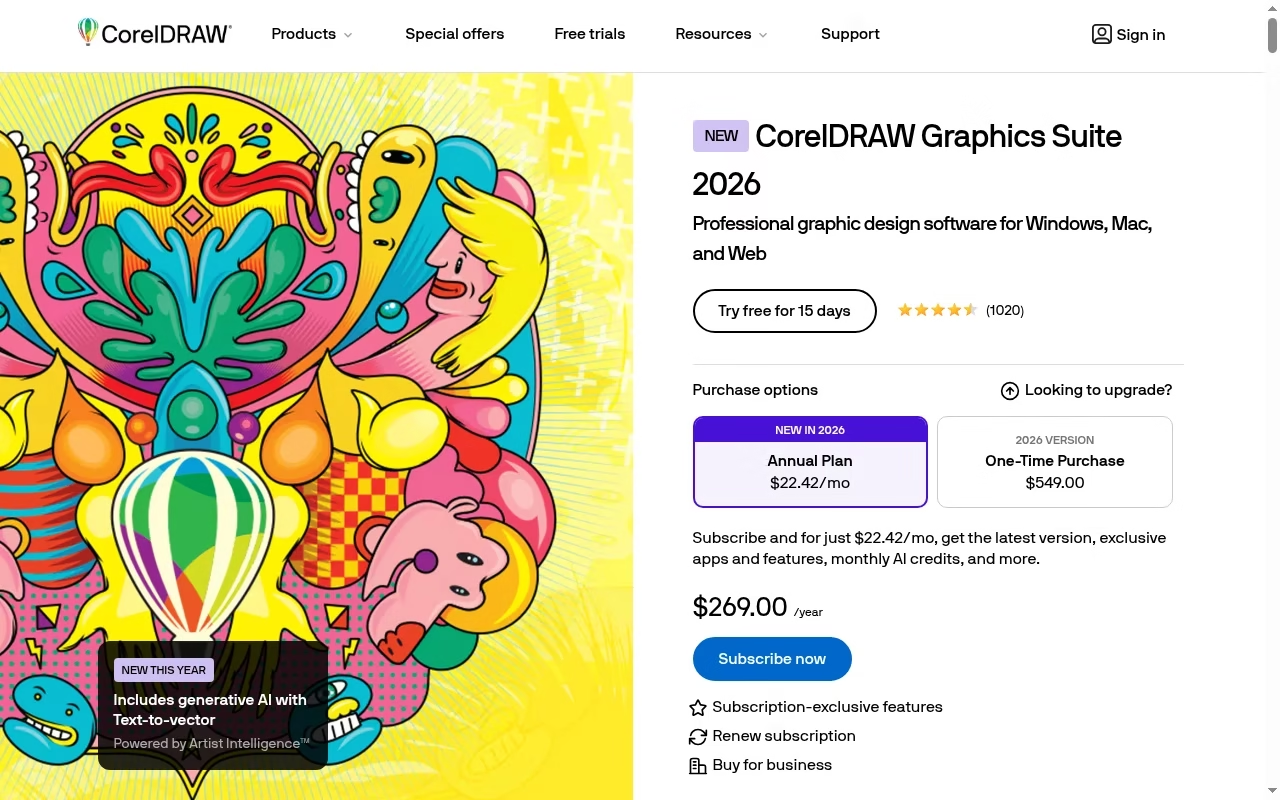
CorelDRAW has deep roots in print shops, signage, and apparel production, where its precision layout and cutting workflows are trusted. Generations of embroidery and vinyl shops standardized on it. It offers both subscription and one-time purchase licensing, which is rare among professional tools.
Its symmetry and block-shadow tools stay popular with sign makers, and the suite bundles photo editing and font management that small print shops use daily.
Windows remains its home turf, though a Mac version exists. If your local sign shop asks for a CDR file, this is why.
Watch out: check which features sit in which edition, and confirm any one-time license’s upgrade policy.
5. Linearity Curve: drawing on Apple devices
Linearity Curve (the former Vectornator) is built for Apple hardware, with an Apple Pencil workflow that feels native rather than ported. The free plan covers real drawing; a Pro upgrade adds team and template features. Its marketing-templates angle pairs well with our flyer maker apps roundup.
Watch out: Apple-only means no Windows or Android seats, and team pricing details sit behind the Pro tier, so confirm costs for your headcount.
6. Figma Draw: illustration inside a product-design workflow
Figma Draw brings vector illustration tools into Figma’s collaborative canvas: texture brushes, pattern fills, and shape builders that earlier Figma lacked. For product teams already living in Figma, it removes the export-import dance between an illustration tool and the design file. There is a free tier; paid seats unlock the full feature set, and Draw rides along rather than selling separately. For teams already standardized on Figma, that makes it the default choice unless print output is the main deliverable. The vector tools handle boolean operations, vector networks, and brush textures well enough for product illustration.
Performance on large files is solid in modern browsers, though a desktop-class machine still helps on big canvases.
Because files live in the browser, feedback happens in place – a client can comment on the exact curve they want changed instead of describing it in an email.
Watch out: it is an illustration mode inside a design tool, not a print-production suite. Complex prepress work still belongs in Illustrator, CorelDRAW, or Affinity. Teams comparing the broader workflow should also see our app design and prototyping tools guide.
7. Sketch: Mac-based interface assets
If those interface assets later need to move – onboarding animations, explainer clips – our 2D animation software and whiteboard animation tools guides pick up where static vector work ends.
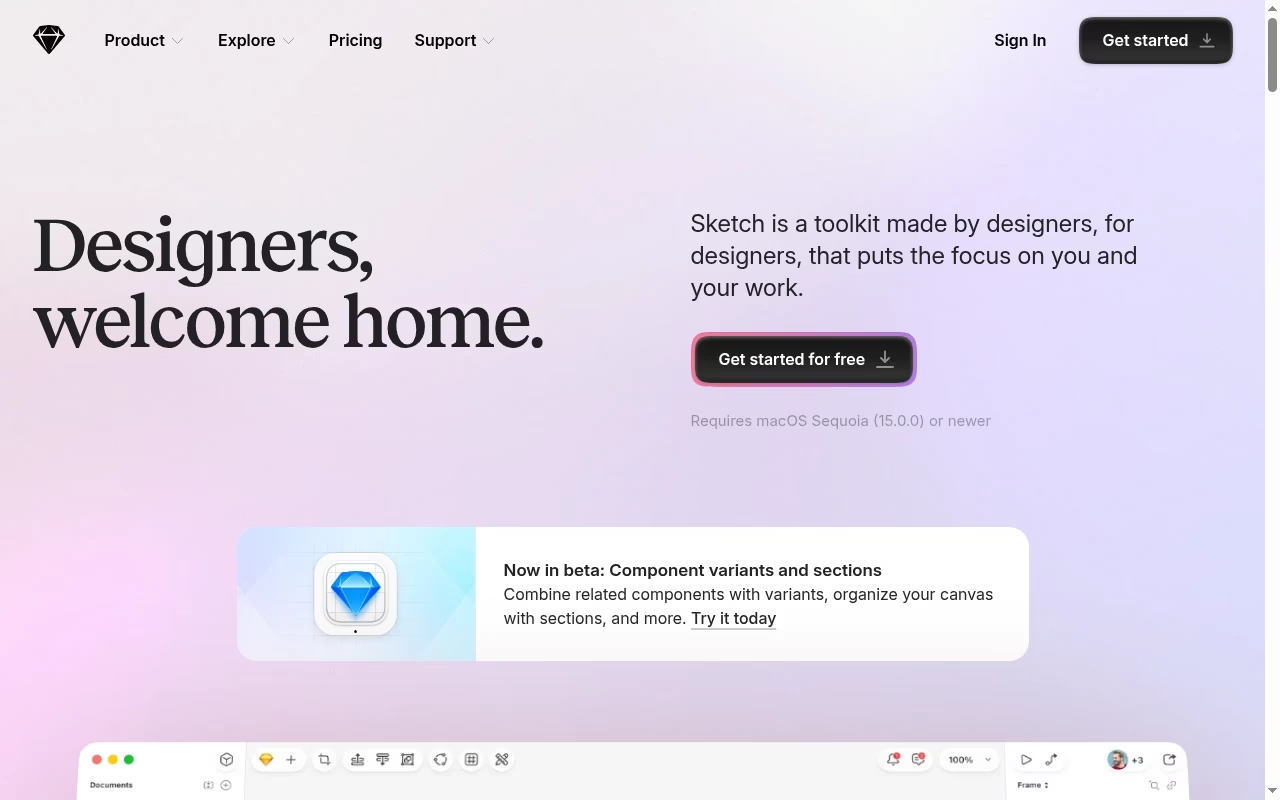
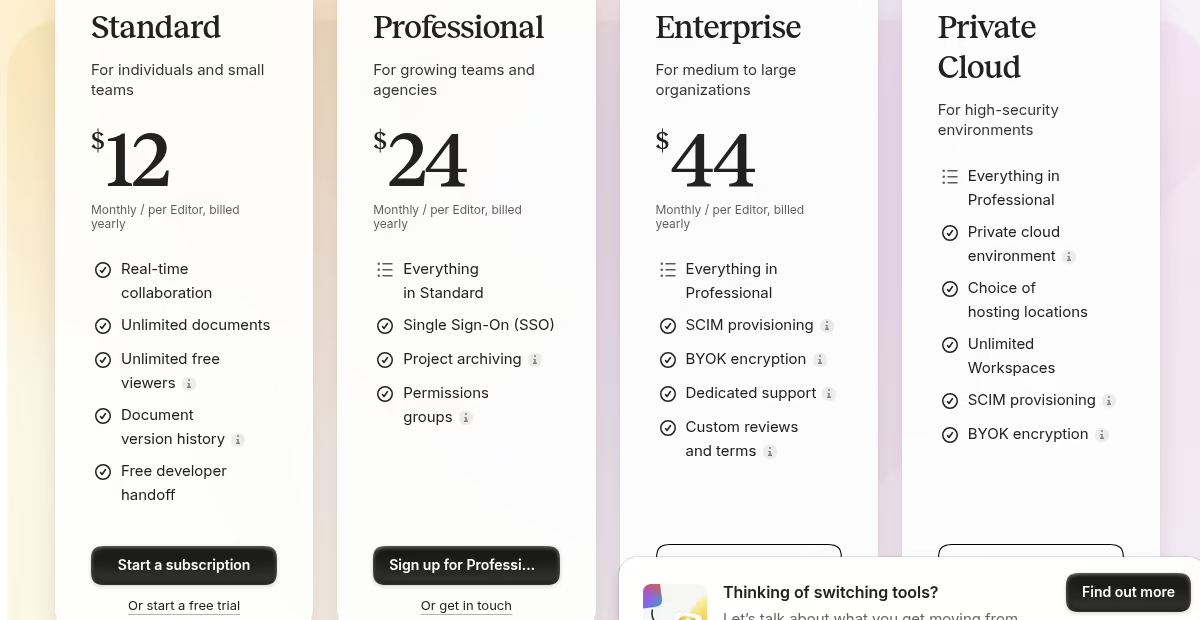
Sketch defined the modern interface-design category and still does vector UI work well on the Mac. Its focus has narrowed to product design, which makes it less general-purpose than the others here. Verified current pricing: Standard is $12 per editor per month billed yearly, Professional $24, Enterprise $44, with a one-time license option that includes a year of updates. A 30-day free trial needs no card.
The symbol and library system remains excellent for icon sets and reusable interface elements, and the web app handles developer handoff without extra seats. Offline work in the native Mac app is reliable in a way browser tools still are not.
Watch out: the editor is Mac-only. Viewers and handoff work in the browser, but every designer who edits needs Apple hardware.
8. Penpot: open-source collaborative product design
Penpot is the open-source answer to collaborative design: browser-based, real-time, and free, with the option to self-host for full control of your files. Its SVG-native approach suits engineering-led teams who want open formats end to end; several mobile app design companies we track have adopted it for exactly that reason.
Because it is free and self-hostable, it is also the easiest way to pilot collaborative design without procurement.
Watch out: the plugin ecosystem and illustration depth are younger than commercial rivals. Evaluate against your real files before migrating a team.
9. Amadine: focused Apple vector drawing
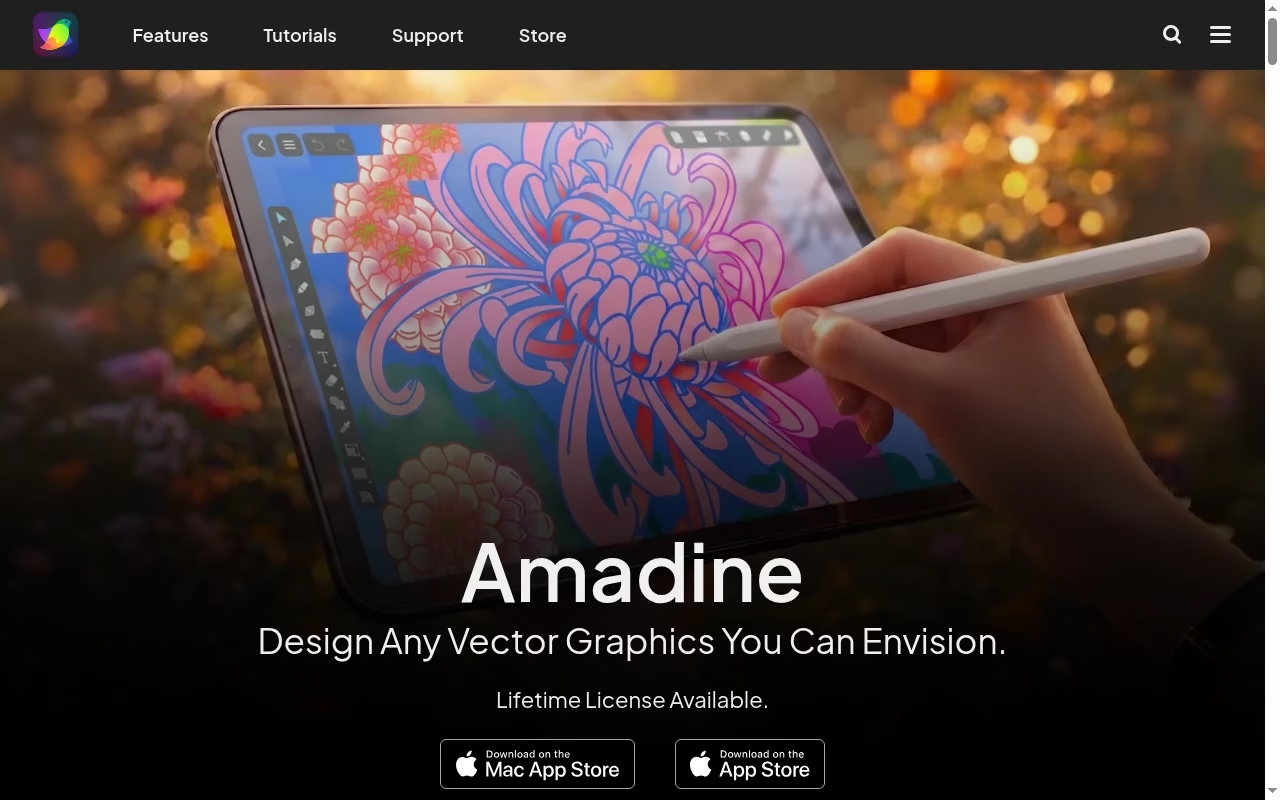
Amadine is a smaller, focused vector editor for Mac, iPad, and iPhone. It covers the essentials – pen, shapes, text on path, layers – at a low one-time price per platform.
Watch out: each platform is licensed separately, and the toolset is deliberately narrower than Affinity or Illustrator.
10. Boxy SVG: SVG editing close to the web
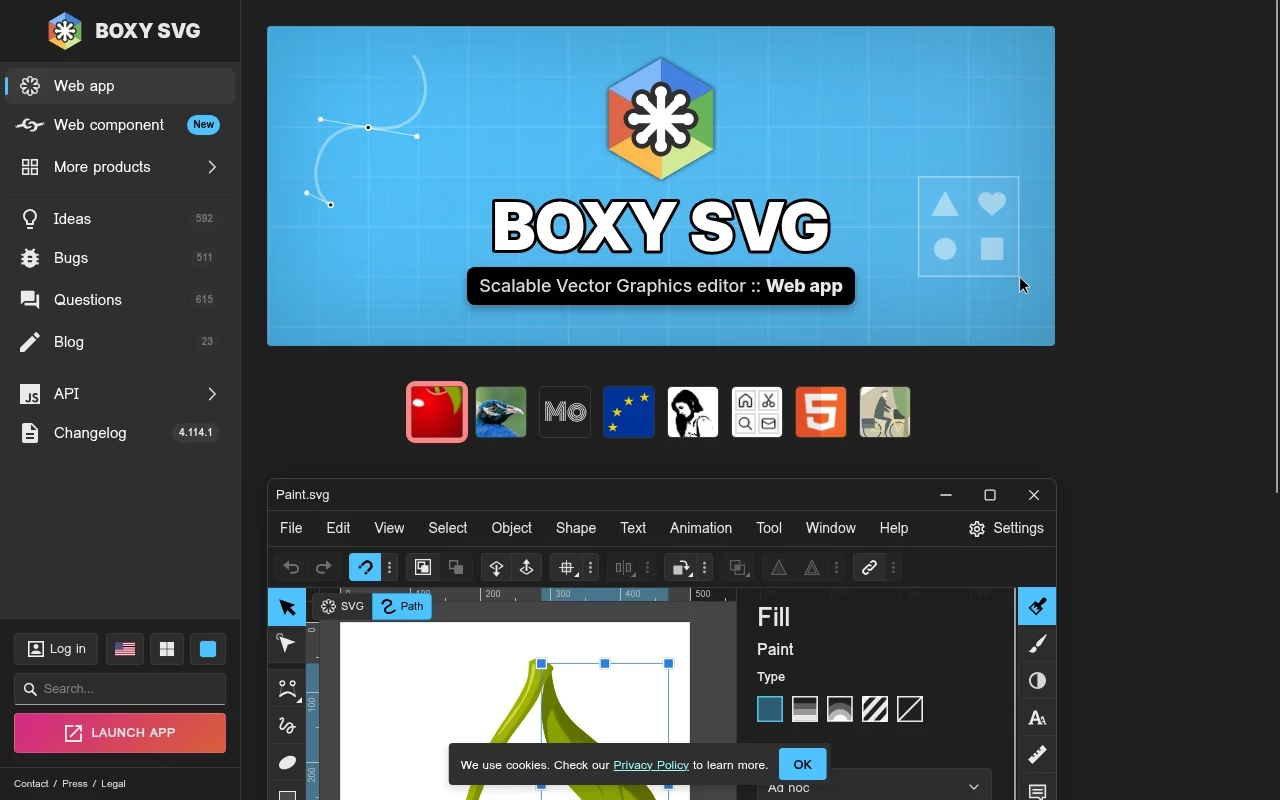
Boxy SVG is the web developer’s vector editor. It treats SVG as a first-class document rather than an export format. If your deliverable is a clean, hand-tweakable SVG for a website, this tool speaks that language natively, at a low price, in the browser or as a desktop app, with panels for editing the underlying markup.
Watch out: single-purpose by design: print prep and CMYK are outside its scope.
11. Vectr: quick cloud-based vector and logo work
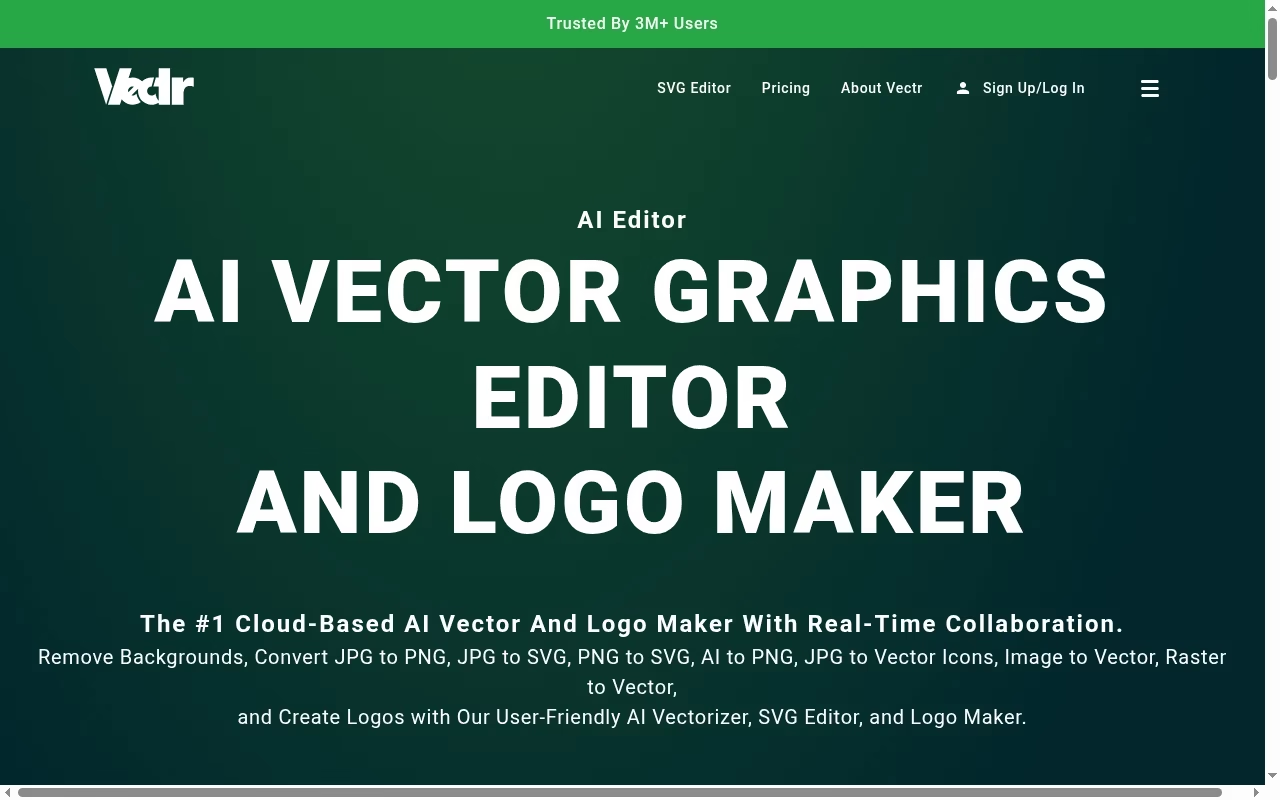
Vectr is a lightweight browser editor for quick vector tasks: a simple logo, a diagram, a social graphic. The learning curve is measured in minutes, which is the point. The free tier covers basic editing with a Premium upgrade for heavier use. For pure social and creator graphics, our creator apps guide covers the wider toolbox.
Watch out: free tiers here often carry watermarks or export limits, so test the exact export you need first.
What the licenses actually mean
Three license shapes dominate this list. Free tools (Affinity, Inkscape, Penpot) cost nothing but ask you to accept their roadmap. Subscriptions (Illustrator, Sketch) stay current while you pay and stop when you do not. One-time licenses (CorelDRAW’s option, Amadine) freeze a version you keep, with updates typically sold separately after the first year.
Match the license to the team. A freelancer doing occasional logos is well served by free or one-time tools. An agency delivering print weekly can justify Illustrator’s subscription on recovered time alone. A product team already paying for Figma or Sketch should exhaust the drawing tools inside those seats before adding anything new.
Do not choose a tool by a screenshot alone
Every vendor hero image looks professional; that is marketing’s job. What separates tools is how they handle your worst file: the logo with four hundred anchor points, the icon set with inconsistent strokes.
Take one real project file and run it through your top two candidates. Note where each tool stumbles, because that is where your weekly frustration will live. Pay attention to the boring parts: zoom speed on large files, how snapping behaves, and whether the export dialog remembers your settings. If the project involves a broader design team, our UI/UX design firms shortlist shows how professional shops structure this tooling.
Prepare a vector file that survives the next workflow
Whatever tool you pick, export discipline is what makes files portable. Agree the convention as a team once, write it down, and stop re-deciding it per project. Convert text to outlines before sending to print, embed or link images deliberately, and keep a clean SVG master for anything destined for the web.
Keep an editable master and never overwrite it with an export. Flattened, outlined, resized exports are one-way doors; the master is the only copy that stays fully editable. Store masters where the next designer can find them, with the fonts and linked images alongside.
Name layers like someone else will inherit the file, because they will. The review and sign-off habits in our screenshot tools guide pair well here.
Run a real export test before moving a team
Before committing a team, run the same export test in your finalists: import a real client file, edit it, export print PDF and web SVG, and open the results downstream. A tool that passes on your files is a safe choice regardless of feature lists.
If you would rather have a partner handle the tooling and training, browse our Apps directory for vetted options.
How we put this list together
Tool details and license shapes come from each vendor’s official site, checked the day this guide was updated; Sketch and Affinity figures were verified live on their pricing pages. Where a vendor’s pricing page could not be read reliably, we describe the license shape instead of inventing a number – the same standard as how we rank companies.
Frequently asked questions
What is the best free vector image software?
Affinity is now free and covers professional vector, pixel, and layout work in one app. Inkscape remains the best free SVG-native editor on Linux and Windows. Penpot is the strongest free option for browser-based team collaboration.
Is Affinity really free now?
Yes. After Canva acquired Serif, the Affinity suite was relaunched as a single free app combining Designer, Photo, and Publisher. Enterprise plans exist for larger organizations, but the core app costs nothing.
Can vector software edit photos?
Not well, and it is not meant to. Photos are raster images. Tools like Affinity and Photoshop handle pixels; vector tools handle paths and shapes. Many real projects need one of each, which is why Affinity bundling both in a free app matters.
Which vector tool should a beginner start with?
Start free: Affinity if you want a full professional environment, Inkscape if you want SVG focus, or Vectr for quick browser work. Learn the pen tool properly – it transfers to every other vector editor you will ever use.
What file format should I ask a designer for?
Ask for the native file (AI, AF, or SVG) plus exports: a press-ready PDF for print and an SVG for the web. If you only take one format, take SVG – it opens in almost every tool on this list and scales to any size.
Is SVG or AI better for logos?
Keep the master in whatever format your tool saves natively, then export both. AI is what many printers and agencies request; SVG is what websites and most modern tools prefer. A good logo survives both formats without visual changes.
Do I still need Illustrator if Affinity is free?
Only if your workflow demands it: agencies exchanging AI files with clients, advanced print color work, or deep Creative Cloud integration. For many independents, Affinity now covers the same ground at no cost. Run the export test on your real files before deciding.


Leave a Reply