

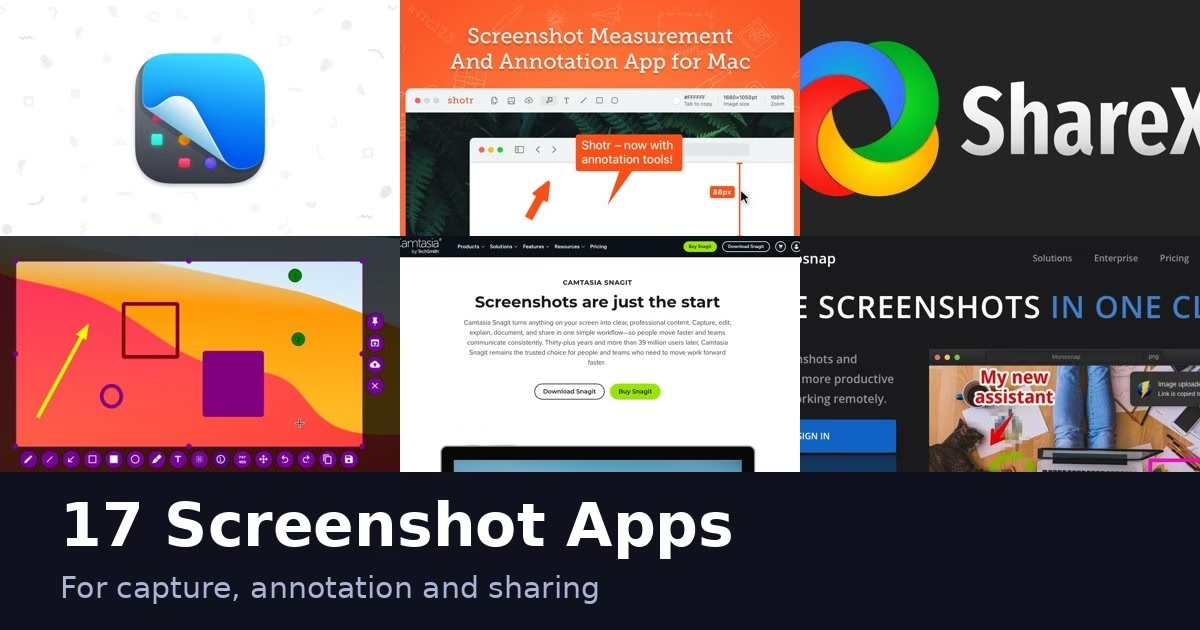
A screenshot app should do three things well: capture what you need, let you mark it up, and get it to the right person. The 17 apps below cover Windows, Mac and Linux, from free open-source tools to paid suites. Descriptions come from each product’s own site, and we have not run hands-on tests. Pricing and platform support change, so check the official page before you download.
If you want to record video rather than capture stills, see our guide on how to screen record on Mac with audio. If you need to pull text out of an image, our list of Android apps to convert images to text covers that.
Quick picks
- Free on Windows: ShareX or Greenshot
- Free and cross-platform: Flameshot
- Mac, polished shareable screenshots: Xnapper
- Built into Windows 11: Snipping Tool
- Browser extension: Nimbus Capture
- Quick capture shared by link: Zight
- Mac, all-in-one: CleanShot X
- Mac, free with OCR and measurement: Shottr
- Documentation and training: Snagit
- Quick share by link: Gyazo or Lightshot
Comparison at a glance
| App | Platforms named on its site | Highlights from its site |
|---|---|---|
| ShareX | Windows | Free, open source, upload destinations |
| Greenshot | Windows (macOS version noted in FAQ) | Free, open source, annotate and obfuscate |
| Flameshot | Cross-platform | Free, open source, built-in annotation |
| CleanShot X | Mac | Annotation, cloud upload, scrolling capture |
| Shottr | Mac | Scrolling capture, OCR, measurement |
| Snagit | Windows, macOS | Capture, edit and share workflow, free trial |
| PicPick | See official site | Image editor, color picker, pixel ruler |
| Screenpresso | Windows | Edge-snapping capture, scrolling parts, video |
| Lightshot | Windows, Mac | Two-click region capture |
| Gyazo | See official site | Instant sharing of screenshots and videos |
| Monosnap | Mac, Windows | Own cloud storage, 30-day full access trial |
| ScreenPal | Mac, Windows | Scrolling screenshot tool |
| Xnapper | Mac | Auto background, one-click redaction, text copy |
| FastStone Capture | See official site | Scrolling capture, recorder, color picker |
| Zight | Mac, Windows, Chrome | Screenshots, video and GIFs shared by link |
| Snipping Tool | Windows 11 | Mouse, touch or pen capture and edit |
| Nimbus Capture | Chrome, Firefox, Edge | Full-page capture, blur, screen recording |
The 17 apps
1. ShareX
ShareX is a free and open source program for Windows that lets you capture or record any area of your screen and share it with a single key press. It can also upload images, text and other file types to many destinations you choose.
Best for: Windows users who want free, highly configurable capture and upload.
2. Greenshot
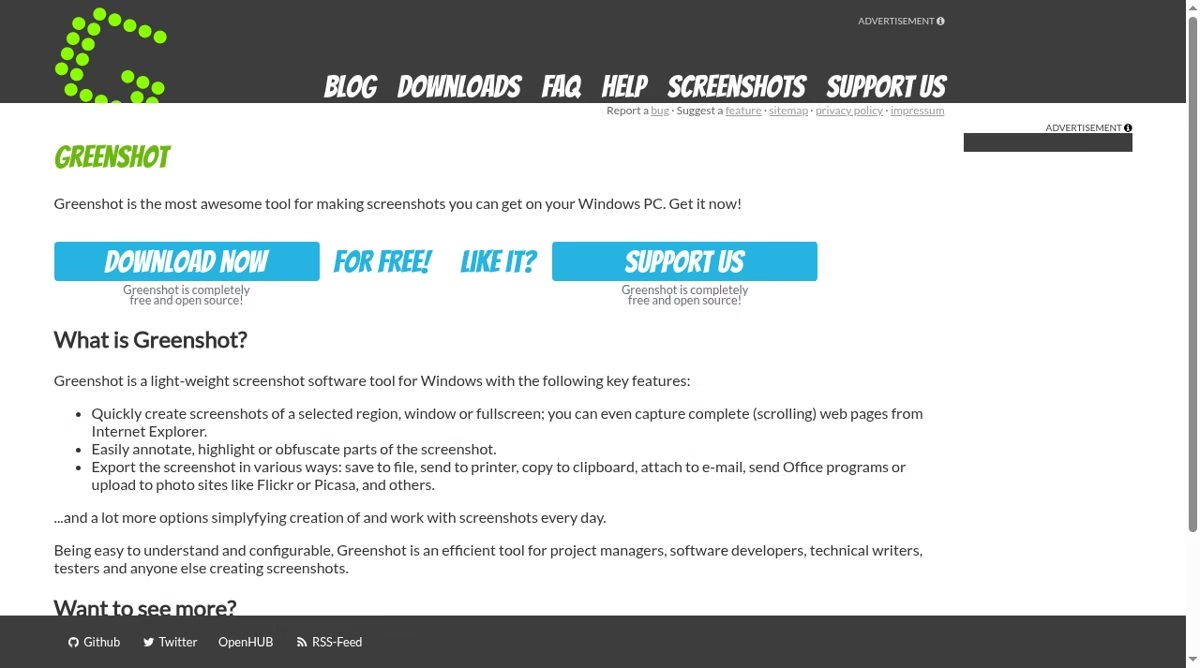
Greenshot is a free, open-source screenshot tool for Windows. Its homepage lists capturing a selected region, a window or the full screen, capturing complete scrolling web pages from Internet Explorer, and annotating, highlighting or obfuscating parts of a screenshot. Its FAQ also points to a separate macOS version.
Best for: Windows users who want a light, free tool with quick annotation.
3. Flameshot
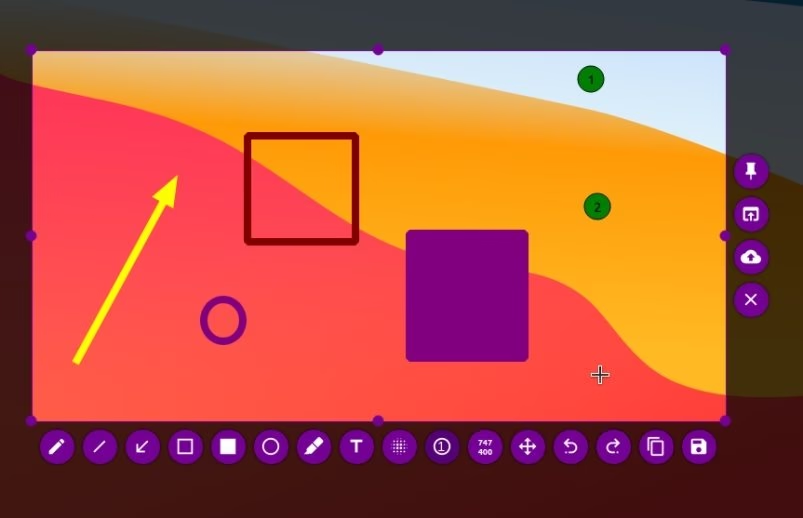
Flameshot is a free, open-source, cross-platform screenshot tool with many built-in features to save you time. Its annotation bar appears right on top of the capture.
Best for: Linux users, and anyone who wants free cross-platform capture with quick markup.
4. CleanShot X
CleanShot X is a screenshot and screen recording app for Mac with a built-in annotation tool, cloud uploading and scrolling capture, according to its feature page.
Best for: Mac users who capture often and want recording and cloud sharing in one app.
5. Shottr
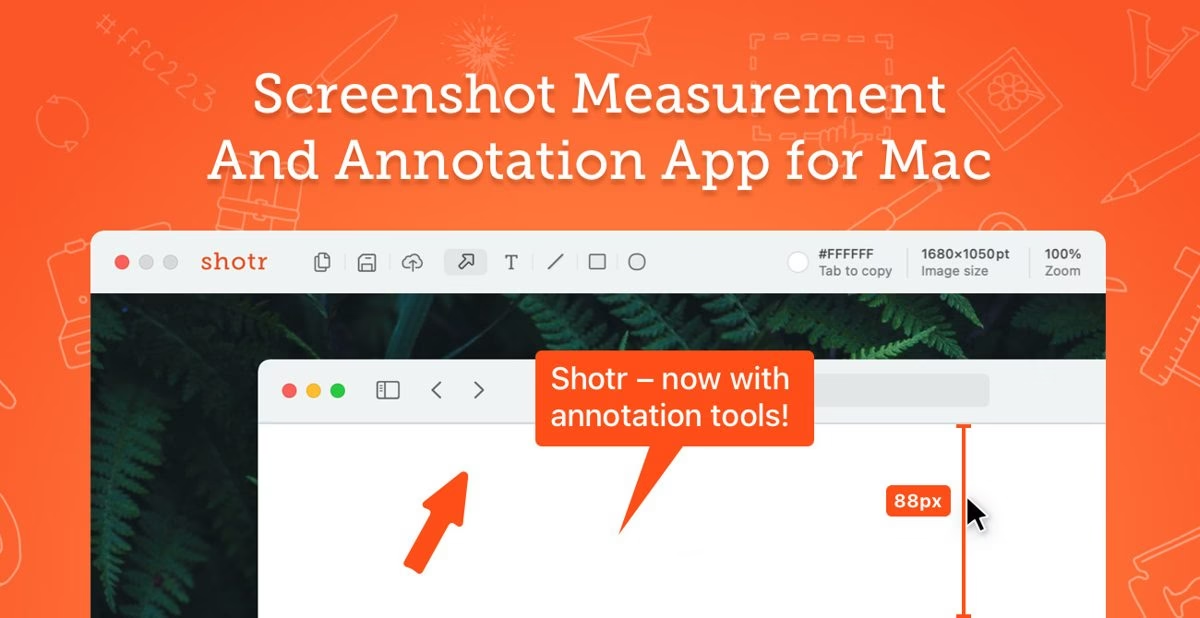
Shottr is a free macOS screenshot app with scrolling screenshots, OCR, annotation and measurement instruments.
Best for: Mac users who need measurement, OCR and annotation without paying for a big suite.
6. Snagit
Snagit, from TechSmith, is built to capture, edit, explain, document and share in one workflow. It runs on Windows and macOS, and the official page offers a free trial.
Best for: support teams, trainers and writers who document steps for other people.
7. PicPick
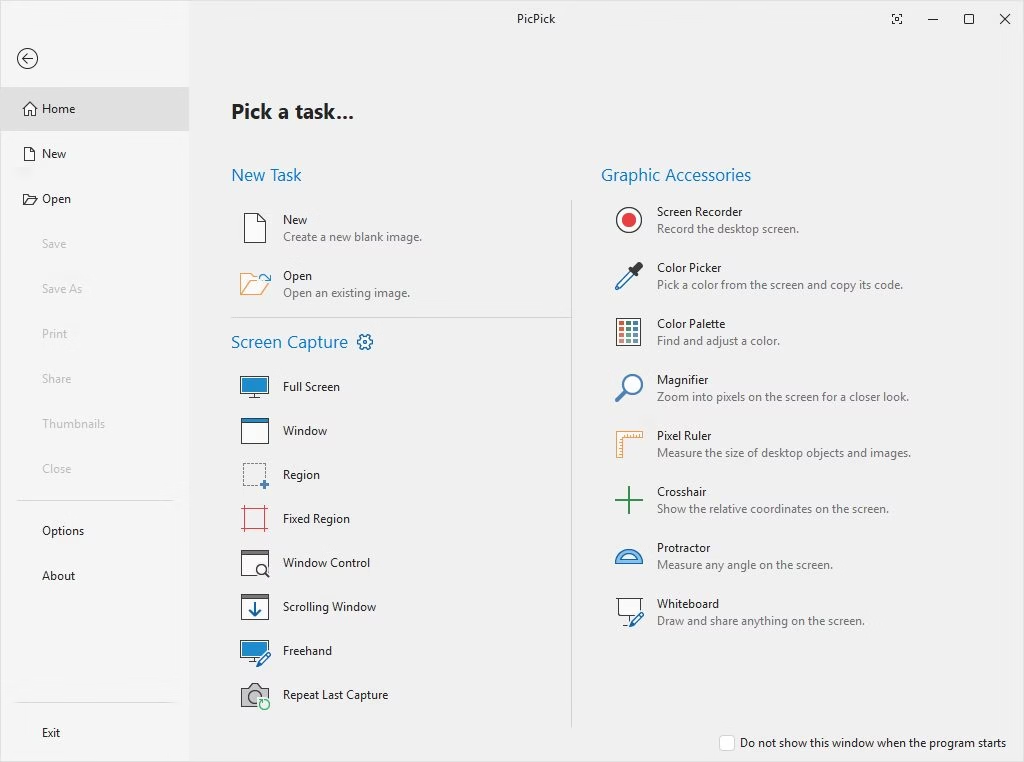
PicPick bundles capture, recording and editing with an image editor, color picker and pixel ruler in one place, according to its site.
Best for: designers and developers who want a color picker and ruler next to the capture tool.
8. Screenpresso
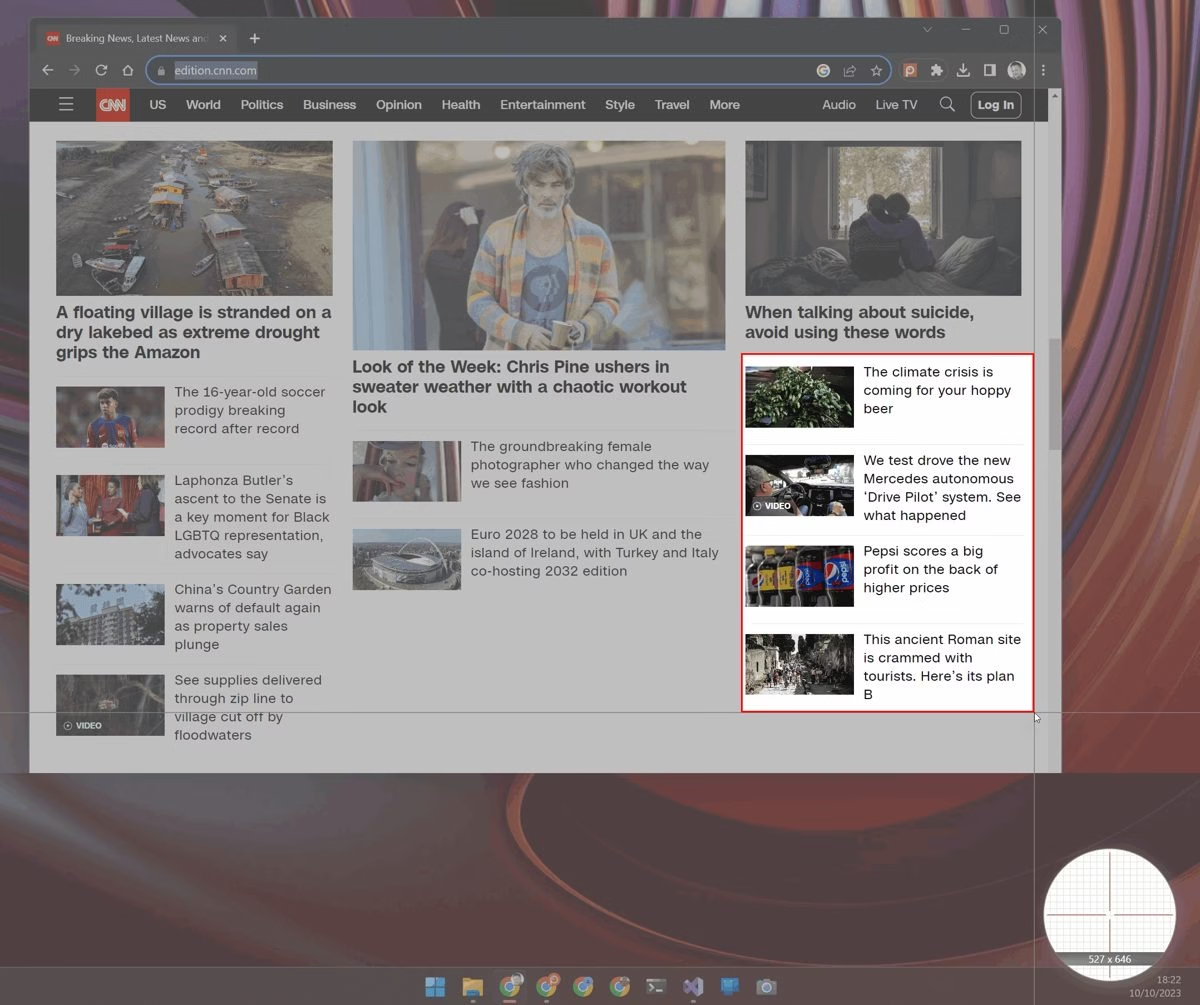
Screenpresso is a Windows tool. Press Print Screen and the cursor becomes a crosshair that highlights the area you can capture, with edge snapping to windows. Its feature tour covers capturing scrolling parts of a page and recording video.
Best for: Windows users who want guided capture, scrolling capture and a built-in workflow.
9. Lightshot
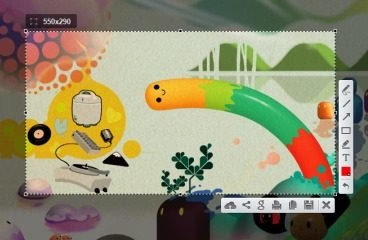
Lightshot is a screenshot tool for Mac and Windows. Its site says it lets you select any area of your desktop and capture it in two clicks, with a simple interface.
Best for: people who only need a fast region capture.
10. Gyazo
Gyazo describes itself as the easiest way to record screenshots and videos you can share instantly. It leans toward quick visual messages for teammates.
Best for: quick sharing of a screenshot or short clip by link.
11. Monosnap
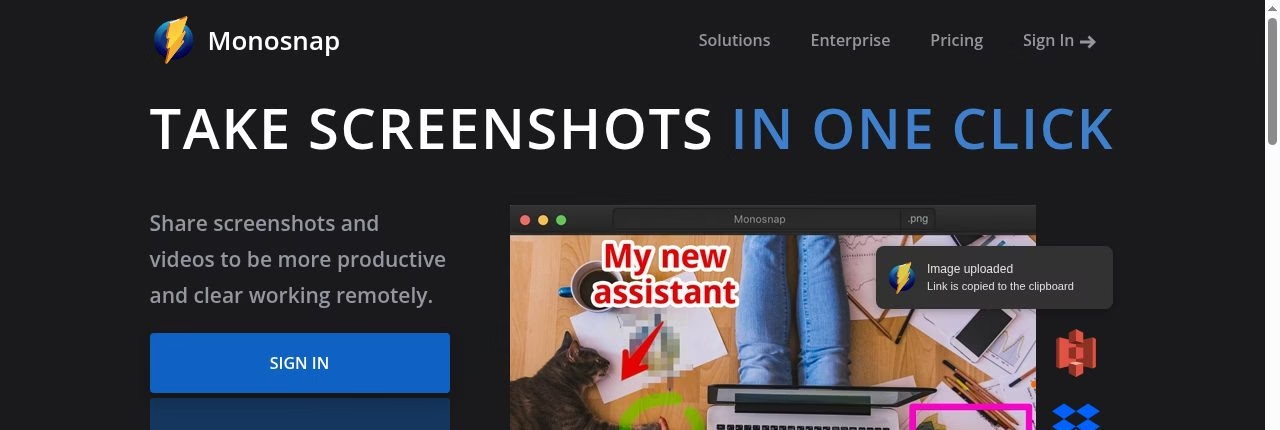
Monosnap is a screenshot tool for Mac and PC with its own cloud storage. You can take screenshots, record video and upload files to the cloud. The homepage advertises a 30-day full access trial.
Best for: people who want annotation and cloud upload in one tool.
12. ScreenPal
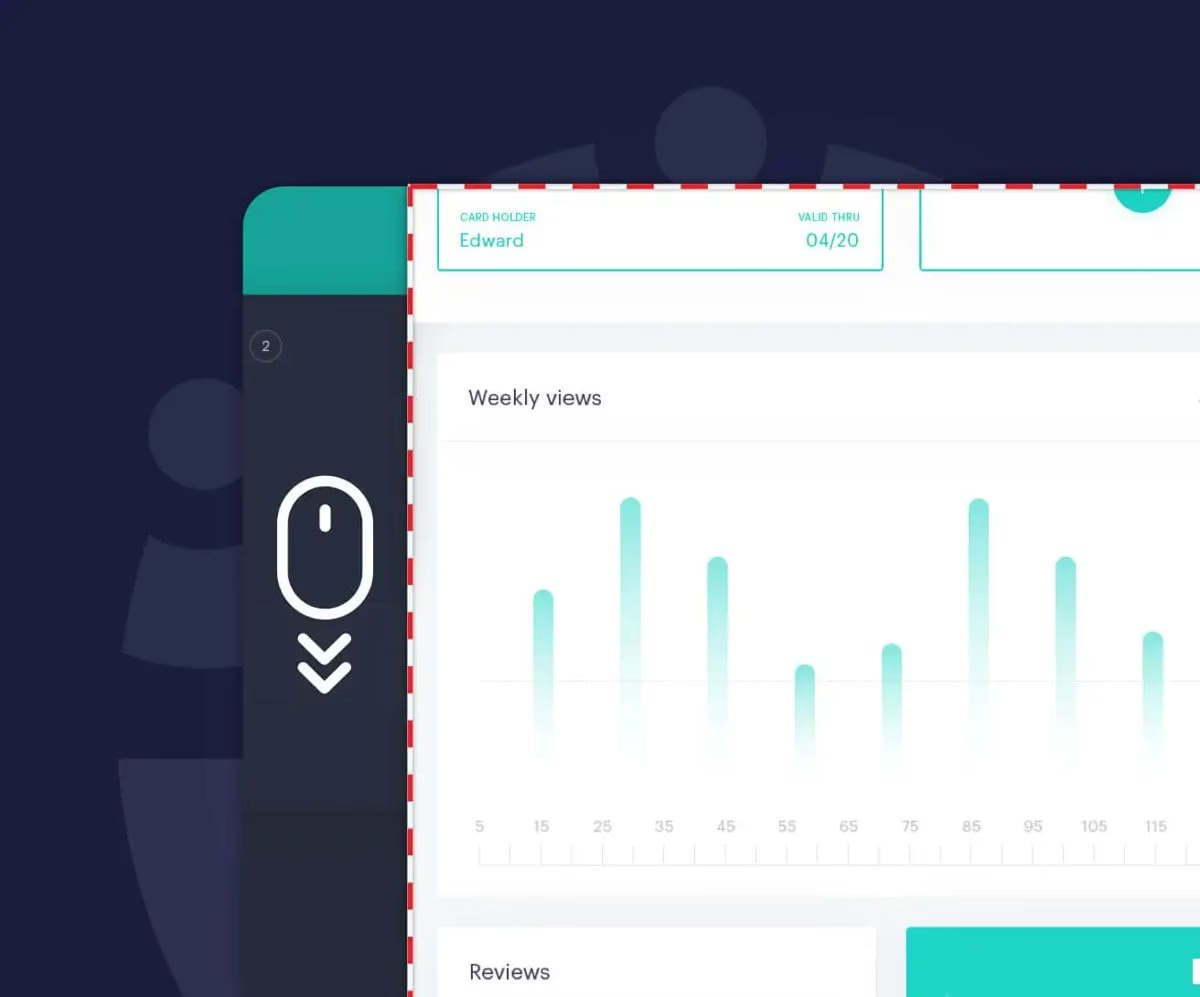
ScreenPal has a scrolling screenshot tool for Mac and Windows to capture large areas that span your visible and non-visible screen, according to its page.
Best for: people who need to capture long pages in one image.
13. Xnapper
Xnapper is a Mac screenshot app that focuses on making captures look good fast. Its site lists automatic balancing, automatic background color, and one-click redaction of sensitive details such as emails, credit card numbers, IP addresses and API keys.
You can also select and copy text from a capture using the built-in macOS vision engine, and add arrows, shapes, text and blur. Check the official page for what the free version includes.
Best for: Mac users who share screenshots publicly and want them to look polished with little effort.
14. FastStone Capture
FastStone Capture official site
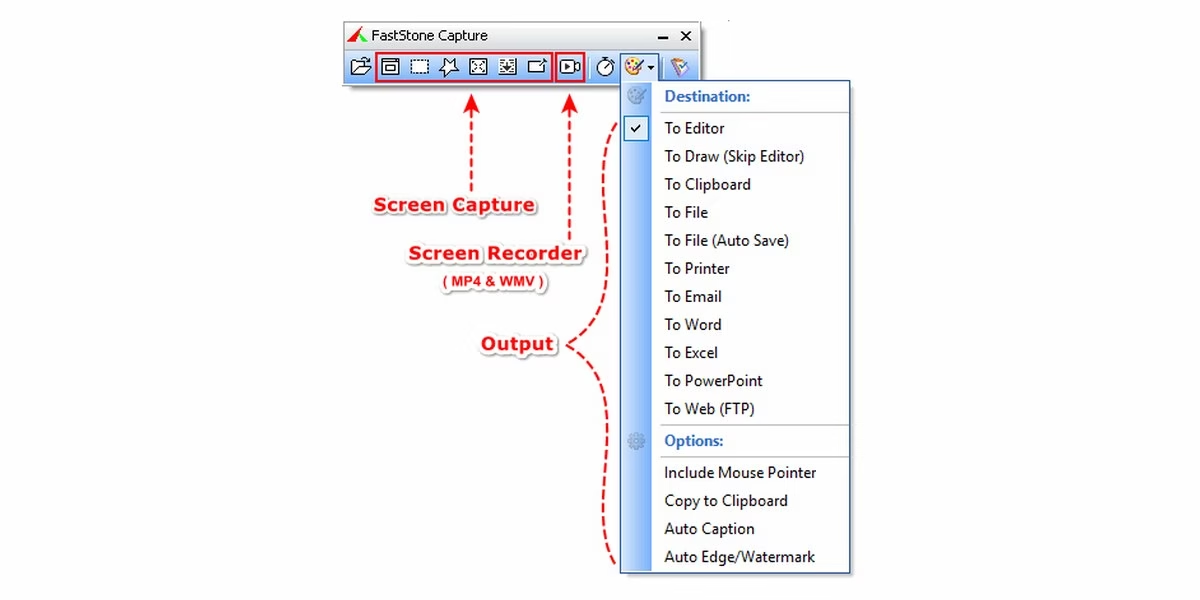
FastStone Capture is a lightweight screen capture tool and screen video recorder. Its page lists capture of windows, objects, menus, the full screen, rectangular, freehand and fixed regions, and scrolling windows or web pages.
It includes annotation, resizing, cropping and watermarking, plus a color picker, screen magnifier and screen crosshair. It lists a 30-day trial and a one-time purchase model on the official page.
Best for: people who want a capture tool and a screen recorder in one small program.
15. Zight

Zight captures what is on your screen as a video recording, a screenshot or an AI guide, and shares it with a secure link. Its site lists apps for Mac, Windows and Chrome, plus screenshot annotation and a GIF maker.
It is built around sending visual messages to teammates and customers rather than saving files locally.
Best for: support, sales and product teams who explain things with a quick capture and a link.
16. Snipping Tool
Snipping Tool is the capture app from Microsoft. Its Microsoft Store page says you can capture images with a mouse, touch or pen, then edit screenshots and share them anywhere.
The store page notes that the new Snipping Tool is available only on Windows 11, and that Windows 10 gets Snip & Sketch instead. It is the zero-install option if you already run Windows 11.
Best for: Windows 11 users who only need quick captures and basic markup.
17. Nimbus Capture
Nimbus Capture is a screenshot and screen recording extension for Chrome, Firefox and Edge. Its page lists capturing a selected area or an entire web page, blurring confidential parts, and uploading images for annotation.
It can also record your screen with a microphone and webcam, then trim, crop and export the video as MP4 or GIF.
Best for: people who work in the browser and want capture and recording as an extension.
Keep private data out of your screenshots
Before you share a capture, check it for names, email addresses, tokens and account numbers. Some tools offer a blur or obfuscate option, but treat blur as a weak guard: pixelation can sometimes be reversed or guessed, so for anything sensitive, cover it with a solid box or crop it out. If an app uploads to a cloud and gives you a link, remember that anyone with the link may be able to open it.
How to choose
- Start with your operating system. ShareX, Greenshot and Screenpresso are Windows tools. CleanShot X and Shottr are Mac tools. Flameshot is cross-platform.
- Decide between local and cloud. If you share by link often, look at Gyazo, Monosnap or CleanShot X. If you want files to stay on your machine, pick a local tool and save to a folder.
- Check long-page capture. Scrolling capture is listed by several apps, but results vary by page, so test the exact pages you capture.
- Match the editor to the job. Arrows and boxes cover most bug reports. Step-by-step guides need more, which is where Snagit fits.
FAQ
What is the best free screenshot app?
ShareX and Greenshot are free for Windows, Flameshot is free and cross-platform, and Shottr is free on macOS, according to their official sites.
Which app captures a scrolling page?
CleanShot X, Shottr, Screenpresso and ScreenPal each list scrolling capture, and Greenshot lists scrolling web pages from Internet Explorer. Test your own pages before you rely on it.
Are shared screenshot links private?
Not by default. A cloud link can usually be opened by anyone who has it, so check each app’s sharing settings before you post one.
Can I copy text from a screenshot?
Shottr lists OCR. For other options, see our list of Android apps that convert images to text.






Leave a Reply