



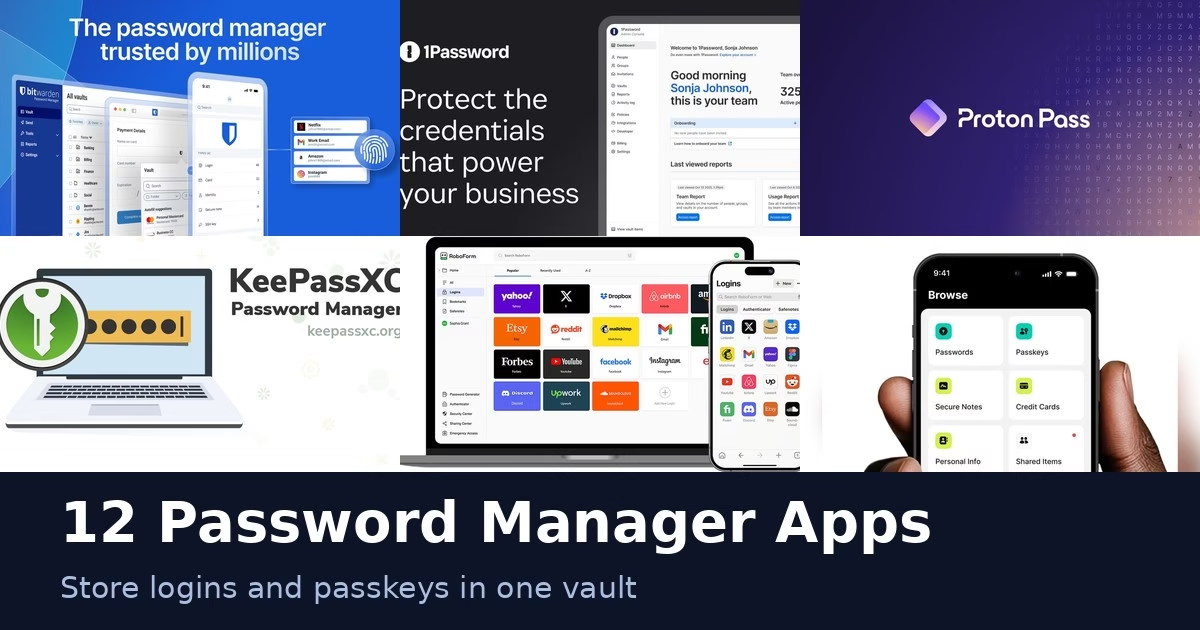
Reusing one password across accounts is risky, and remembering dozens of unique ones is not realistic. A password manager stores your logins, and many now handle passkeys too. The 12 apps below range from open-source and offline options to business platforms with admin controls. Each description comes from the product’s own site, and we have not run hands-on tests or security audits. Features and plans change, so check each official page before you choose.
Quick picks
- Open source: Bitwarden, KeePassXC or Passbolt
- Offline or self-managed vault: KeePassXC or Enpass
- Email aliases built in: Proton Pass
- Passkeys across devices: NordPass or Bitwarden
- Web form filling: RoboForm
- Company and IT teams: 1Password, Dashlane, Keeper, LastPass, Zoho Vault or Passbolt
Comparison at a glance
| App | Best for |
|---|---|
| Bitwarden | Open source vault from solo to enterprise |
| 1Password | Teams that want access control too |
| Dashlane | Credential risk detection for companies |
| Proton Pass | Passwords with built-in email aliases |
| KeePassXC | Offline, self-managed vaults |
| NordPass | Passkeys across many devices |
| Keeper | Password management with privileged access control |
| LastPass | Visibility into app and AI use |
| RoboForm | Logins and web form filling |
| Enpass | Keeping the vault on your own storage |
| Passbolt | Open source sharing for IT teams |
| Zoho Vault | Team password sharing in the Zoho ecosystem |
The 12 apps
1. Bitwarden
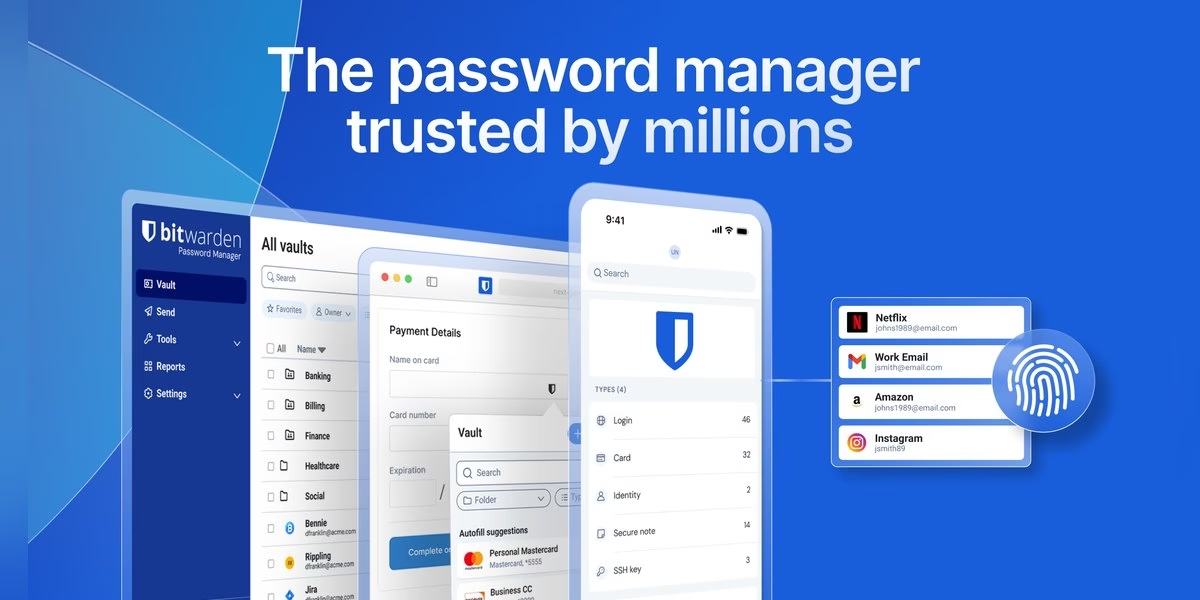
Bitwarden describes itself as the trusted, open source password manager for individuals, teams and enterprises. Its site says you can securely store, share and manage passwords, passkeys and secrets in one end-to-end encrypted vault, with autofill on any device. It can also generate long, unique passwords plus usernames and email aliases, and share items across friends, families and teams with permissions. The homepage says it is free to start, so you can try the basics before deciding on a plan. Because the code is open source, people who care about transparency can inspect how it works. Bitwarden suits individuals, families and businesses that want one tool at different sizes.
Best for: Open source vault from solo to enterprise
2. 1Password
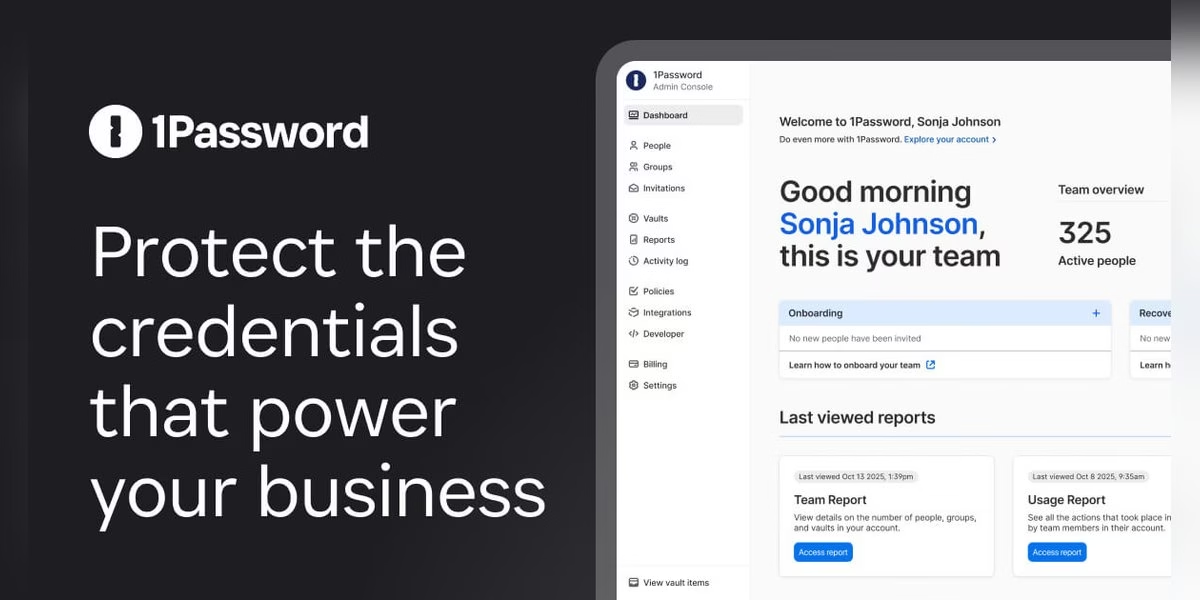
1Password presents itself as one secure platform for people, AI agents and machines. Its site says it protects passwords and secrets, manages app access and helps secure AI tools, and that it is easy to adopt from growing teams to enterprise. The business pages mention discovering and auditing SaaS and AI access, and delivering credentials only to the agents and workloads authorized to receive them. The homepage leans toward companies, so check the official pages for the personal and family options. 1Password suits teams that want password management alongside access control and visibility into which apps and tools staff are using.
Best for: Teams that want access control too
3. Dashlane
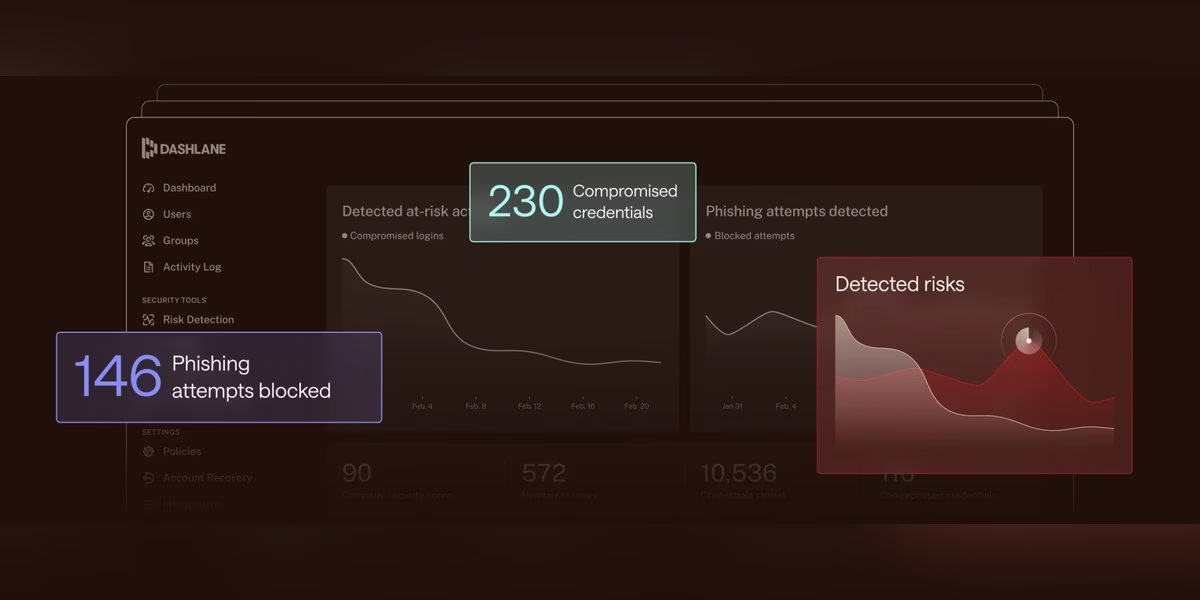
Dashlane describes itself as a password management and credential security platform. Its homepage focuses on Dashlane Omnix, which it says helps you find and fix weak and compromised passwords before a breach. The site lists an encrypted vault for every employee login, secure credential sharing with role-based permissions, detection of weak or compromised credentials in the browser, and real-time phishing risk detection with security training. It also mentions new SIEM integrations and a beta AI advisor. The pages lean toward businesses, so individuals should check the official site for personal plans. Dashlane suits companies that want password management with built-in risk detection.
Best for: Credential risk detection for companies
4. Proton Pass
Proton Pass is described on its site as an end-to-end encrypted, open-source password manager that you can use for free. It stores and autofills passwords, passkeys and credit cards with zero-knowledge encryption, and the site says no one else, not even Proton, can access your information unless you share it. It also offers email aliases that forward to your inbox while hiding your real address, dark web monitoring for leaked credentials, and syncing across devices and browsers. Credential sharing is available for teams. The site says it is trusted by over 100 million people and businesses. Proton Pass suits people who want a password manager with built-in email aliases.
Best for: Passwords with built-in email aliases
5. KeePassXC
KeePassXC calls itself a modern, secure and open-source password manager. Its site says it is free and open source under the GPLv3 license, with no cloud, no ads, no trackers and no subscriptions, and that your passwords stay encrypted in an offline file you can store wherever you like, including private or public cloud storage. It saves usernames, passwords, URLs, attachments and notes, and auto-fills them into your apps. The site says it runs on Windows, macOS and Linux. KeePassXC suits people with high demands for personal data control who are comfortable managing their own file and syncing it themselves.
Best for: Offline, self-managed vaults
6. NordPass
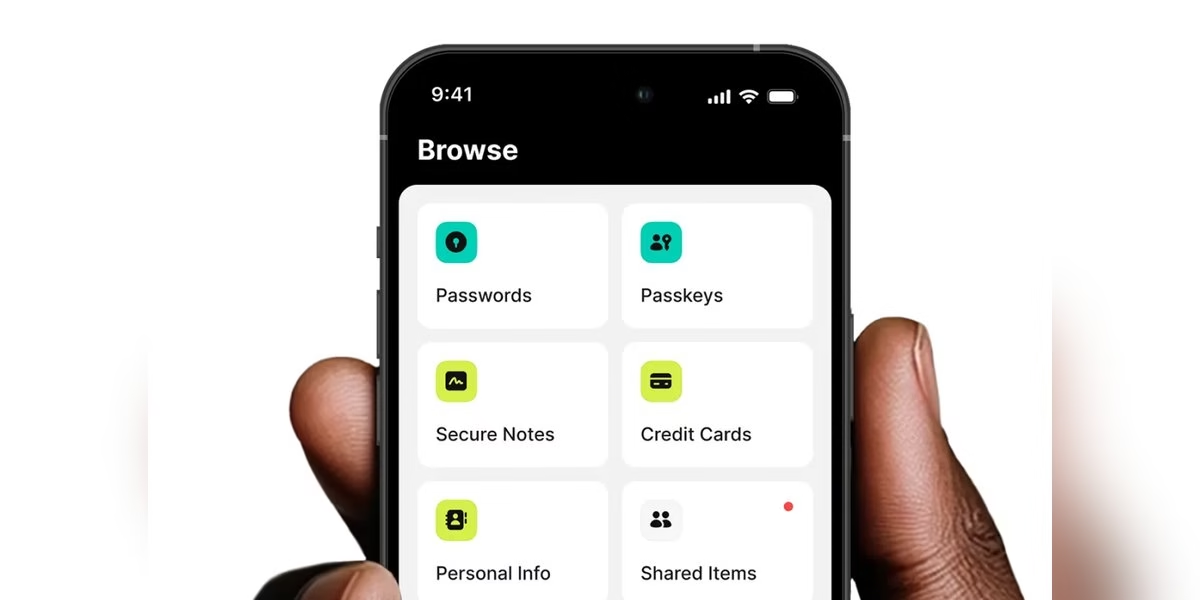
NordPass is a password manager with separate business and personal offerings. Its site says businesses can manage employee passwords, passkeys and other sensitive information in one place, with dark web alerts when company credentials appear, access controls and strong password rules. For personal use, it lets you store and access passwords, credit cards and documents from anywhere. A passkeys page says NordPass lets you create, use and share passkeys across devices, and that it is available as a mobile app, browser extension, web vault and desktop app. NordPass suits people and teams who want a mainstream password manager with passkey support across devices.
Best for: Passkeys across many devices
7. Keeper
Keeper Security presents itself as an identity security platform for humans, machines and AI agents. Its homepage describes a unified control plane for privileged access, secrets, remote connections, endpoints and databases in a single zero-trust platform, with just-in-time access, session control and audit trails. It says it is FedRAMP High certified and was recognized in a Gartner Magic Quadrant for Privileged Access Management. The pages focus on organizations, so check the official site for how the individual password manager fits in. Keeper suits larger companies and IT teams that need password management together with privileged access control and compliance features.
Best for: Password management with privileged access control
8. LastPass
LastPass describes itself as a password manager that secures every login and adds shadow IT visibility and AI governance across the SaaS and AI tools employees use. Its site says you can generate strong passwords, store them in an encrypted vault and control access across 1,200+ apps. A newer Business Max tier is aimed at showing which AI tools staff use and how they log in, including when they sign up with a personal email, and it can report on approved and unapproved apps. LastPass suits businesses that want a familiar password manager with extra visibility into app and AI usage. Check the official site for individual options.
Best for: Visibility into app and AI use
9. RoboForm
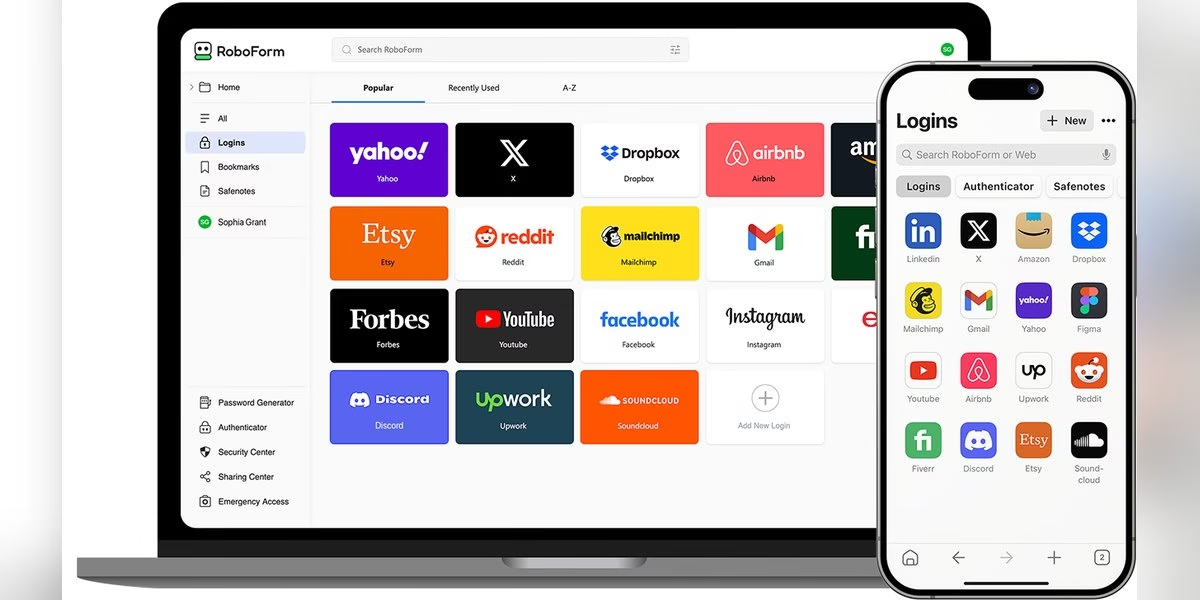
RoboForm calls itself a seamless password manager and form filling solution. Its site says it creates strong, unique passwords for each site and captures them automatically, then logs you in and fills online forms with one click. It lists data breach monitoring for up to five email addresses, secure password sharing with trusted contacts, multiple two-factor options including passkeys, trusted devices and hardware security keys, and unlocking with a passkey verified by face, fingerprint or device PIN. Form filling is a strength if you often enter addresses and payment details. RoboForm suits people who want logins and web forms handled in one tool.
Best for: Logins and web form filling
10. Enpass
Enpass says its difference is data sovereignty. Its site explains that your encrypted vault stays under your control and never on Enpass servers, so you choose where passwords and passkeys are stored and synced, such as your own personal or business cloud, or even offline. It lists the usual core features, including password generation, autofill, passkeys and end-to-end encryption, plus zero-knowledge design and offline access. For businesses, the site says vaults can be stored in a team’s existing Microsoft 365 or Google Workspace. Enpass suits people and companies that want a password manager without a central vault on the vendor’s servers.
Best for: Keeping the vault on your own storage
11. Passbolt
Passbolt is an open source credential platform for security-conscious IT teams. Its site says it is simple enough for company-wide adoption and works for a team of five or an organisation of 5,000, and describes itself as sovereign and adaptable. The homepage lists customers that include universities, public bodies and engineering companies, mostly in Europe. Another page describes passwords managed and shared securely with a focus on collaboration, compliance and control. Passbolt is built around teams sharing credentials rather than single users, so it is a different fit from a personal vault. It suits IT teams that want an open source tool they can audit.
Best for: Open source sharing for IT teams
12. Zoho Vault
Zoho Vault is a password and passkey manager for teams and enterprises. Its site says it generates unique passwords protected by AES-256 encryption on a zero-knowledge, SOC 2-certified platform. You can share passwords with granular access levels, set time-based visibility, keep an eye on password health, and sign in with a thumbprint, autofill or single sign-on. The site also says you can store and share secrets, passkeys and tokens. It mentions being named a Leader and Fast Mover in a 2025 GigaOm Radar for enterprise password management. Zoho Vault suits teams, especially those already using other Zoho products, that want controlled password sharing.
Best for: Team password sharing in the Zoho ecosystem
How to choose
- Decide who it is for. A single user, a family and a company need different features and admin controls.
- Decide where the vault lives. Some apps store it in their cloud, while KeePassXC and Enpass describe offline or self-chosen storage.
- Check passkey support. If you use passkeys, confirm the app stores and syncs them on your devices.
- Read the security documentation. Look at encryption details, independent audits and how recovery works before you move your data.
- Test with a few accounts first. Import a handful of logins and check autofill on the sites you use most.
FAQ
What is a password manager?
It is an app that stores your logins in an encrypted vault, generates strong passwords and fills them in for you. Many also store passkeys.
Which password managers are open source?
Bitwarden, Proton Pass, KeePassXC and Passbolt describe themselves as open source on their official sites.
Which options can keep my vault offline?
KeePassXC says your data stays in an offline encrypted file, and Enpass says you can choose where your vault is stored, including offline.
Are prices listed here?
No. Plans change, so read the current details on each official site.
Use passwords alongside a private workspace
A password manager and a notes app solve different jobs. Use the vault for credentials, and compare our Notion alternatives for non-secret notes and shared documentation. Do not copy passwords, recovery codes or private keys into a shared note just because it is convenient. If a team needs to assign a rollout, our Trello alternatives guide compares project boards; keep the credentials themselves outside the task cards.




Leave a Reply