


Short answer: to share a Google Calendar without exposing private events, share it with the permission “See only free/busy (hide details)”, or mark the sensitive events as Private. People see a block labeled Busy instead of title, place or description.
Google says sharing settings can only be changed from a computer, not the mobile app, and that a few details can still show when you invite guests or book rooms.
This is worth getting right. Calendar entries quietly reveal where you go, who you meet and when you are away from home – exactly the raw material behind many data privacy breaches. Ten minutes of setup closes most of that exposure.
How this guide was checked
It follows Google’s own help pages on sharing, event visibility and public calendars, re-read on 17 October 2026. I did not walk through these steps in a personal account, and no screenshots of anyone’s real calendar appear here – the diagrams are my own and summarize Google’s documentation.
What “private” means in Google Calendar
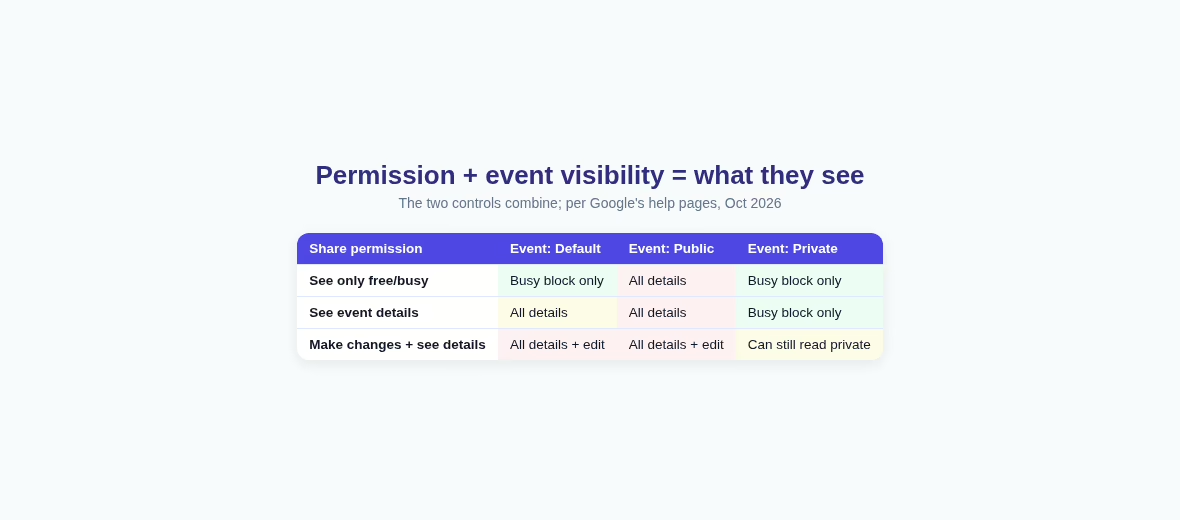
Two separate controls decide what another person sees. The first is the permission you give them when you share the whole calendar. The second is the visibility of each event. They combine, and the safest result comes from setting both on purpose. Most accidents happen when one of the two is left at its default.
If you do not share your calendar or make it public, Google says your events are not shared and are only visible to you. Sharing is always opt-in, per calendar, per person.
None of these settings helps if the account itself is easy to open. Before tuning permissions, make sure the Google account has a strong unique password – a password manager makes that painless. A calendar that shows everything to a stranger because the account was compromised defeats every setting in this guide. Turn on two-step verification while you are at it, and review which devices are signed in.
Step by step: share a calendar with one person
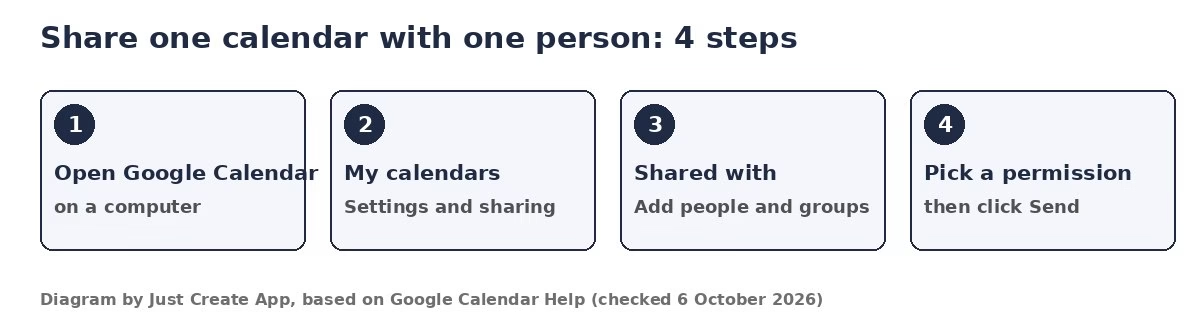
- On a computer, open Google Calendar.
- On the left, open My calendars, then click More next to the calendar and choose Settings and sharing.
- On the left, click Shared with, then Add people and groups.
- Enter the email address of the person or Google group.
- Choose a permission, then click Send.
The person gets an email and must click the link in it to add your calendar. Until they do, nothing is visible to them. If they cannot find it, Google suggests checking the address, looking in spam or trash, searching their email for yours, or removing them from the sharing list and adding them again. Also confirm they are signed in with the exact account you shared with.
Pending and forgotten shares are worth pruning. Old invites can sit on accounts nobody uses, and since Google removes data from inactive accounts, a share you forgot about can end up pointing somewhere you did not intend. Once the person accepts, their copy of your calendar stays in sync with yours automatically – changes you make later appear on their side too.
Pick the right permission
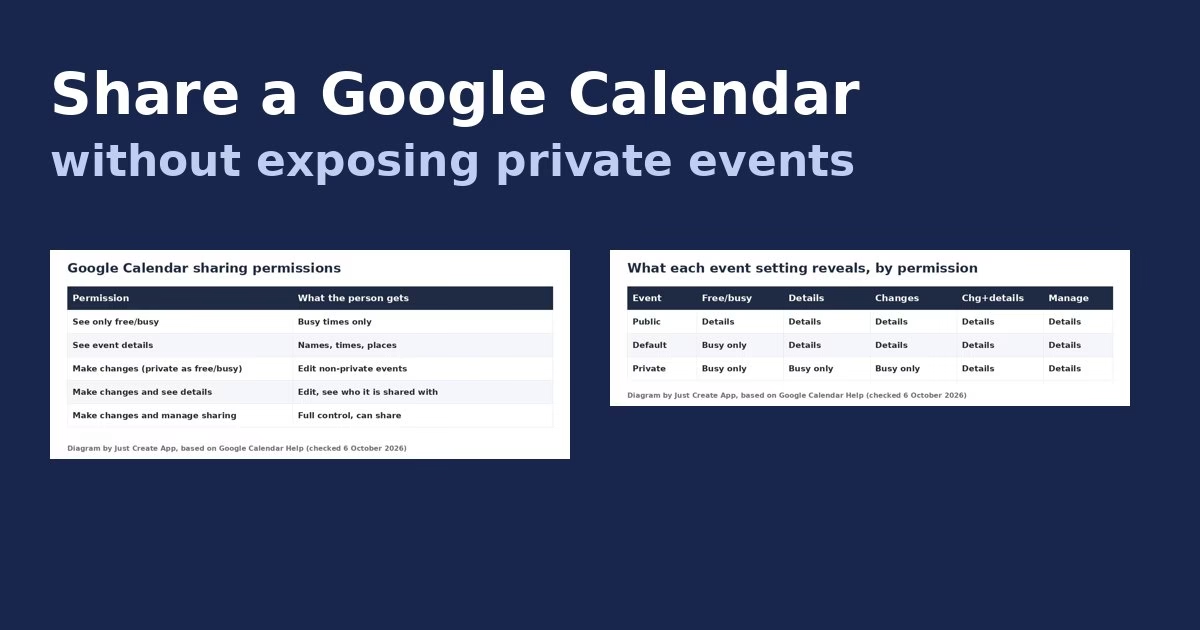
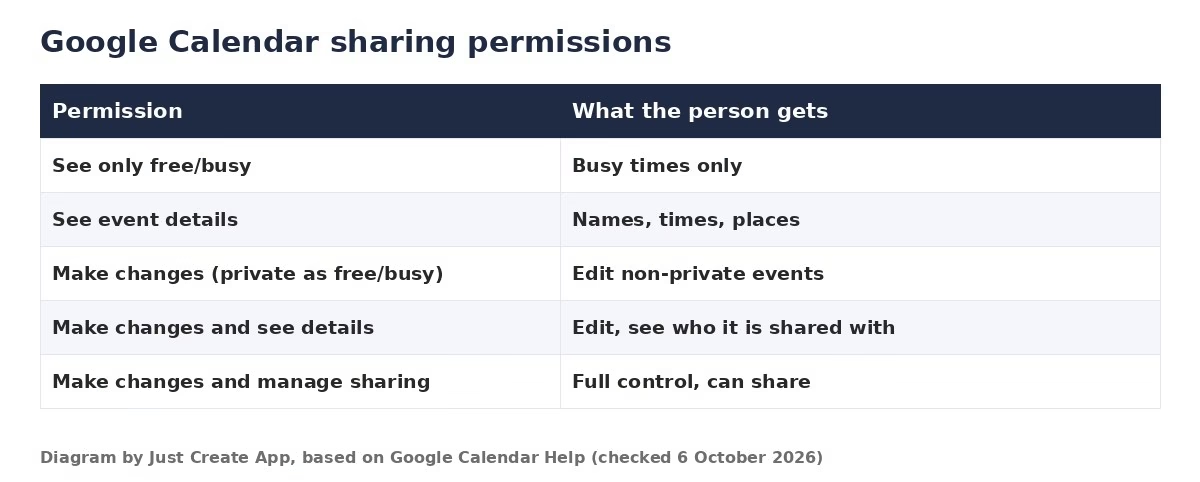
Google lists five permission levels. To keep details private, the first one is the one you want. The two “Make changes and see…” levels deserve extra care: they let the other person edit your events and see who else the calendar is shared with, which is more than most people mean to grant.
| Permission | What the person can do |
|---|---|
| See only free/busy (hide details) | Sees when you are busy. Cannot see names or details of events or tasks. |
| See event details | Sees names, times, places and descriptions. |
| Make changes (see private events as free/busy) | Can edit non-private events but not private ones. Private events marked Busy show as busy blocks without details. |
| Make changes and see event details | Can edit events and see who else the calendar is shared with. |
| Make changes and manage sharing | Full control of events and tasks with a start and end time, and can share the calendar with others. |
Default to the strictest level that still works for the relationship, and raise it only when someone genuinely needs more. That least-privilege habit is the same thinking behind good privacy questions for vendors: every share is a small grant of trust, so make each one deliberately. You can always raise a permission later when someone asks; lowering it after a leak is too late.
Hide single events with Private visibility
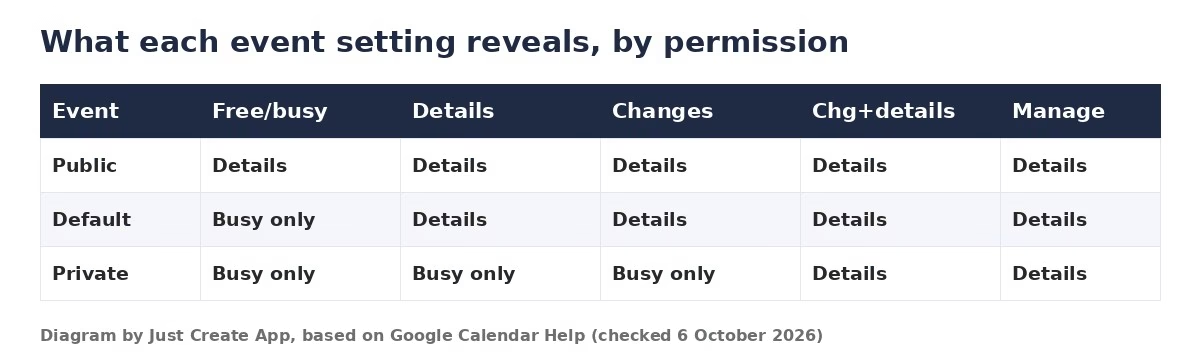
Sometimes you want a colleague to see details of most events but not a doctor visit or a performance review. For that, set the individual event to Private.
Google describes three settings: Default visibility, which follows the calendar’s sharing settings; Public, where anyone with access to your calendar can see all details of that event even if the calendar is otherwise free/busy only; and Private, which hides details from everyone except you and people with “Make changes and see event details” or higher. Others see a block labeled Busy.
On a computer, open the event. Click Edit event, then the visibility setting (it shows Default visibility until you change it). Choose Private and click Save.
Tasks work the same way, with one catch: Google says tasks without a start and end time are always private and never visible to others. If tasks are the main thing you manage rather than events, a dedicated task app handles them with more structure – our TickTick vs Todoist comparison goes through the two most popular ones. For events that only need a busy block, Private visibility is enough on its own.
What can still show on a private event
Google warns that even on a private event, the start time, end time and event creator can show if you invite guests or book rooms.
Two related points: on Default visibility, details can show on an invitee’s shared calendar, and on the calendar of any meeting room or resource you book.
If a meeting is sensitive, mark it Private and think about who you invite and which rooms you book.
Public calendars and links
You can make a calendar public so anyone can check it: Google says people can find it on a website or in search results, use it with other apps and subscribe to it. Google’s tip is to select “See only free/busy (hide details)” unless you want everyone to read event details.
To stop sharing publicly, uncheck “Make available to public” under Access permissions for events. Google says the change usually takes a few minutes but may take up to 4 hours.
A calendar with a lot of personal events is a poor candidate for public sharing. Google suggests keeping a separate public calendar for events you want everyone to see and a private one only you can check. Most calendar leaks are not technical failures – they are sharing habits, which is why the human factor in cybersecurity matters more than any single toggle.

Work and school accounts
Google says that for a work or school calendar, your administrator decides whether you can share it, and Workspace administrators may restrict sharing settings. If an option is missing or greyed out, that is the first thing to ask about – do not look for workarounds. On a managed account, assume the admin can already see more than any sharing setting shows you.
A personal calendar you create yourself is usually the easier way to share events with someone outside your company, since you control it end to end. If your real goal is coordinating shifts or on-call rotations rather than sharing one personal calendar, that is a different tool category; employee scheduling software is built for exactly that. Either way, keep personal events on a personal calendar you control end to end, so a policy change at work never exposes them.
Stop sharing or tighten access later
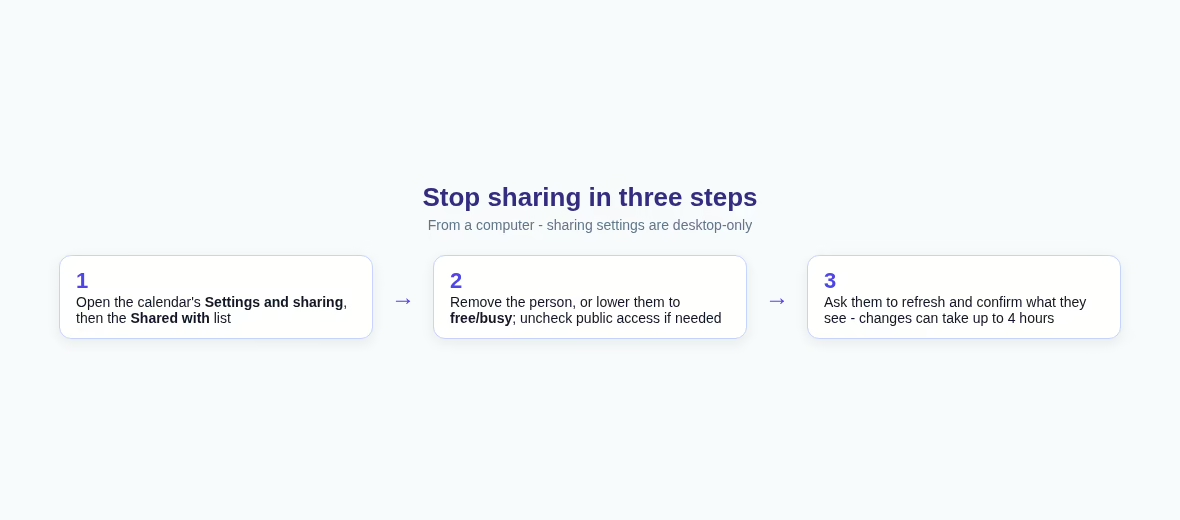
Google says you can stop sharing your calendar whenever you want. Return to Settings and sharing, open the Shared with list and remove the person, or lower their permission to free/busy. If you shared with a public link by mistake, uncheck public access as described above.
Permissions outlive relationships – people change jobs, projects and roles, and the access you granted last year still works. Before big changes, export your calendar data so you have a copy. Regular exports are the small-scale version of the discipline behind choosing a backup strategy: boring until the day they save you. Google Takeout exports calendars in a standard format you can import elsewhere, and keeping one offline copy means a mistaken unshare never turns into lost history.
After any change, ask the other person to refresh their calendar and check what they can see.
After any change, ask the other person to refresh their calendar and check what they can see. Google says removing public access usually takes a few minutes but may take up to 4 hours, so do not assume an immediate result means the setting failed. When in doubt, remove access completely first, then re-add the person at the lower permission once the change has settled.
A quick safety checklist
- Share with free/busy only unless the person needs details.
- Mark sensitive events Private.
- Check events that include guests or rooms.
- Avoid public sharing for calendars with personal events.
- Review the Shared with list every few months and remove people who no longer need access.
- Share only the calendar the person actually needs, not your whole account.
- Keep a separate calendar for anything public or widely shared.
- Protect the Google account itself: a strong unique password from a password manager beats any calendar setting, and a virtual number for account recovery keeps your real number out of the loop.
If you share a calendar so people can book time with you, you may prefer a booking page instead. See our guide to Calendly alternatives, which includes Google Calendar’s own appointment schedules. More guides like this one live in the Apps section.
Common sharing situations and the setting to use
The right permission depends on who you are sharing with and why. These recommendations apply the five permission levels Google lists on its help page, checked on 17 October 2026. Menu labels can change, so follow the wording in your own calendar rather than any screenshot.

A partner or family member
If you coordinate daily plans, full details help with school runs and dinners. If you only want them to avoid booking over you, free/busy is enough. A separate shared family calendar keeps your personal appointments out of it – and if you want shared tasks beside that calendar, our TickTick vs Todoist comparison covers the two best options.
A manager or colleague
Colleagues often only need to know when you are available. Start with free/busy, then mark any single meeting you want to show in detail. An assistant who books on your behalf needs “Make changes and see event details” – note that level also shows them who else the calendar is shared with, so treat it as real trust, not a convenience. For most colleague relationships, free/busy plus the occasional Public event covers everything.
A client, recruiter or outsider
Your work calendar may include internal meetings, names and notes an outsider should never see. For booking time, a page from our Calendly alternatives guide is cleaner than sharing. Recruiters handle calendars at scale through applicant tracking software, and privacy in recruiting is its own growing topic – do not hand over more than your availability.
Sharing with a group
Google lets you add a Google group instead of individuals. Everyone in the group gets the permission you choose, including people who join later – review membership when you review sharing. For shared planning beyond calendars, Airtable vs Google Sheets compares the two tools teams usually reach for.
Overflow sharing
If you share many calendars with many people, a dedicated calendar for the events you want others to see beats hiding events one by one. Put shared events there and keep everything else on your main calendar – Google makes the same suggestion for public calendars.
Troubleshooting: when sharing does not work as expected
Most sharing problems come from a missed email, a missing option or a delay. Work through these checks in order.
The other person cannot see your calendar
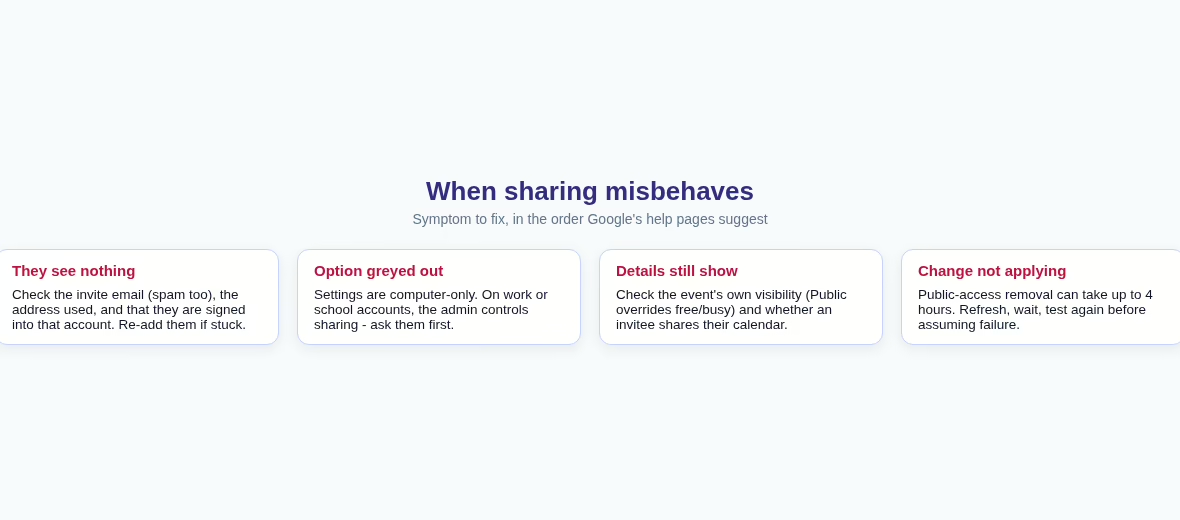
This is the most common failure and the least technical one. Google says the person gets an email – until they click the link, they see nothing at all. Google says the person gets an email and must click the link in it to add your calendar. If they cannot find it, check that you used the right email address, ask them to look in spam or trash, ask them to search their email for yours, or remove them from the sharing list and add them again. Also confirm they are signed in with the account you shared with.
The sharing option is missing or greyed out
Sharing settings can only be changed from a computer, not the mobile app. On a work or school account, your administrator decides whether you can share. If the option does not appear on a computer, contact your administrator – and if the admin says no, sanctioned scheduling software is the safer route than a workaround.
Details are still visible after you chose free/busy
Check the event itself. An event set to Public shows all its details to anyone with access, even on a free/busy calendar. Open the event, check its visibility, and change it to Default or Private. Also look at the guests: if an invitee has shared their own calendar, the event may show there.
A change has not taken effect yet
Google says removing public access usually takes a few minutes but may take up to 4 hours. Ask the other person to refresh their calendar and check what they can see. If you changed a permission and the old view persists, wait and test again before you assume it failed.
Check what others actually see
The most reliable test is to ask a trusted person to look at your calendar and describe exactly what they can see – titles, times, nothing but Busy blocks. Do this after you change settings and again after you add a sensitive event. Verify rather than assume – the same rule as testing a backup restore, where the only proof that counts is the one you watched happen.
FAQ
Yes. When you share, choose “See only free/busy (hide details)” – the person sees when you are busy but not names or details. Set it on a computer under Settings and sharing, then Shared with. They must click the link in Google’s email to add your calendar.
Others see a block labeled Busy, so they know the time is taken but not what it is. Google says Private hides details from everyone except you and people with “Make changes and see event details” or higher – so anyone with that level can still read them. Review your Shared with list before granting it.
Not in the mobile app – Google says sharing settings can only be edited from a computer. Marking a single event Private is separate and can be changed while editing the event.
When you invite guests or book rooms, Google says the start time, end time and event creator can still appear. With Default visibility, details can also show on an invitee’s shared calendar or on a booked resource’s calendar. For sensitive meetings, mark the event Private, limit guests and watch the rooms. If the sensitive meetings are interviews, our piece on privacy in recruiting goes deeper on that case.
Open Settings and sharing, go to the Shared with list and remove the person, or lower them to free/busy. For a public calendar, uncheck “Make available to public”. The change can take up to 4 hours.
Only if your administrator allows it. Google says admins decide whether you can share a work or school calendar and may restrict sharing settings. If the option is missing, ask before working around it. A personal calendar you create yourself is usually the easier way to share events outside your company.
Free/busy is a permission you set for the whole calendar per person. Private is a visibility setting on a single event. With free/busy, that person sees busy blocks for every event. With Private, someone who otherwise has detail access sees that one event as Busy. Use free/busy when a person should never see details, Private for individual exceptions.
Google says a public calendar can be found on a website or in search results, used with other apps and subscribed to. That suits classes or public meetups, but not personal events. If you do go public, select free/busy only and keep a separate calendar for public events. More of my app and privacy guides live in the Apps section, including companions to this one on booking pages, task apps and account security. Bookmark it and review your sharing settings once a quarter – future you will be glad.






Leave a Reply