

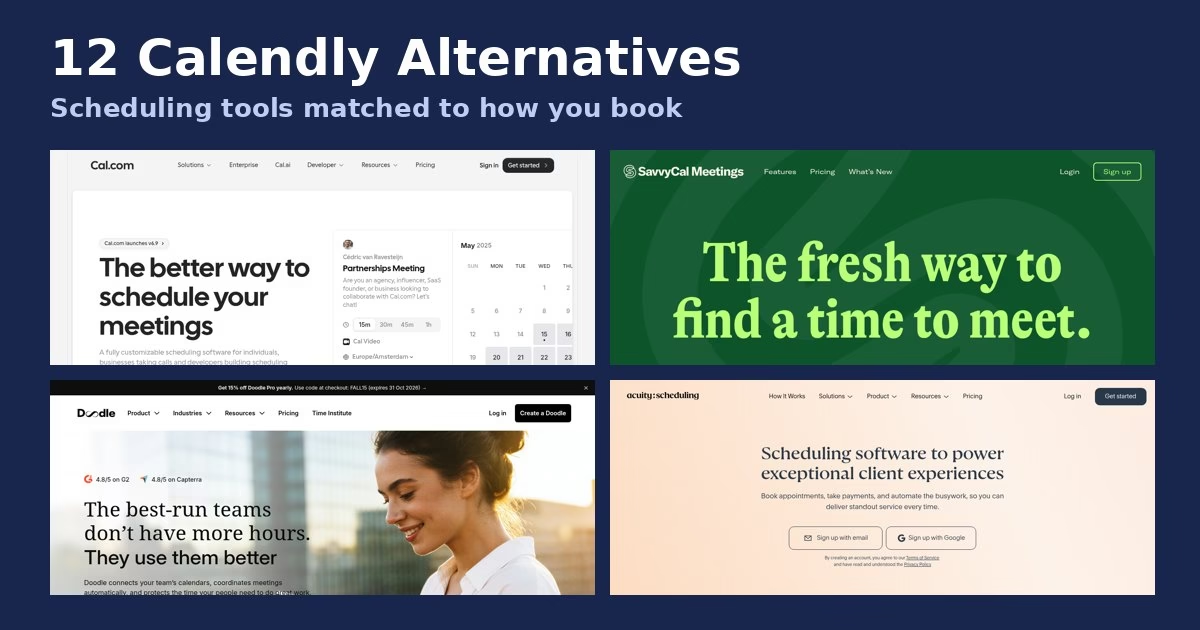
Short answer: the best Calendly alternative depends on what you book. Cal.com and SavvyCal suit people who want flexible booking links, Doodle fits group polls, Acuity and YouCanBookMe fit paid client appointments, and Microsoft Bookings or Google Calendar make sense if you already live in those suites. This guide covers 12 options and says plainly what we checked.
What we checked and how
We read each tool’s official site or help page on 6 October 2026 and captured its homepage. We did not run hands-on tests of any of these tools, so we describe what each vendor says and point out where a claim is the vendor’s own. Plans, limits and prices change often, so confirm them on the official page before you decide. We list no prices for the alternatives for that reason. For Calendly itself, see our separate Calendly pricing guide.
Why people look for a Calendly alternative
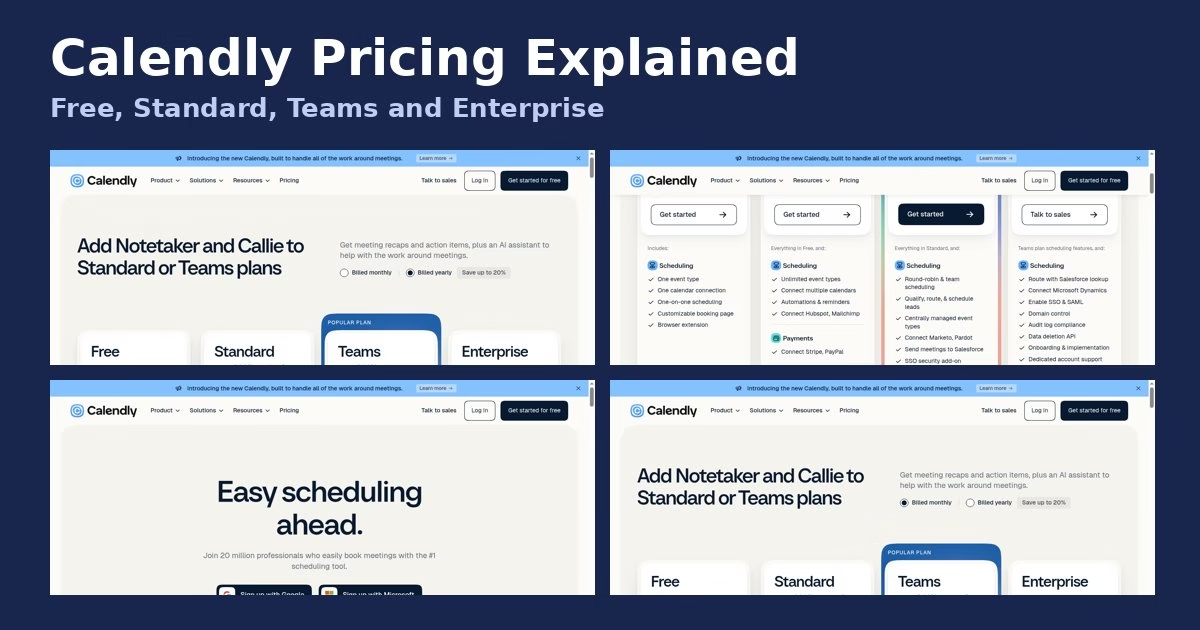
Calendly’s free plan lists one event type, one calendar connection and one-on-one scheduling, so people who need more event types, several calendars, payments or team scheduling end up comparing plans. Others want a different booking experience, a tool built for paid appointments, or something that sits inside a suite they already use. Those needs point to different tools, which is why this list is grouped by scenario instead of ranked.
Quick picks by scenario
- Flexible links and developer use: Cal.com
- Booking links that protect focus time: SavvyCal or Reclaim
- Group polls across companies: Doodle
- Paid client appointments: Acuity Scheduling, YouCanBookMe, TidyCal, Setmore
- Sales teams on a CRM: HubSpot Meetings
- Already on Zoho, Microsoft or Google: Zoho Bookings, Microsoft Bookings, Google Calendar appointment schedules
Comparison at a glance
The 12 alternatives
1. Cal.com
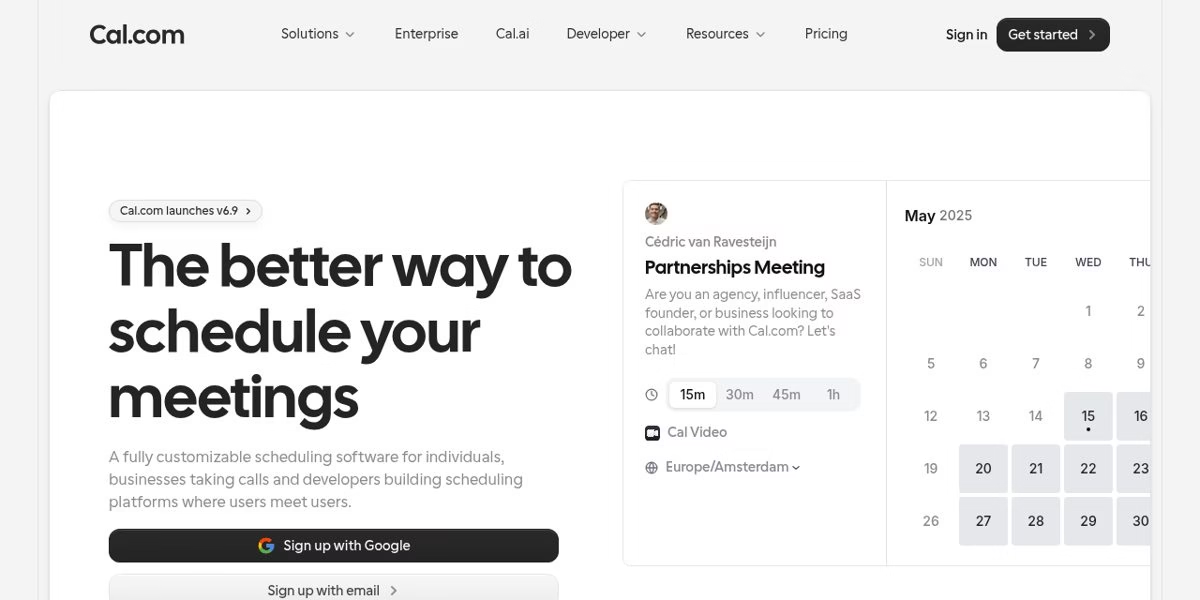
Cal.com describes itself as fully customizable scheduling software for individuals, businesses that take calls, and developers who build scheduling into their own products. Its homepage walks through three steps: connect your calendar so it can check for double bookings, set your availability with buffers and weekly hours, and choose how you meet, whether by video, phone or in person.
Its feature list covers minimum notice, buffers before and after events, daily, weekly or monthly booking limits, a short custom booking link, calendar overlay for the person booking, and automated reminders by email or SMS. It also sells a developer route, so it fits teams that want scheduling inside their own platform. The homepage says it is unlimited and free for individuals, but plans change, so read the current pricing page before you commit.
Best for: People who want a flexible booking page, or developers who want to build scheduling into a product.
Worth checking: Check which features sit behind team plans on the Cal.com pricing page.
2. SavvyCal
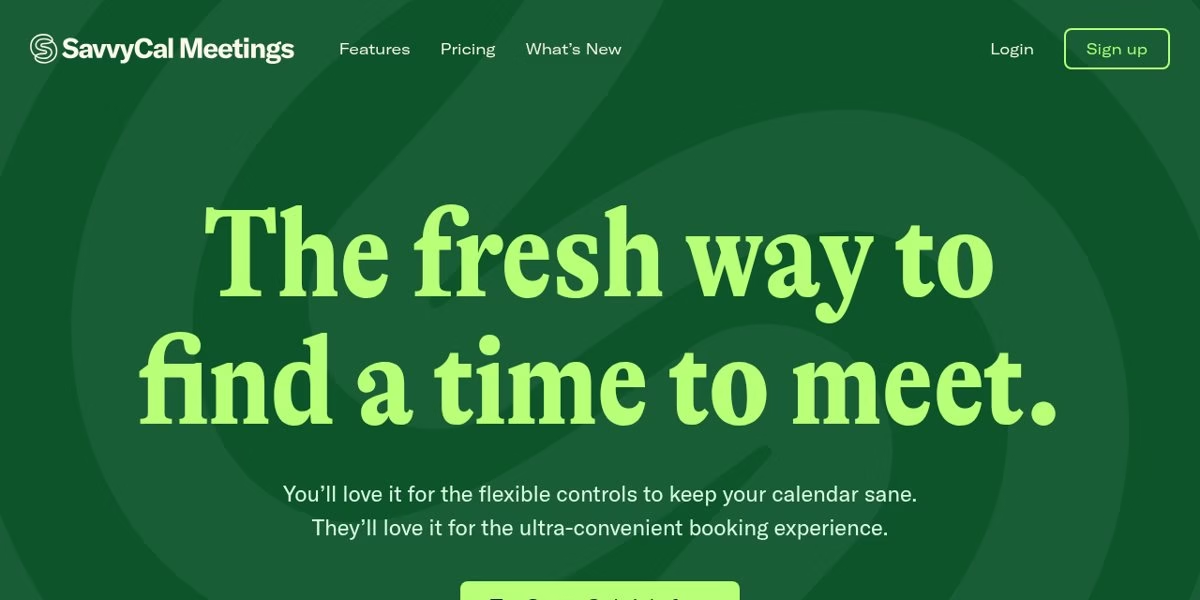
SavvyCal pitches itself at people who send a lot of meeting links and care how the invitee feels about them. Instead of the usual click-a-day-then-click-a-time flow, it shows a week view, and the person booking can overlay their own calendar on top of yours to spot a slot that suits both of you.
The homepage also lists focus controls: buffers and daily, weekly or monthly limits, time blocking that honors calendar events, and preferred slots that nudge people toward times near your other meetings. For teams it describes collective, round robin and group modes. Branding options include colors, a banner image, an avatar and custom domains for white-labeled links.
Best for: Consultants, recruiters and founders who want booking links that protect focus time.
Worth checking: The homepage does not show plan details, so open the pricing page before you plan a rollout.
3. Doodle
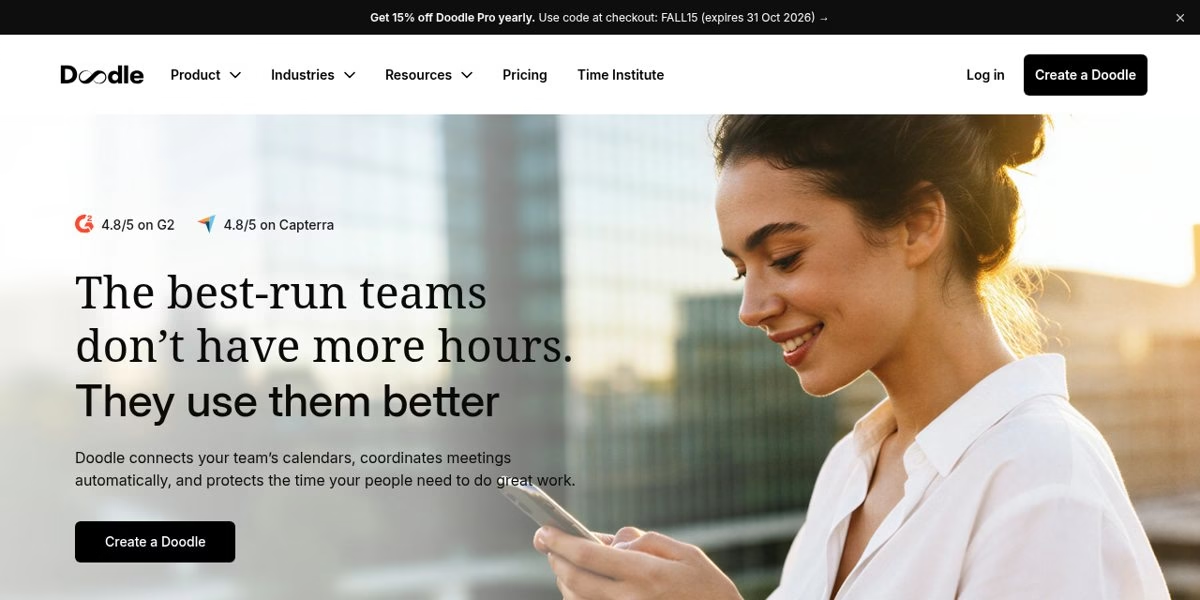
Doodle started as a way to find a time that works for a group, and its current homepage still leads with coordination. You add people and a time, and it looks for a suitable date. People can also vote on the times they prefer, inside or outside your calendar system, without sharing calendar access, and each person sees times in their own time zone.
The site presents Doodle as a Swiss-built product and says its privacy and security posture meets standards from SOC 2 to HIPAA. It also lists branded external booking links, and an announced feature called Doodle Time OS that is marked as coming soon, so treat that as a plan, not something you can use today.
Best for: Cross-company group meetings, panels and anyone who needs people to vote on a time.
Worth checking: Time OS is described as coming soon. Judge Doodle on the features that are live now.
4. Acuity Scheduling
Acuity Scheduling official site
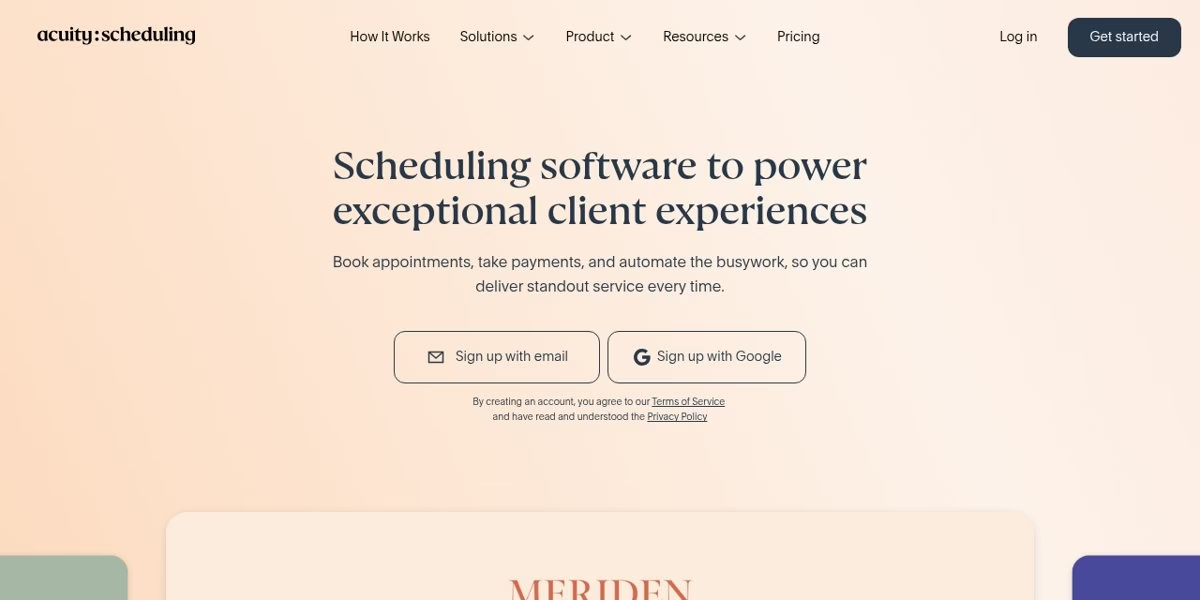
Acuity is built for businesses that sell appointments rather than internal meetings. Its homepage speaks to solo practitioners and multi-location teams in beauty, wellness, fitness, business services, arts and education. Clients self-book on a branded page, and you can take payments, set deposits, send reminders and apply cancellation policies.
The feature list also names custom intake forms, calendar sync to prevent double bookings, staff and resource availability, packages, subscriptions, gift certificates, add-ons and coupons. The site says 75% of Acuity businesses have reduced no-shows with deposits, reminders and cancellation policies, which is Acuity’s own claim, not something we measured.
Best for: Salons, coaches, studios and tutors who take paid appointments.
Worth checking: It is more of a client booking system than a lightweight meeting link, so it may be more than you need for internal calls.
5. YouCanBookMe
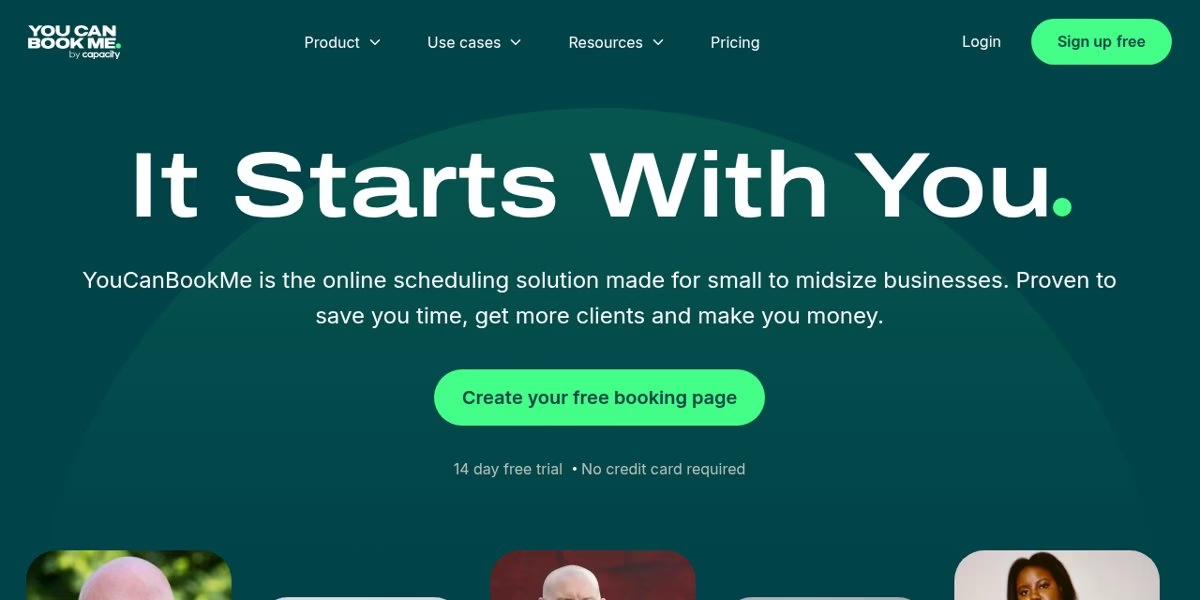
YouCanBookMe positions itself for small to midsize businesses. Its homepage describes branded booking pages with different appointment types and lengths, minimum notice and buffers, group sessions, and a choice of in-person or online meetings. You can add a logo, color, background image and footer to the page.
It also lists payment at booking through Apple Pay, Google Pay and cards, discount codes and packages, a Stripe integration, automatic confirmations and reminders, one-click rescheduling, no-show tracking and CRM updates. The plan section shows a free tier with one calendar connection and one booking page, and paid tiers with more connections and pages.
Best for: Small businesses that want a branded page, payments and automated reminders.
Worth checking: Compare the paid tiers by calendar connections and booking pages before you pick one.
6. TidyCal
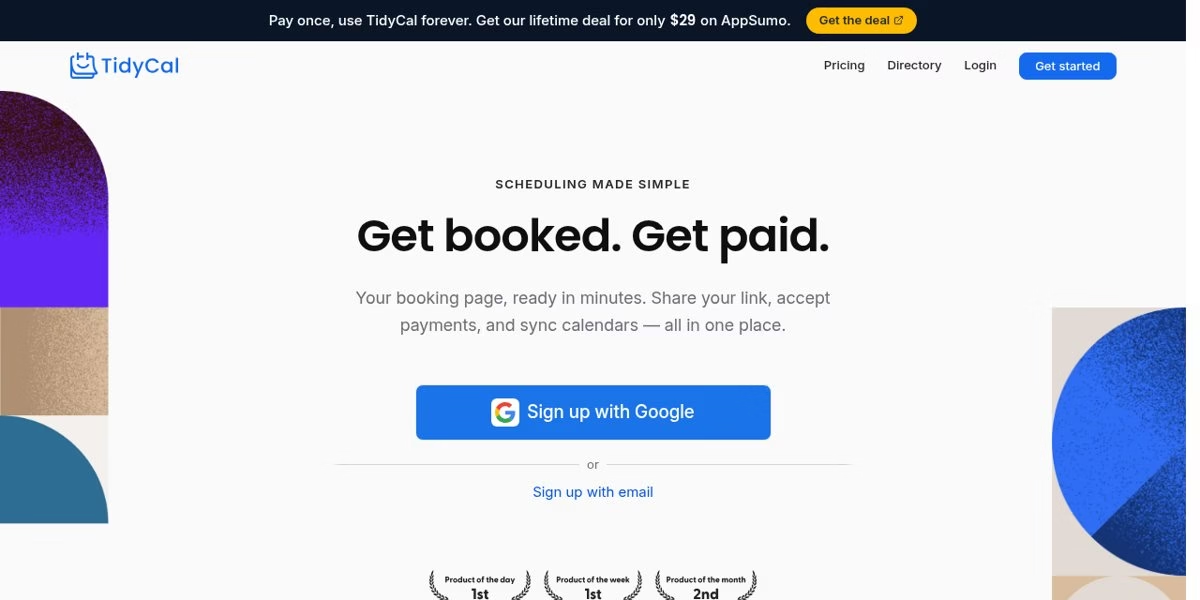
TidyCal keeps the pitch simple: a booking page ready in minutes where you share a link, accept payments and sync calendars. Its homepage says you get a shareable booking page the moment you create an account, with no domain or hosting needed.
It lists Stripe and PayPal payments, session packs and bundles, subscriptions and recurring sessions, sync with Google, Microsoft and Apple calendars, and email and SMS reminders. The banner on the page mentions a one-time lifetime deal sold through AppSumo, but deals change and that offer is not a reason to skip reading the current terms.
Best for: Solo coaches and freelancers who want a lightweight booking page with payments.
Worth checking: Check what the current free and paid options include, since special offers come and go.
7. Zoho Bookings
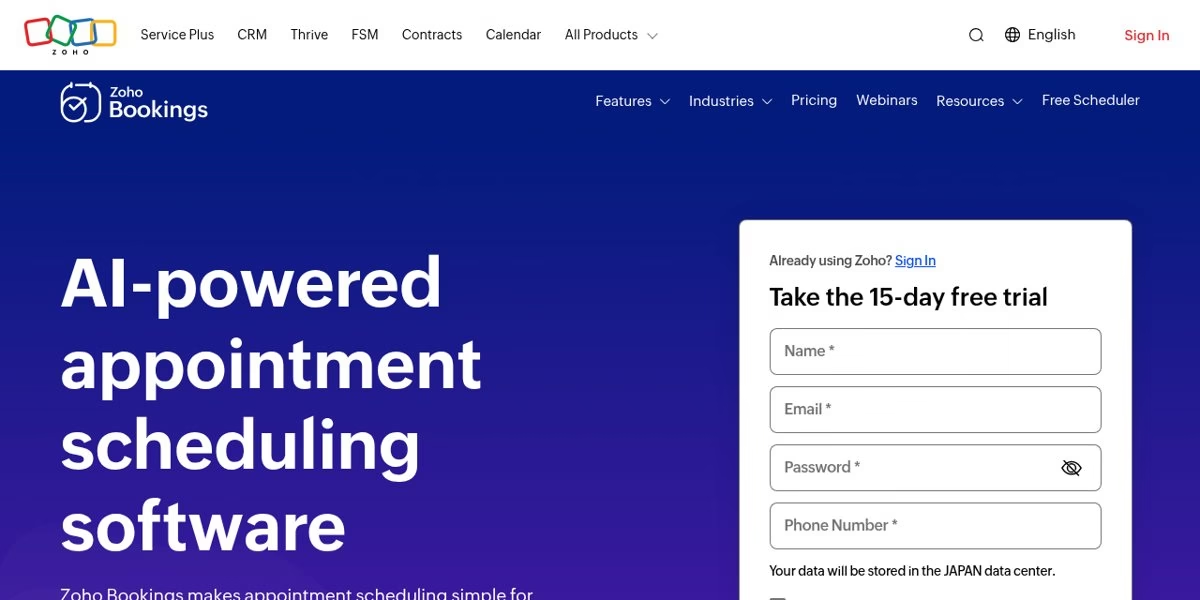
Zoho Bookings is an appointment scheduler inside the wider Zoho family of business apps. The homepage describes four event types: one-on-one, group, collective and resource-based. It also lists workspaces for separate branches or departments, reusable schedules, user roles and permissions, and booking pages you can share as a link or embed as a widget.
Workflows can send email and SMS, update a CRM and create invoices with custom functions, and the site says AI can build a booking page from your website. The homepage offers a 15-day free trial. If your business already uses Zoho CRM or other Zoho apps, that fit may matter more than any single scheduling feature.
Best for: Businesses that already run on Zoho, or that need several workspaces and resource-based bookings.
Worth checking: Look at which Zoho apps connect to Bookings before you assume the workflows you need are included.
8. Reclaim
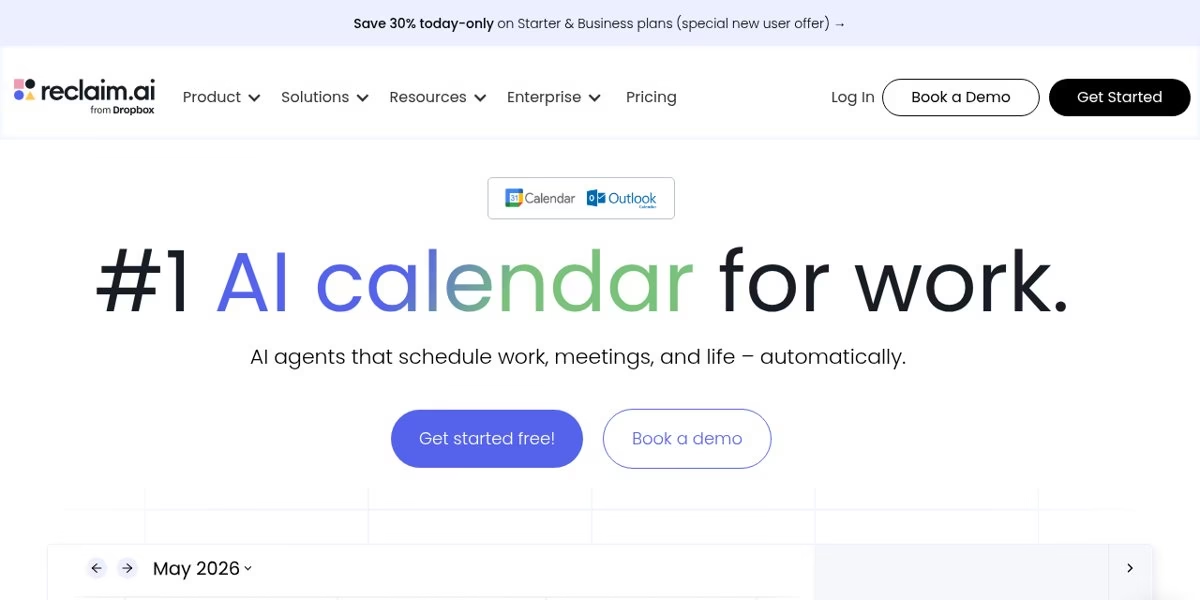
Reclaim is less a booking page and more an AI calendar assistant that also offers scheduling links. Its homepage describes AI agents that schedule work, meetings and personal time automatically, with features such as focus time, tasks synced to your calendar by priority, buffer time, time tracking and smart meetings.
One feature is AI scheduling links, which the site presents as a replacement for Calendly. The figures on the page, such as extra focus hours per week, are Reclaim’s own marketing numbers and depend on how a person uses it. It works with Google Calendar and Outlook according to the logos on the homepage, so check that your calendar is supported.
Best for: Busy people who want to protect focus time, not just share a booking link.
Worth checking: Treat the productivity figures as vendor claims and confirm which calendars and plans you need.
9. HubSpot Meetings
HubSpot Meetings official site
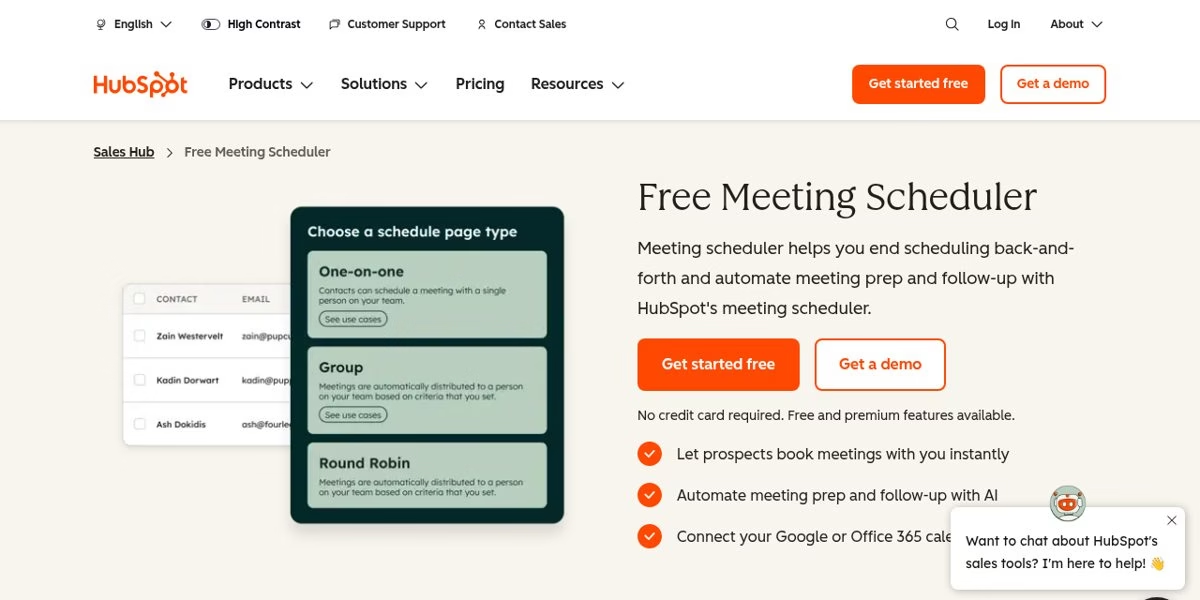
HubSpot’s free meeting scheduler is part of its sales tools. The page describes shareable booking links that sync with Google and Office 365 calendars, round robin scheduling so prospects meet the first available rep, and pre-meeting prep and follow-up that pull in CRM records and recent engagement.
The point is that bookings land inside your CRM, which avoids manual updates and lost notes. The page says no credit card is required and that free and premium features are available, without listing which is which on that page, so confirm the split before you rely on a specific feature.
Best for: Sales teams that already keep their contacts in HubSpot.
Worth checking: The page does not say which features are free, so check the plan comparison first.
10. Setmore
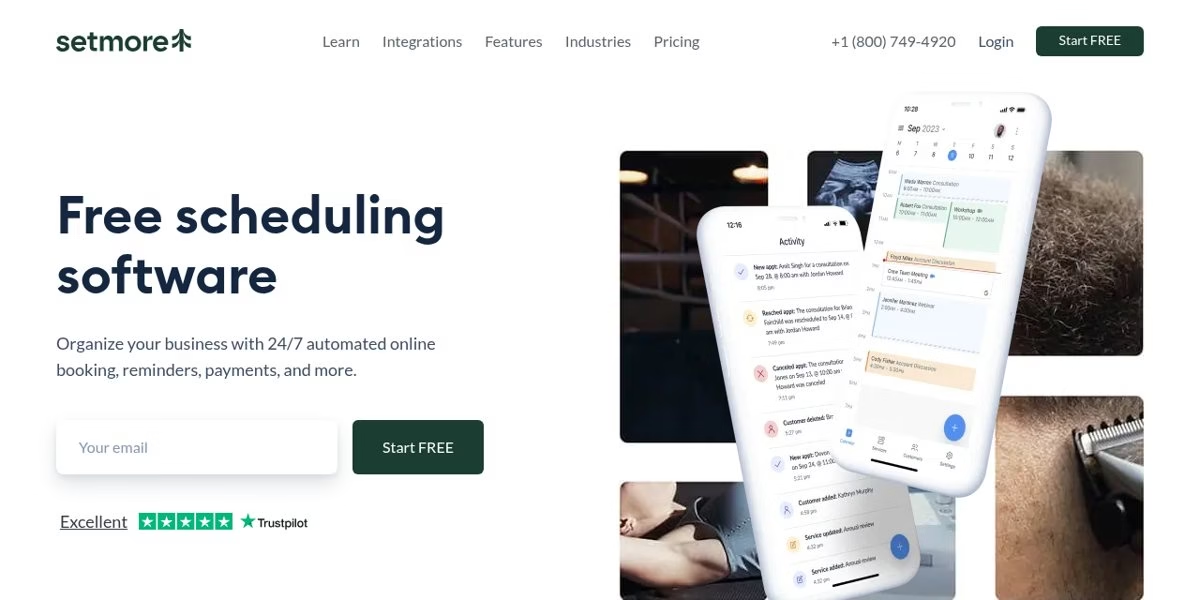
Setmore describes free scheduling software with 24/7 online booking, reminders and payments. You create a booking page with your logo, branding, an Instagram stream and reviews, and link it from your site, Facebook and Instagram.
The homepage lists one-click Zoom or Google Meet links, payments with Square, Stripe and other options, calendar sync with Google, and integrations with tools such as Salesforce. Reminders go out by email or text to reduce no-shows. It is aimed at service businesses more than internal team scheduling.
Best for: Small service businesses that want a free starting point and social media links.
Worth checking: Check which integrations and payment options require a paid plan.
11. Microsoft Bookings
Microsoft Bookings official site
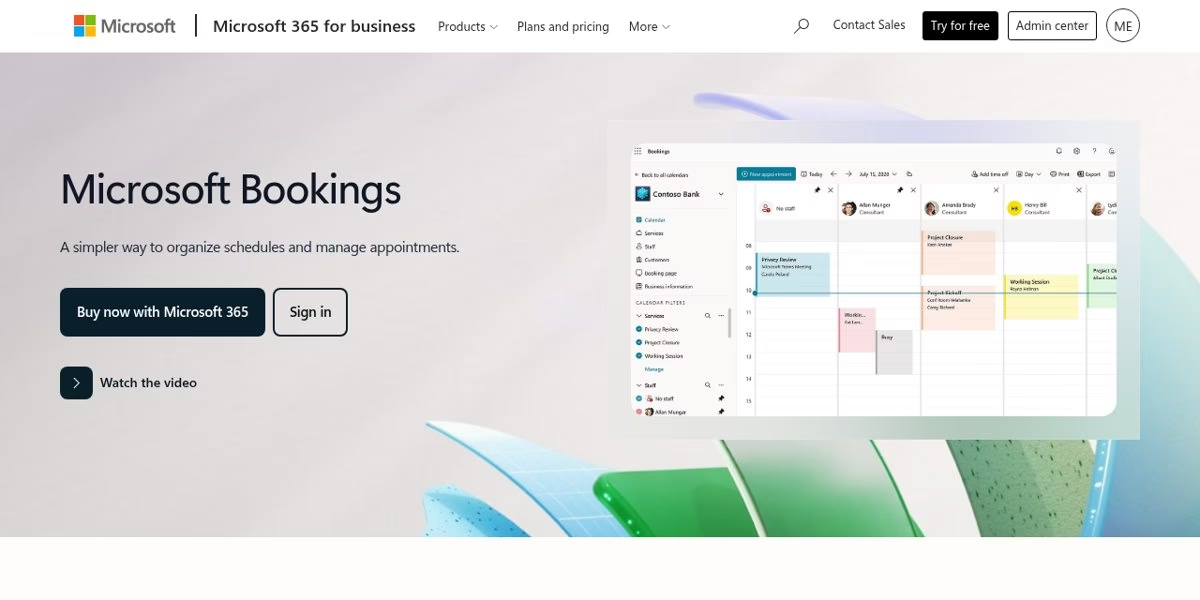
Microsoft describes Bookings as a simpler way to organize schedules and manage appointments. It sits inside Microsoft 365 for business, and the page offers a Buy now with Microsoft 365 button and a sign in link, so it is a fit for organizations that already pay for Microsoft 365.
The page shows a staff calendar view of appointments. If your team already lives in Outlook and Teams, this can be the path with the least new software to approve, though we did not confirm which Microsoft 365 plans include it. Check Microsoft’s plan details for that.
Best for: Organizations already on Microsoft 365.
Worth checking: Confirm plan eligibility on Microsoft pages before you plan around it.
12. Google Calendar appointment schedules
Google Calendar appointment schedules official site
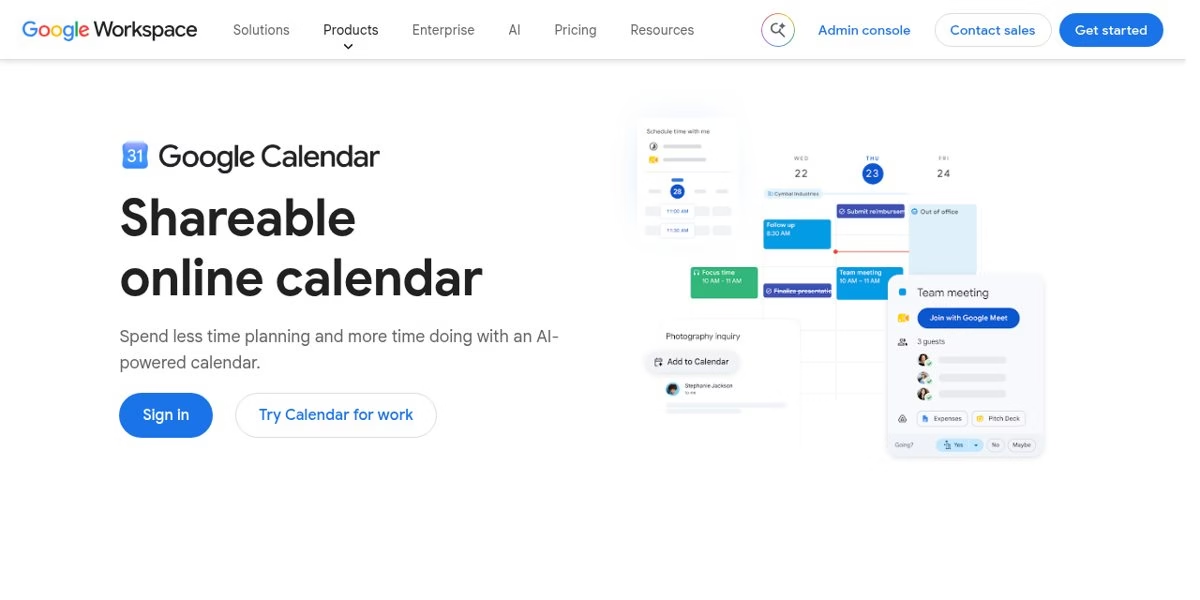
Google Calendar has a built-in appointment schedule feature. Google’s help page says you create it from Calendar on a computer by choosing Create and then Appointment schedule. You set the duration, availability, scheduling window, buffer time and maximum bookings per day, and you get a booking page to share.
Google notes that some features need an eligible Google Workspace or Google One subscription, and that you cannot create an appointment schedule in the Calendar app for Android or iPhone and iPad. For a free-to-start option with no new account, this is the simplest place to begin, with fewer branding and payment options than dedicated tools.
Best for: People who want a basic booking link without adding a new tool.
Worth checking: Some features need a Workspace or Google One plan, and setup is on a computer only.
How to choose
- Start with who books. Clients paying for appointments point to Acuity, YouCanBookMe, TidyCal or Setmore. Colleagues and prospects point to Cal.com, SavvyCal or HubSpot.
- Count calendars and event types. A free plan with one calendar can be enough for a solo setup but not for someone with work and personal calendars.
- Check where the data should live. If bookings need to land in a CRM, HubSpot or Zoho may save manual work.
- Look for payment needs. Not every tool takes payments on its free tier, so read the current plan page.
- Run a short trial. Book a few test meetings with a friend before you move your public link.
Moving from Calendly without losing bookings
Before you switch, keep your Calendly link active until the new tool is live, update your email signature and website links, and send a note to people who have your old link saved. Existing bookings stay on your calendar, but reminders tied to Calendly stop when you cancel, so check upcoming meetings first.
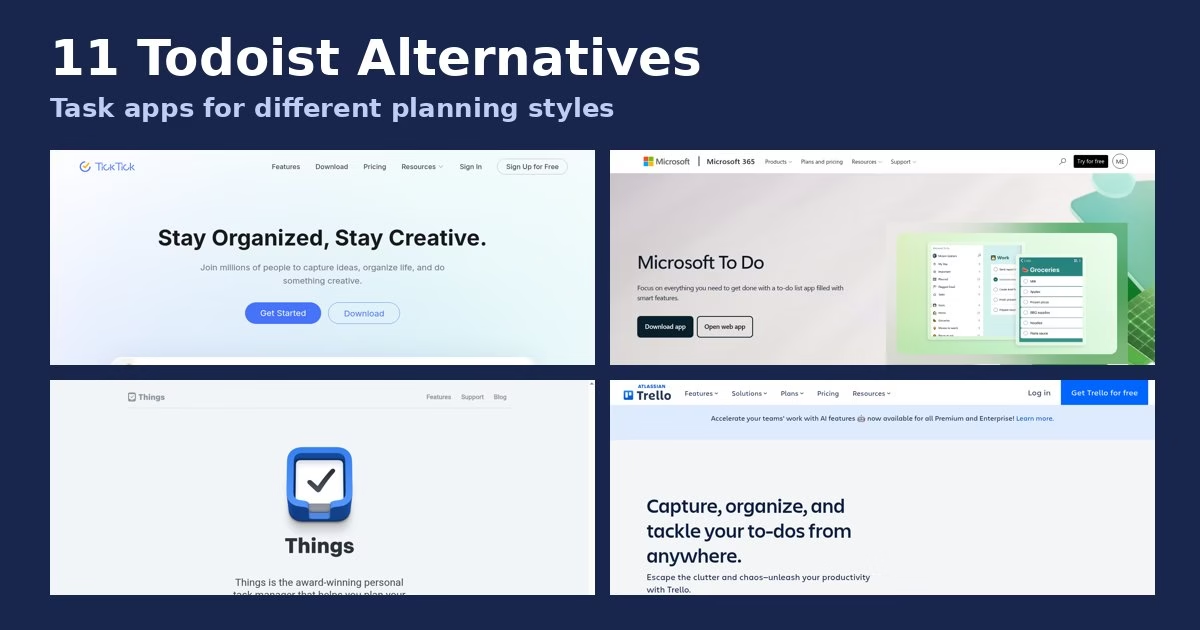
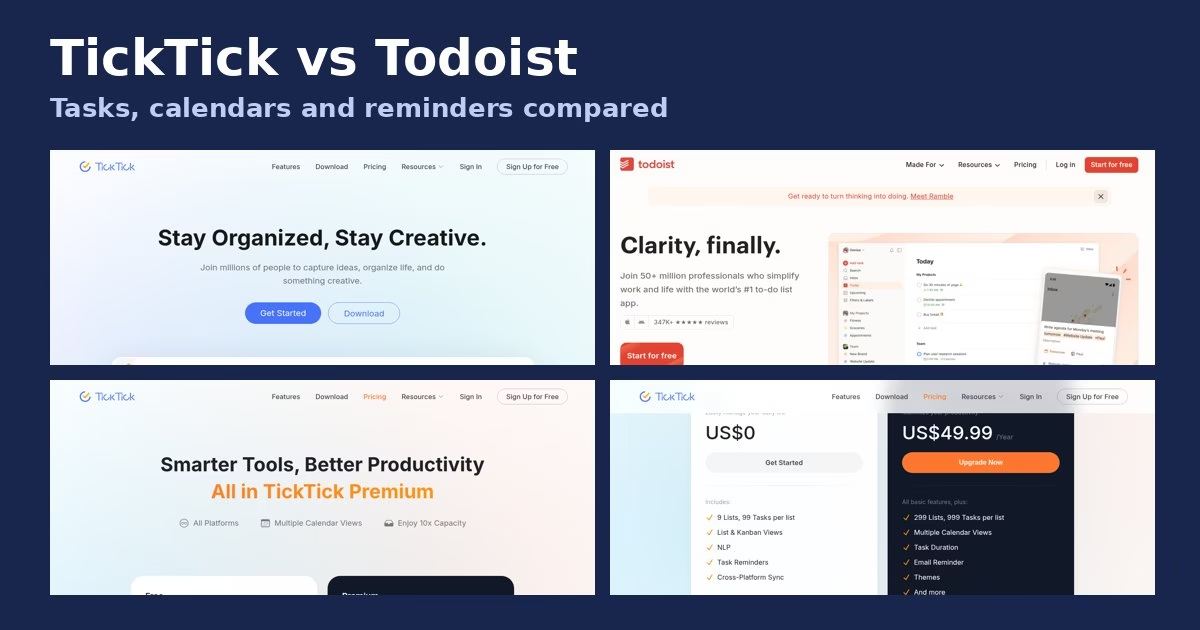
Planning your week with tasks as well as meetings? See our guides to Todoist alternatives and habit tracker apps.
Features to compare before you switch scheduling tools
Every tool in this guide lets someone pick a time from your availability. The differences that matter show up in the details around that booking link. Use the checks below on any tool you shortlist, and read each vendor’s own plan page, because the same feature can sit on a free plan in one product and a paid plan in another.
Calendar connections and conflict checking
The first question is which calendars the tool can read and write. If you keep work events in Google Calendar and personal events in Outlook, a tool that checks only one of them will happily offer a time that clashes with the other. Ask how many calendars a plan can connect, whether it checks all of them for conflicts, and which calendar the new booking is written to. Our Calendly pricing guide shows why this matters: on Calendly’s Free plan the page lists a single calendar connection, and multiple calendars start on Standard.
Event types, buffers and booking rules
A scheduling page is only useful if it protects your day. Look for separate event types for short and long meetings, a way to add time before or after a meeting, a minimum notice period so nobody books you in ten minutes, and a daily or weekly cap on meetings. Not every tool lists all of these, so write down the three rules you actually rely on and check each product against that list rather than against a long feature table.
Payments, reminders and follow-up
If you charge for sessions, check which payment providers the tool connects to and whether payment happens before the booking is confirmed. Then look at reminders: email and text reminders reduce no-shows, but check which reminder types each plan includes. Finally, check whether the tool can send a follow-up message, redirect the invitee to a thank-you page, or hand the contact to your CRM.
Team routing and round robin
Teams have a different problem from individuals. They need to decide who takes a meeting, share availability fairly, and keep one set of rules for everyone. Tools built for this describe round robin, collective availability, or routing forms. If you are a solo person, you can ignore this row. If you are a team of five who share leads, it should be the first thing you test.
Privacy and where booking data lives
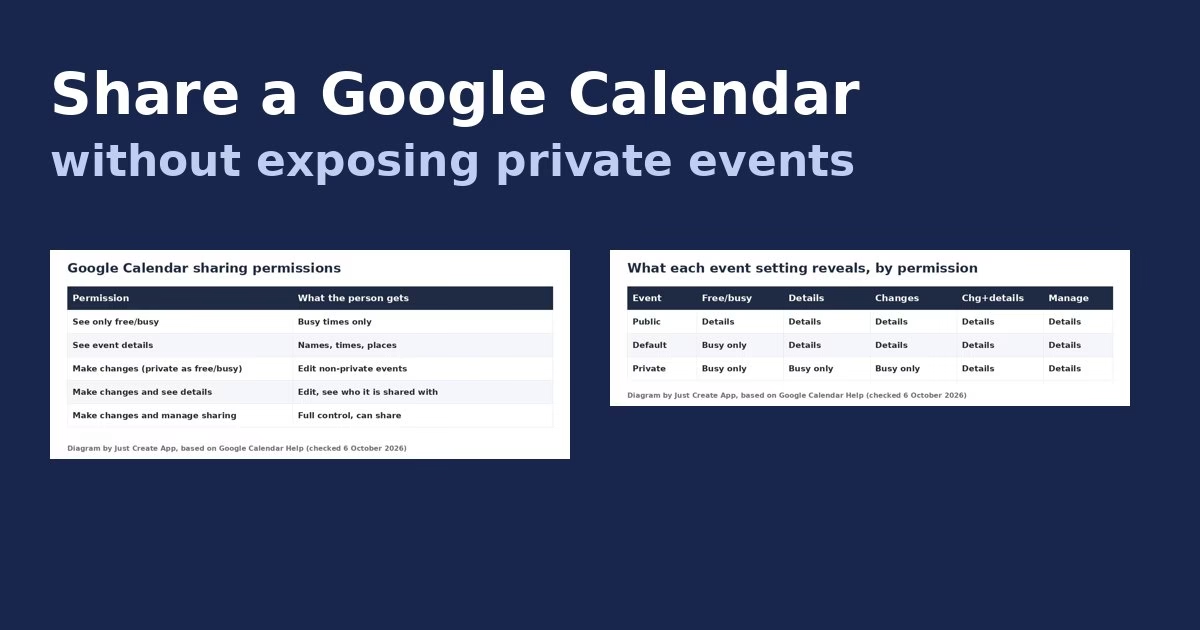
A booking page collects names, email addresses and sometimes answers to private questions. Before you move your clients to a new tool, find its privacy policy and data processing terms, check what an invitee sees about your calendar (it should be free or busy times only, not event titles), and ask how to delete a contact on request.
A two-week trial plan for choosing a Calendly alternative
A feature list cannot tell you whether a tool feels right when real people use it. A short, structured trial can. This plan uses only free plans or trials, and it costs nothing but a few hours. It is a plan for you to follow, not a record of tests we ran.
Week one: set up and test with people you trust
- Day 1: Connect your main calendar and create one event type that matches your most common meeting.
- Day 2: Set your working hours, a minimum notice period and a buffer, then book a test meeting yourself from a second email address.
- Day 3: Ask a friend or colleague to book on a phone and report anything confusing.
- Day 4 and 5: Reschedule and cancel a test booking. Check that the calendar entry changes and that both sides get a clear email.
Week two: use it for real meetings
Put the booking link in a few real emails. Watch for three things: whether people book without asking for help, whether the booking lands on the right calendar with the right video link, and whether you feel in control of your schedule. Keep your old Calendly link live while you test, so nobody is left without a way to book.
Score each tool before you decide
- Did it avoid double bookings across every calendar you connected?
- Could a first-time invitee book in under a minute on a phone?
- Did reminders, rescheduling and cancellation work without you stepping in?
- Does the plan you would pay for include everything you used during the trial?
- Would you be comfortable with the vendor’s data terms?
If two tools tie, pick the one with the simpler plan page. Cost surprises usually hide in plans that need several add-ons to match what you tested.
FAQ
What is the best free Calendly alternative?
There is no single best free option, because free plans trade off different limits. On their own sites, Cal.com says it is free for individuals, Setmore and HubSpot advertise free options, and Google Calendar has built-in appointment schedules at no extra cost, though some features need an eligible Workspace or Google One plan. Compare the limits that affect you most: number of event types, number of connected calendars, reminders and payments. Run the same test booking in two or three tools before you commit, and re-read the plan page the day you sign up, because free tiers change.
Is there a Calendly alternative with payments?
Yes. Acuity Scheduling, YouCanBookMe, TidyCal and Setmore each list payment collection on their sites. The detail to check is the plan: payment features are often on a paid tier, and each tool supports a specific set of payment providers. Ask three questions before you rely on it: which providers are supported in your country, whether the payment is taken before the booking is confirmed, and what happens to the payment if the client cancels. Run a small test payment in sandbox or with a low price before you send the link to clients.
Which alternative is best for group scheduling?
It depends on what you mean by group. For finding one time that works for many people, Doodle is built around polls where invitees vote on options. For a team that shares incoming meetings, SavvyCal and Zoho Bookings list group or team modes on their sites, and HubSpot Meetings is aimed at sales teams. For a class or webinar-style session where many people book the same slot, look for a “group event” or “seats per slot” setting in the plan details. Write down whether you need a poll, a shared team link, or a many-people-one-slot event, then check that exact mode.
Which tools work with Outlook or Microsoft 365?
Microsoft Bookings is part of Microsoft 365 for business, so it fits teams that already live in Outlook. HubSpot says its meetings tool syncs with Google and Office 365 calendars, and Reclaim shows Outlook support on its homepage. For any other tool, check three things on the integrations page: whether Outlook.com and Microsoft 365 work calendars are both supported, whether the sync is two-way, and whether Teams meeting links can be created automatically. If a tool lists only one direction of sync, test a cancellation to see whether it clears the other calendar.
Can I use Google Calendar instead of Calendly?
For basic booking, yes. Google says you create an appointment schedule on a computer, and people book from a page you share. It suits a single person with simple availability. You will likely miss features that dedicated tools offer, such as multiple event types with different rules, routing, team scheduling and deeper reminders. Google also notes that some appointment features need an eligible Workspace or Google One plan, so check your account before you build your plan around it.
How do I move my existing bookings from Calendly to another tool?
Existing meetings stay on your calendar, so you do not need to move them. What you do need to move is the link. Keep your Calendly link active until the new tool is live, update your email signature, website and social profiles, and tell regular contacts that the link changed. Then check upcoming Calendly meetings before you cancel the account, because reminders and rescheduling links tied to Calendly stop working once the plan ends.
Do these tools show prices here?
No. Prices and limits change often, and most of these vendors have several plans, so a number here would go stale. Open each vendor’s pricing page on the day you decide. For Calendly itself, our Calendly pricing guide lists the plan prices shown on its official page on 6 October 2026, with dated screenshots.
Did you test these Calendly alternatives yourselves?
No. This guide is based on each vendor’s official pages read on 6 October 2026, and we say so at the top. We did not create accounts or run test bookings, so we make no claims about how any tool behaves in daily use. That is why the page includes a two-week trial plan you can follow with your own calendar before you choose.





Leave a Reply