



Every web project hits the same unglamorous moment: the build is ready, and someone has to get the files onto the server. Hosting panels feel clumsy for that job, so most of us reach for a dedicated transfer client. On Windows the two names that come up in every conversation are FileZilla and WinSCP.
Both are free. Both are mature. And they overlap enough that picking one is harder than it should be.
The stakes are higher than they look. A sloppy transfer workflow leaks credentials, overwrites the wrong directory, or turns a five-minute deploy into an hour of detective work. A good one disappears into the background and just works for years.
I run transfers for client work every week, and I have used both clients for years. This comparison is written from that seat, with every product fact below checked against the vendors’ own pages on Oct 16, 2026.
Whether you handle uploads yourself or work with one of the top web development companies, the client on your desktop shapes how safe and how fast the routine work goes.
Pick in ten seconds
- Windows-only, lots of scheduled transfers: choose WinSCP. Its scripting engine, .NET assembly, and Task Scheduler integration are the best free automation story in this category.
- Mixed Windows, macOS, and Linux machines: choose FileZilla Client. Same interface everywhere, free and open source.
- Cloud storage in the same window (S3, Google Drive, OneDrive): WinSCP does S3 and WebDAV free; FileZilla needs the paid Pro tier for its cloud protocols.
- You only ever move files to one web host over SFTP: either works. Flip a coin, then read the security section before typing in a password.
The protocols, in plain English
Half the confusion in this comparison comes from alphabet soup, so here is the short version before we touch either tool. FTP is the original file transfer protocol, and it sends everything, including your password, in plain text. FTPS is FTP wrapped in TLS encryption, the same idea as HTTPS for websites.
SFTP is a different thing entirely: a file protocol that runs inside an SSH connection. SCP is an older SSH-based copy command, still supported but largely superseded by SFTP. WebDAV and S3 are not file-server protocols at all – they let the client talk to cloud storage services like Amazon S3 or a WebDAV-enabled drive.
If your infrastructure team is still deciding how traffic reaches the origin – say through the setups covered in our guide to what a load balancer is – the transfer client choice is downstream of that, but the protocol requirement lands on you either way.
Why it matters: the protocol list defines which servers a client can touch. WinSCP speaks FTP, FTPS, SCP, SFTP, WebDAV, and S3 for free. The free FileZilla Client speaks FTP, FTPS, and SFTP; everything cloud-flavored lives behind FileZilla Pro.
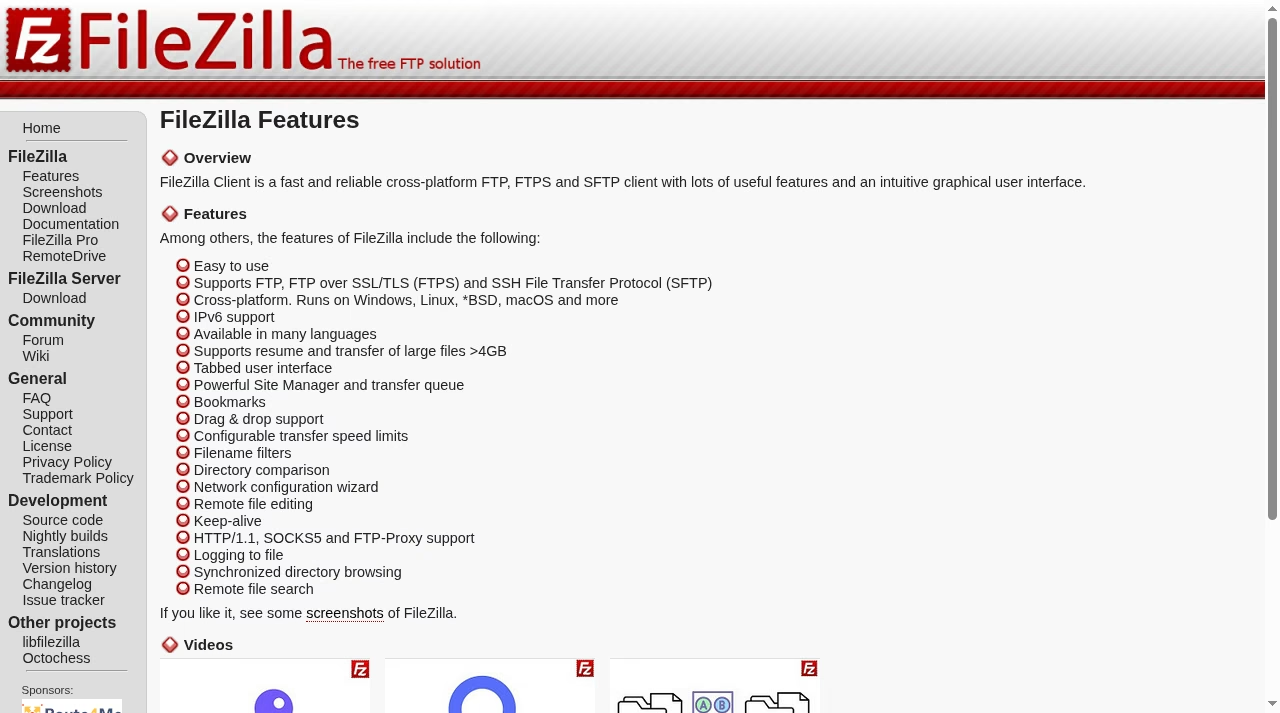
FileZilla’s own feature list makes the free tier’s scope explicit: FTP, FTP over SSL/TLS, and SSH File Transfer Protocol, on Windows, Linux, BSD, and macOS. Anything beyond that is a Pro feature, which we get to in the pricing section.
FileZilla: the cross-platform default
FileZilla Client is free and open source under the GPL, and the current release is version 3.71.1, published on August 26, 2026.
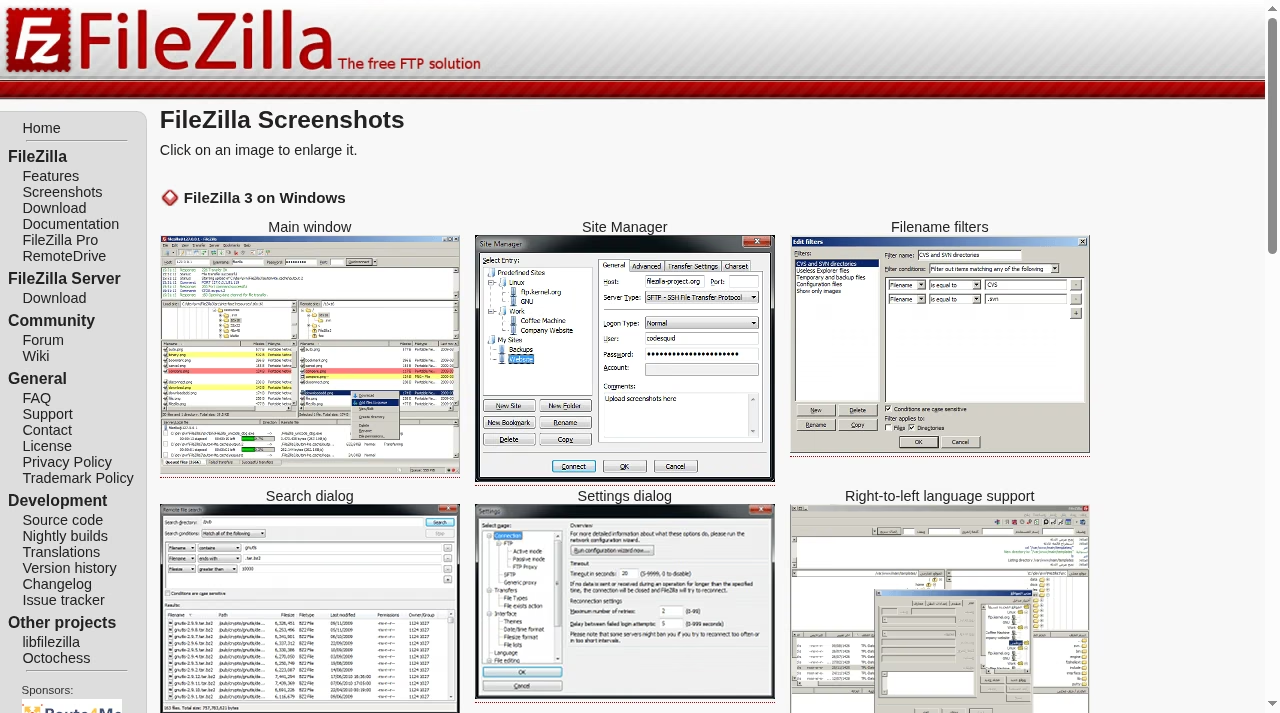
The interface has barely changed in a decade, and that is a compliment: local files on the left, remote files on the right, a transfer queue at the bottom, and a Site Manager that stores credentials for every server you touch.
A freelancer juggling ten client sites or a team at one of the SaaS application development companies shipping builds to staging will feel at home in five minutes.
The feature set covers the daily grind well: tabbed browsing for multiple servers at once, drag and drop, resume for large files over 4GB, configurable speed limits, filename filters, directory comparison, remote file editing, keep-alive, synchronized directory browsing, and a remote file search.
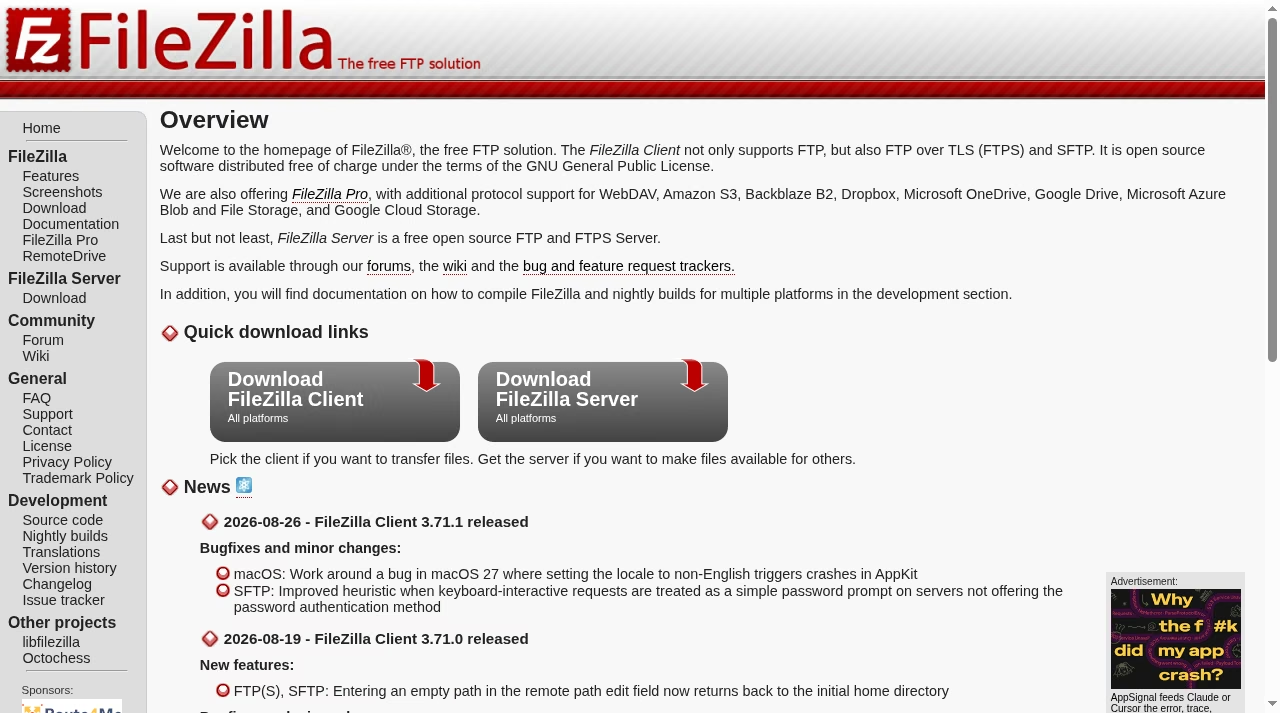
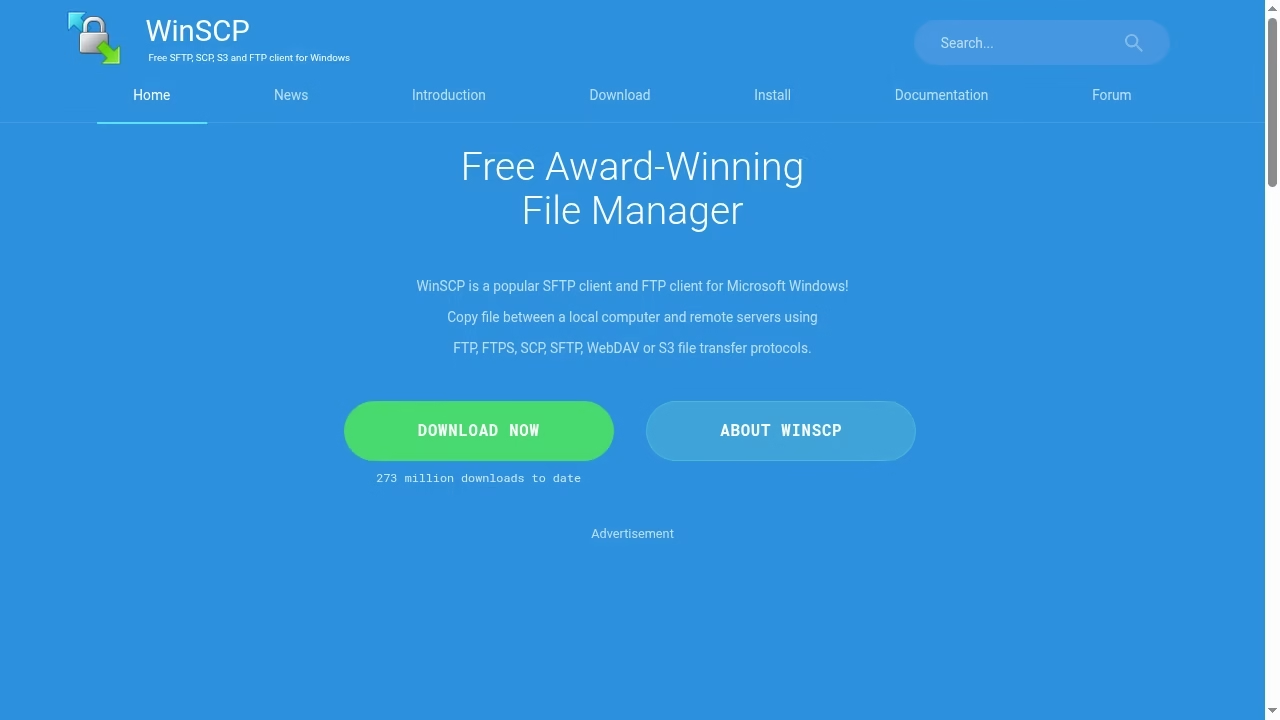
There is also support for HTTP/1.1, SOCKS5, and FTP proxies, which matters on corporate networks. The official FileZilla features page lists the whole set, and the FileZilla project homepage separates the three products cleanly: Client (free), Pro (paid, adds cloud storage), and Server.
Where FileZilla genuinely wins is platform coverage. It runs natively on Windows, macOS, and Linux with the same interface. If your team spans operating systems – a designer on a Mac, a developer on Ubuntu, an account manager on Windows – one client means one set of instructions and one shared mental model.
That is also why agencies and Next.js development teams deploying static exports often standardize on it: nobody needs a second tool.
Two smaller things I appreciate after years of use: the Site Manager import and export makes moving to a new laptop a one-minute job, and the message log at the top shows the raw protocol conversation, which is invaluable when a host’s support insists the problem is on your end.
FileZilla Server, a separate free product for Windows, also means you can run the receiving end yourself for quick internal drops.
The weak spots are just as clear. The free client has no cloud storage protocols, no built-in scripting interface for scheduled jobs, and an installer history that has made some users wary – always download from the official site. And the interface, while dependable, looks and feels like a utility from another era.
WinSCP: the Windows power tool
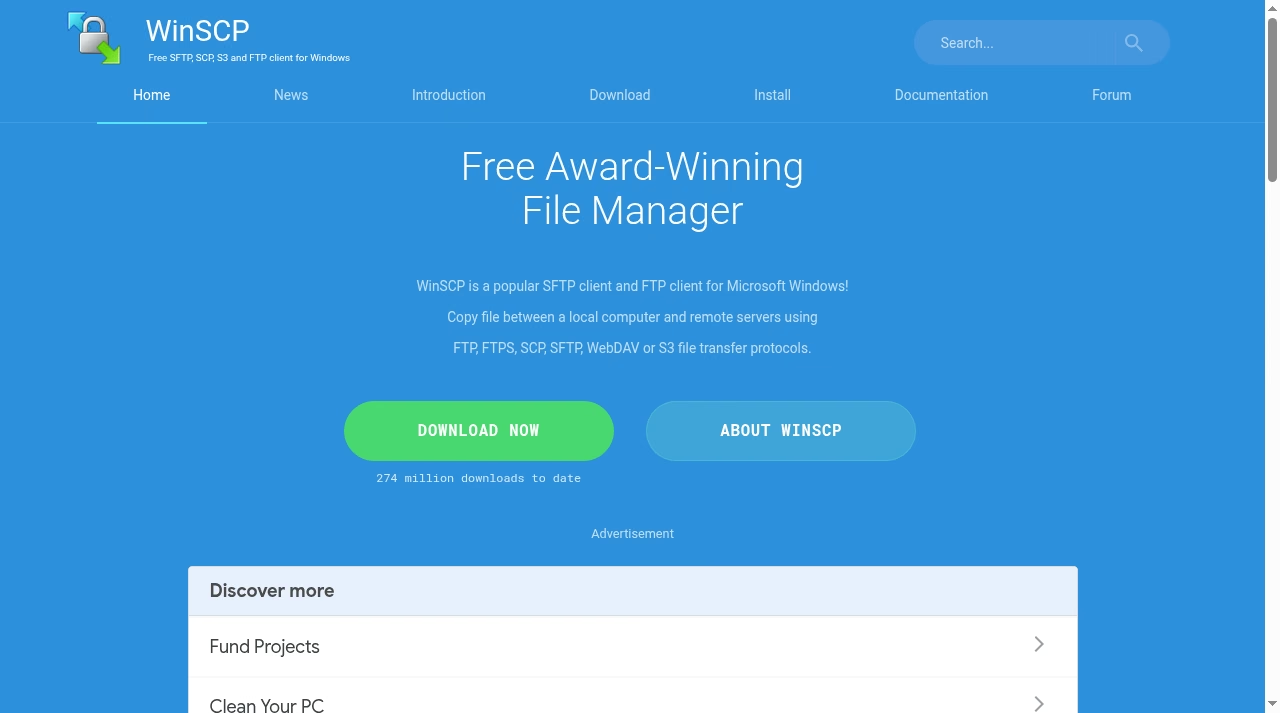
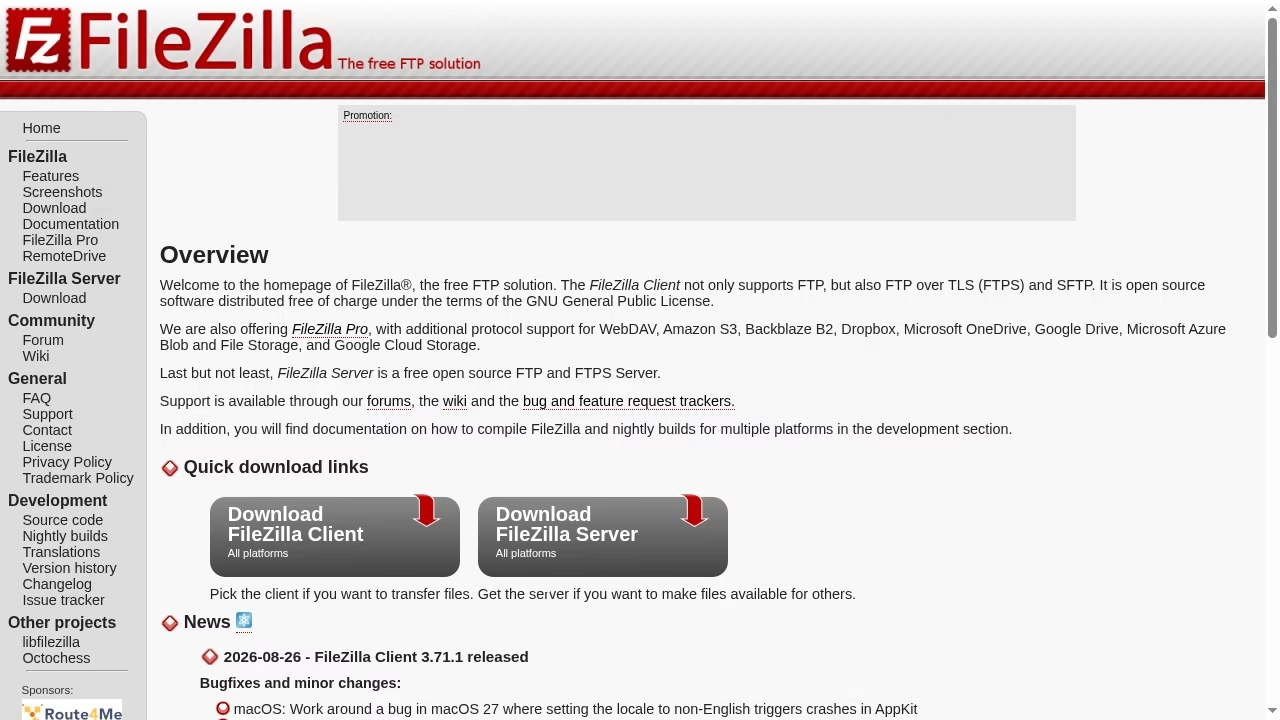
WinSCP is free and open source, Windows-only, and proudly so. The site reports over 274 million downloads, and the user base is exactly who you would expect: Windows administrators, backend developers, and support engineers who live inside one OS.
It speaks FTP, FTPS, SCP, SFTP, WebDAV, and Amazon S3 out of the box – no paid tier, no upgrade prompt. For teams at DevOps consulting companies standardizing on Windows tooling, that protocol list at zero cost is the whole pitch.
The GUI comes in two flavors: the Commander interface shown above, with local and remote panes side by side, and an Explorer interface that mirrors Windows Explorer for people who only want the remote side.
There is an integrated text editor for quick config edits on the server, directory synchronization in both directions, queue management, and a portable executable if you cannot install software. The WinSCP homepage and its documentation introduction cover the feature list in detail.
Small touches add up here too. WinSCP integrates with PuTTY so you can jump from a file window straight into a terminal session on the same server, it offers a portable executable that runs without installation on locked-down machines, and its session import understands other clients’ formats.
The documentation is genuinely one of the best maintained in open source – nearly every dialog has a matching docs page.

Where WinSCP pulls ahead of every free rival is automation, and it deserves its own section below. Where it loses is obvious the moment a MacBook appears in the meeting: there is no macOS or Linux version, and there never has been.
If your organization is evaluating broader platform strategy with IT architecture consulting firms, a Windows-only transfer tool is a small but real constraint to note in the stack.
Feature-by-feature, the honest table
| Capability | FileZilla (free Client) | WinSCP |
|---|---|---|
| Price | Free, open source (GPL) | Free, open source |
| Platforms | Windows, macOS, Linux | Windows only |
| FTP / FTPS / SFTP | Yes, all three | Yes, all three, plus SCP |
| Amazon S3 / WebDAV | Pro tier only (paid) | Included free |
| Scripting / scheduled jobs | No built-in scripting (separate FileZilla CLI on Windows) | Full scripting engine, .NET assembly, Task Scheduler friendly |
| Remote text editing | Yes | Yes, integrated editor |
| Directory sync | Synchronized browsing and comparison | Full two-way synchronization, scriptable |
| Interface style | Dual-pane, tabbed | Commander dual-pane or Explorer single-pane |
If you like this style of free-software shootout, our OpenOffice vs LibreOffice comparison takes the same side-by-side approach to office suites.
The same task in both: pushing a staging release
Abstract feature lists only go so far, so here is the job I actually run most often – upload a new build to a staging server and verify it – done in each client.
- Connect. In both, open the Site Manager or saved session, pick SFTP, and confirm the host key on first connect. One minute each.
- Upload. In FileZilla I drag the build folder from the left pane to the right and watch the queue. In WinSCP I do the same in Commander view, or I select the folder and hit F5. No practical difference.
- Verify. In FileZilla I use directory comparison by modification time. In WinSCP I use the Synchronize dialog in preview mode first, which shows what would change before anything moves – a small but real safety edge.
- Repeat tomorrow. In WinSCP I turn the whole thing into a script and schedule it. In free FileZilla I keep doing it by hand.
That last step is where the tools diverge, and it is why the automation section below carries so much weight in the verdict. And if deployments are something you would rather hand off completely, the top IT outsourcing companies in the USA run exactly this kind of routine for their clients.
The money: what “free” actually covers
WinSCP is simply free. There is no paid edition; the project runs on donations. Everything described in this article – S3 included – costs nothing. (We do the same per-product price breakdowns in other guides, like our Calendly pricing piece, when a vendor does charge.)
FileZilla splits its lineup. The Client is free forever. FileZilla Pro, sold on the vendor’s store, adds cloud protocols: Amazon S3, Backblaze B2, Box, Dropbox, Google Cloud Storage, Google Drive, Microsoft Azure, OneDrive, SharePoint, OpenStack Swift, and WebDAV.
Pricing as listed on Oct 16, 2026: Single Device from EUR 12.99 (Windows only), Pro plus CLI Power Bundle from EUR 24.99, and Multiple Devices (up to three machines, Windows, macOS, Linux) from EUR 29.99.
There is also FileZilla Pro Enterprise Server from EUR 199.99 per year with two-factor authentication, Active Directory integration, and unlimited users – a server product, not a client, aimed at companies that need managed file transfer.
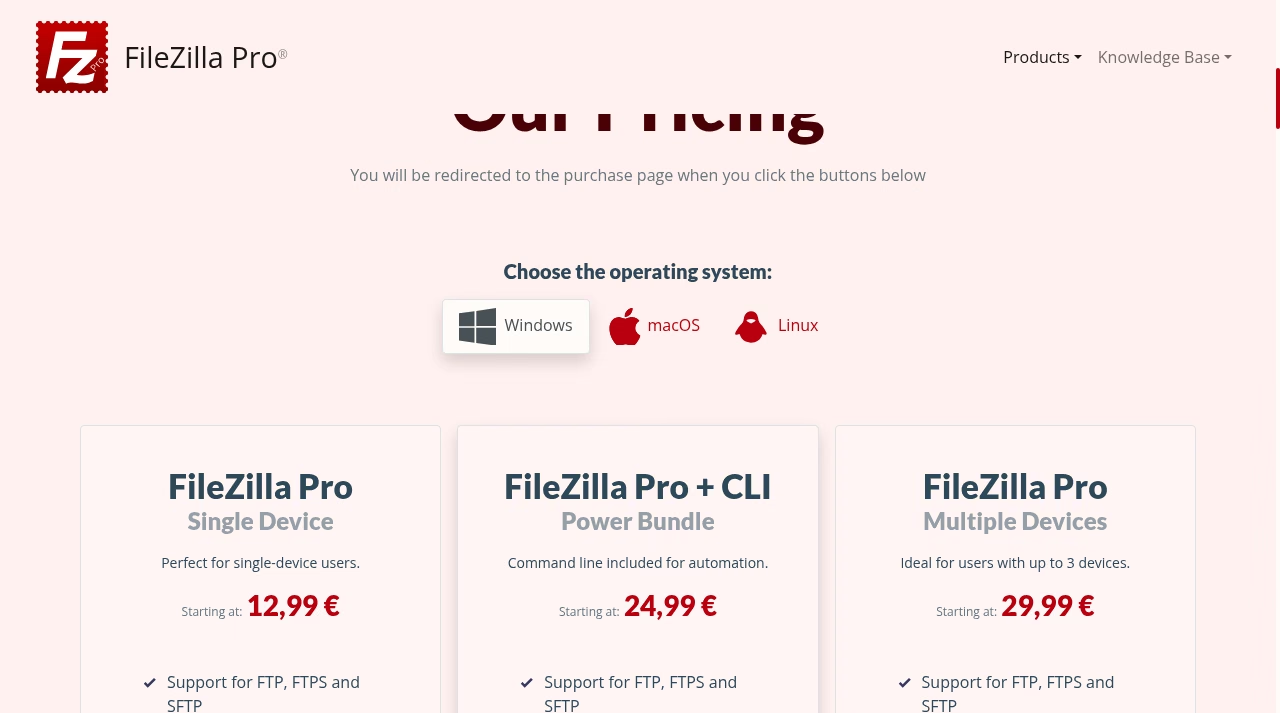
The practical read: if you need S3 or WebDAV on Windows and nothing else, WinSCP gives it to you free. If you need those protocols on a Mac, FileZilla Pro is essentially the only option between these two – which is exactly why the Pro tier exists.
Automation and scheduled transfers
This is the section that decides the comparison for a lot of teams, because manual dragging stops scaling the moment a transfer becomes a nightly job.
WinSCP ships a full scripting interface: a console tool, winscp.com, that runs commands from script files, and a .NET assembly for when a task needs real control structures like loops and error handling.
The WinSCP scripting documentation is thorough and includes the gotchas, such as how configuration storage behaves when a script runs under a different account in Windows Task Scheduler. For the kind of recurring work covered in our roundup of the best automation tools, WinSCP is a legitimate free building block.
FileZilla’s answer is newer and narrower: FileZilla CLI, a command-line tool for Windows, bundled in the paid Pro plus CLI Power Bundle. It covers scripted transfers, but the free FileZilla Client itself has no scripting interface at all. On Windows, WinSCP wins this category outright.
On macOS or Linux, the honest advice is that neither GUI client is the automation answer – you script the platform’s own tools there.
Security: the part people skip
Two habits matter more than the client you pick. First, never use plain FTP for anything with credentials, because the password crosses the network readable by anyone listening. Use SFTP or FTPS. Second, verify the server’s identity before you send credentials.
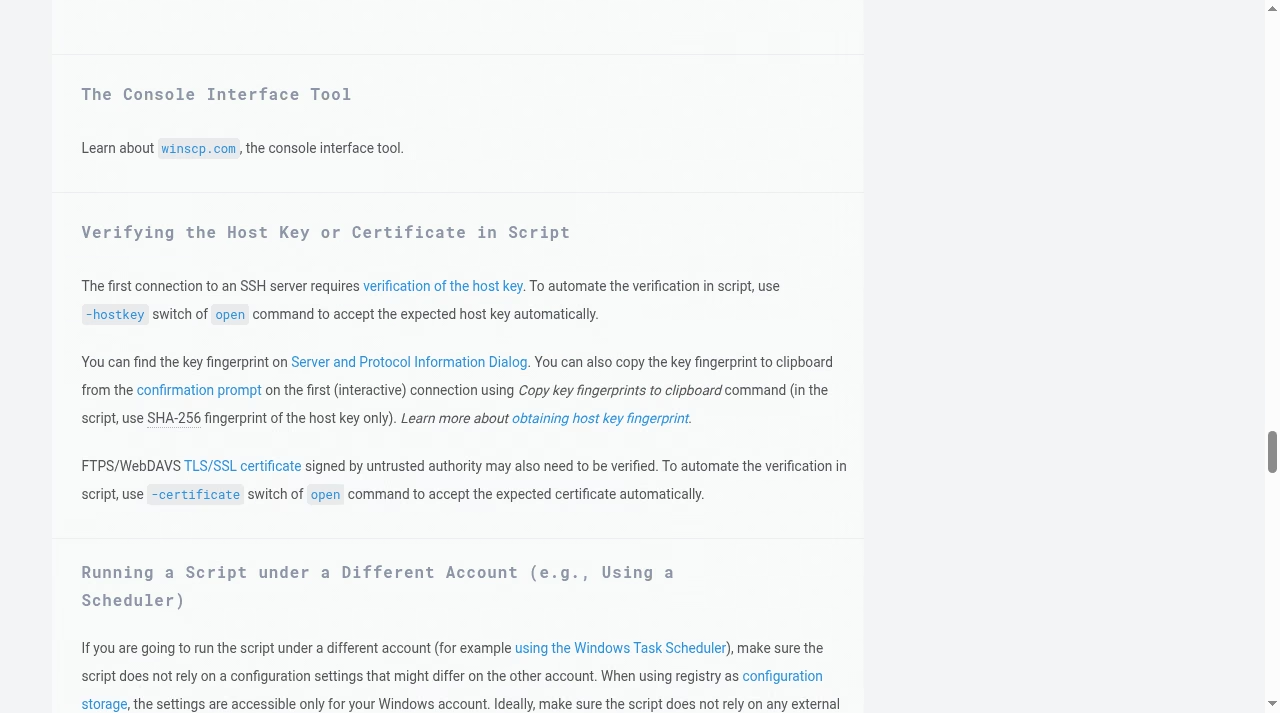
WinSCP documents this properly: on the first SSH connection you confirm the host key fingerprint, and scripts can pass the expected fingerprint with the -hostkey switch so automation does not silently trust a swapped server.
The vendor’s guide to verifying the SSH host key is worth reading once, and the same caution applies to TLS certificates on FTPS and WebDAVS.
Teams building on cloud infrastructure – the audience of pieces like our Azure Front Door vs CloudFront comparison – already think this way about edge traffic; apply the same discipline to file transfer.
Both clients store saved site passwords locally, and both let you protect them with a master password. Turn that on. A transfer client on a shared or lost laptop is a stack of live server credentials, and the master password is the difference between an inconvenience and an incident.
One more habit from the security checklist: when a contractor or agency engagement ends, delete their saved site and rotate the password. Transfer clients accumulate credentials quietly, and nobody remembers to revoke what they cannot see.
Setup, migration, and daily habits
Switching between the two is painless. Both import sites easily, both store sessions in a Site Manager or saved-sessions list, and recreating ten saved servers by hand takes twenty minutes. A few habits that pay off regardless of which one you keep:
- Save every recurring server in the Site Manager with a clear name, and group client sites separately from internal infrastructure.
- Set a sensible default protocol per site – SFTP wherever the host allows it – instead of accepting whatever the quick-connect bar guessed.
- Use directory comparison after any large upload instead of trusting the queue’s green checkmarks.
- Treat transfers as part of your data protection story, not a replacement for it. A synchronized folder is not a backup; our explainer on incremental vs differential backup covers the difference that matters when something gets deleted by mistake.
If you are moving hosts at the same time – say, weighing options like the ones in our FastComet vs SiteGround hosting comparison or checking whether Render is a good hosting platform – do the protocol homework first. Modern platforms increasingly push Git-based deploys and disable classic FTP entirely, which can make the whole FileZilla-versus-WinSCP question moot for that project.
When neither client is the right tool
Honesty matters more than loyalty here, so a quick word on the cases where I would skip both. If your project deploys through Git with a CI pipeline, manual file transfer is a step you should eliminate rather than optimize.
If you move gigabytes between servers regularly, rsync over SSH or a provider-side copy beats any desktop client. And if the only thing you ever do is upload a plugin zip to WordPress twice a year, the hosting control panel’s file manager is fine and one less tool to maintain.
Teams on enterprise managed platforms, the kind compared in WordPress VIP vs Adobe Experience Manager, rarely touch a transfer client at all.
The clients on this page earn their place in the middle: recurring hands-on transfers, mixed servers, rescue work on a broken site, and the long tail of hosting setups that still live behind SFTP. That middle is bigger than the industry likes to admit.
Who should pick which
Pick FileZilla if…
- Your team mixes Windows, macOS, and Linux and you want one client everywhere.
- You mostly do manual transfers to web hosting over SFTP and want them free.
- You need cloud storage access on a Mac and are fine paying for FileZilla Pro.
- You want the same familiar dual-pane interface your whole industry already knows.
Pick WinSCP if…
- You are on Windows, full stop, and want the deepest free protocol list including S3 and WebDAV.
- You run scheduled or scripted transfers and want a documented scripting engine at no cost.
- You like choosing between a Commander dual-pane and a simpler Explorer view.
- You manage servers and want an integrated editor plus strong host-key discipline.
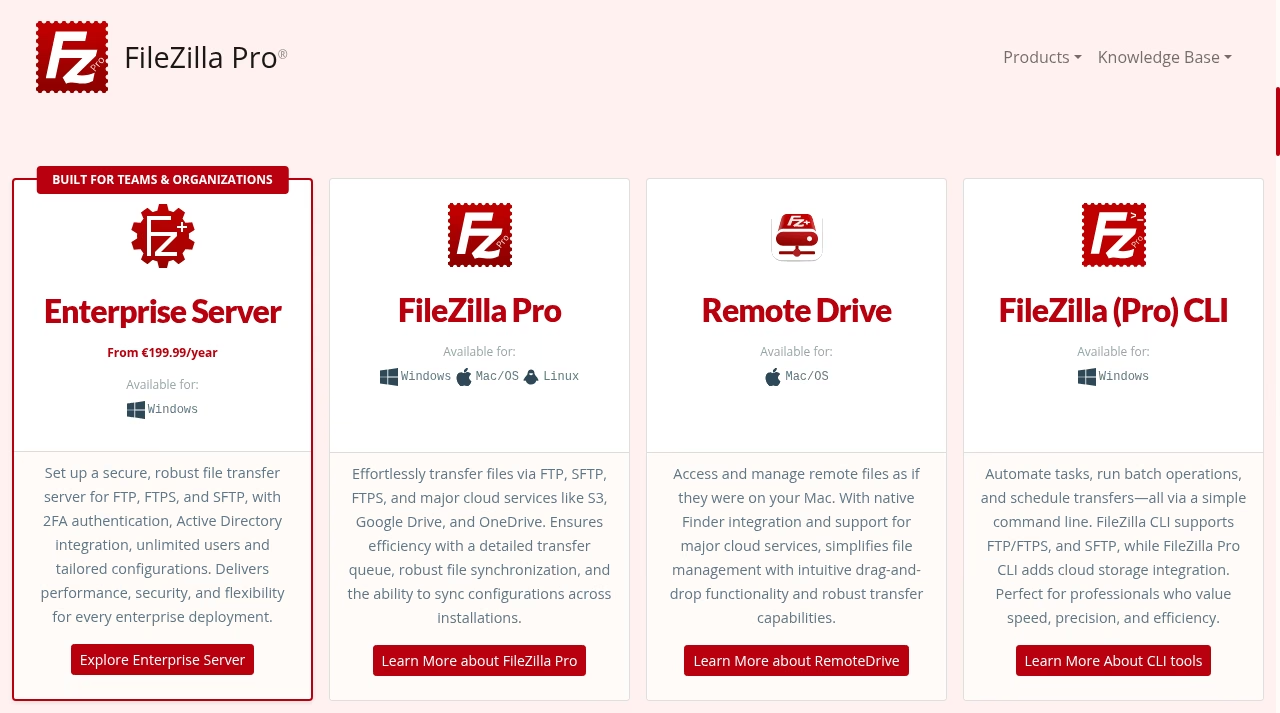
One nuance the product family shot above captures: FileZilla is no longer a single tool. Pro, Enterprise Server, RemoteDrive for Mac, and the CLI are separate answers to separate problems, some of which a lean MVP team will never need and some of which an enterprise will insist on.
If you want to browse beyond transfer clients, our app directory has the rest of the categories we cover. And for teams comparing broader build partners, the lists of cloud-native SaaS builders sit one click away.
The bottom line
On a Windows machine doing serious or scheduled work, WinSCP is the better free client: more protocols at zero cost, and a scripting story nothing else in this price bracket touches.
On anything that is not Windows, FileZilla Client is the default for good reason, and FileZilla Pro earns its price the day you need S3 or OneDrive inside the same window. Neither choice is permanent, both are safe to try today, and the only wrong answer is still typing your password into plain FTP.
Frequently asked questions
Is FileZilla really free?
FileZilla Client is free and open source under the GPL, with no feature time limits. The paid products are FileZilla Pro (adds cloud storage protocols, from EUR 12.99), FileZilla Pro Enterprise Server, and the Pro plus CLI bundle. Download only from the official site, filezilla-project.org.
Is WinSCP available for Mac or Linux?
No. WinSCP runs on Windows only, and the project has never shipped a macOS or Linux version. If you need one client across operating systems, FileZilla Client is the natural pick between these two.
Are SFTP and FTPS the same thing?
No. SFTP runs file transfers inside an SSH connection, while FTPS is the classic FTP protocol wrapped in TLS encryption. Both are encrypted and both are fine for sensitive work, but they are different protocols, and your server has to support whichever one you choose.
Which client is better for automated, scheduled transfers?
WinSCP, clearly, on Windows: it includes a scripting console, a .NET assembly for complex jobs, and documented support for running under Windows Task Scheduler, all free. FileZilla’s scripting option is the separate FileZilla CLI, which ships in the paid Power Bundle.
Can either client connect to Amazon S3 for free?
WinSCP can – S3 support is built into the free application. With FileZilla, S3 and other cloud storage protocols require the paid FileZilla Pro tier.
Is plain FTP safe to use?
No. Plain FTP sends your username, password, and file contents unencrypted. Use SFTP or FTPS instead, and verify the server’s host key or certificate before sending credentials the first time.
Which one is faster?
For a single transfer on the same server, network, and protocol, you will not feel a meaningful difference – the bottleneck is almost always the connection, not the client. Both support segmented transfers and resume for large files.
Choose based on platform, protocol support, and automation instead of speed claims, and run your own timed upload if the answer genuinely matters to your workflow.






Leave a Reply