
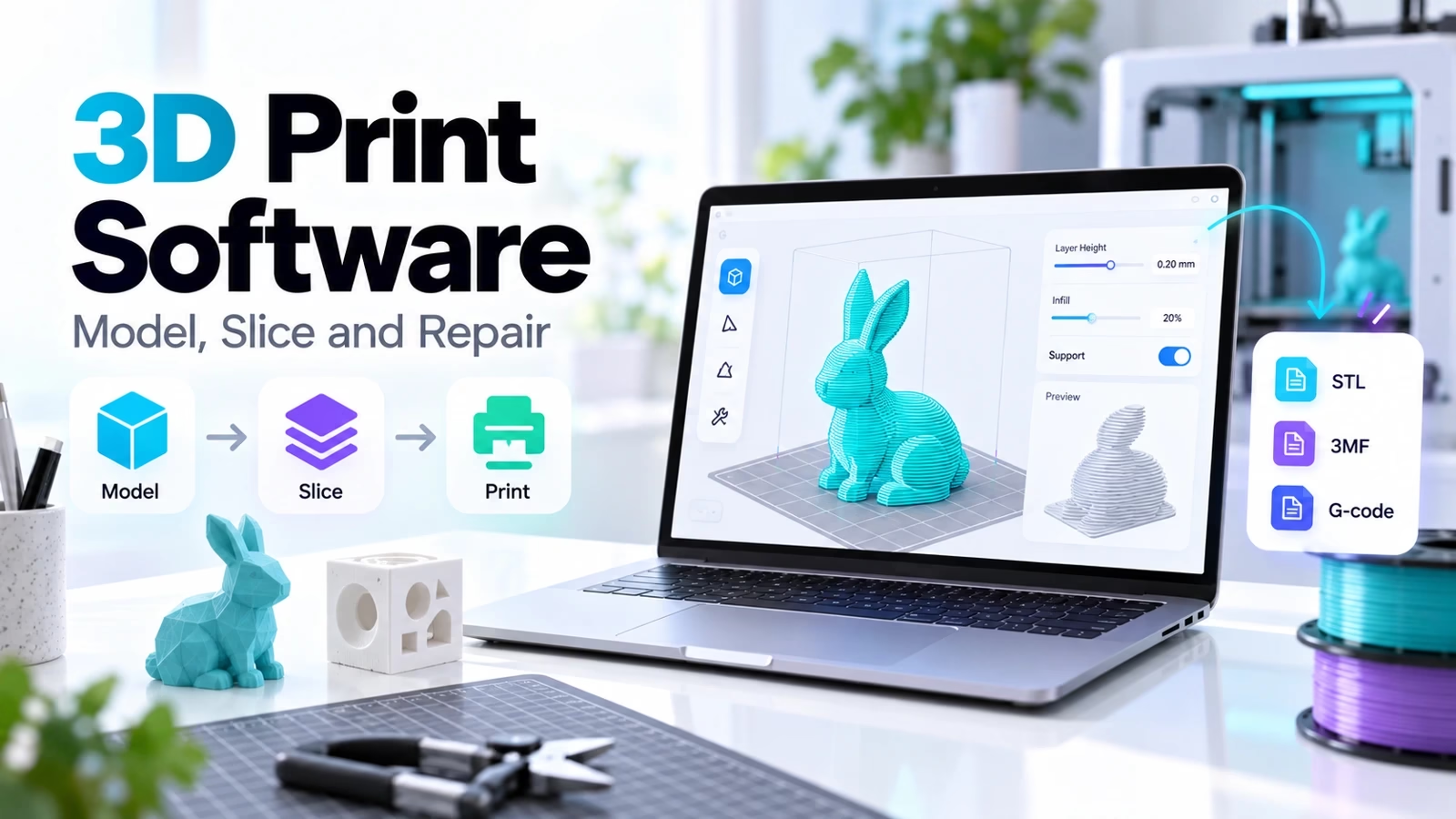

3D print software is a pipeline, not one application
Choose 3D print software for the stage you need: a modeler creates or edits geometry, a mesh tool checks or processes it, and a slicer produces instructions for a specific printer. A beginner can start with Tinkercad and a supported filament slicer. A precise bracket may suit FreeCAD or Fusion. Resin work needs a compatible resin preparation tool. CAD data management matters when revisions and source files must stay traceable.
This comparison uses current official product pages, documentation and vendor hero screenshots checked on October 9, 2026. It is a workflow-based shortlist, not a paid-account benchmark. Recommendations are editorial judgments; export fidelity, plan limits and performance should be checked with your own files. Prices and AI allowances change, so compare the live plan before paying.
Map the file path before installing tools
Write down the source model format, output mesh format, printer model, nozzle or screen, material and supported job format. This prevents the common mistake of choosing a modeler and assuming it can send a safe job to every printer. Manufacturing IoT workflows and industrial automation are wider systems; the slicer remains only one part of the process.
| Stage | Options | Output check |
|---|---|---|
| Simple shapes | Tinkercad | Scale and solid intersections |
| Mechanical CAD | FreeCAD, Fusion, OpenSCAD | Dimensions and editable source |
| Organic mesh | Blender | Watertightness and thin areas |
| Mesh processing | MeshLab | Geometry preserved after edits |
| Filament slicing | Cura, PrusaSlicer, OrcaSlicer, Bambu Studio | Exact machine and material |
| Resin preparation | Lychee, CHITUBOX | Supported format, islands and exposure |
1. Tinkercad: beginner modeling
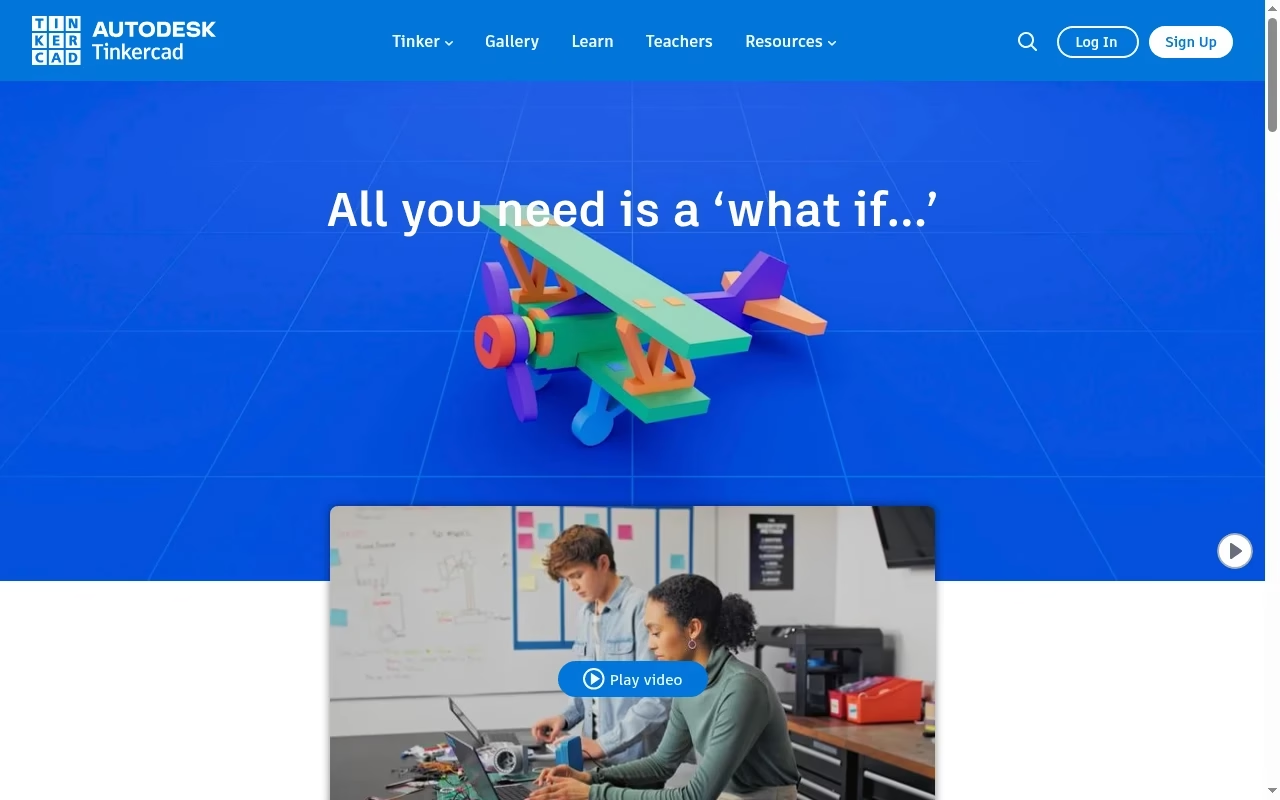
Tinkercad is a browser-based starting point for simple 3D designs. It is a useful first tool for a name tag, spacer or small object made by combining basic shapes. The narrow starting workflow makes it easier to learn how dimensions and intersecting solids affect a printable model.
Watch for: It is not a full parametric engineering environment. Check school or workplace account rules and keep a copy of the exported model.
Try before choosing: Create a simple tag with a hole, export it and inspect the hole and overall dimensions in your slicer.
2. FreeCAD: parametric mechanical parts
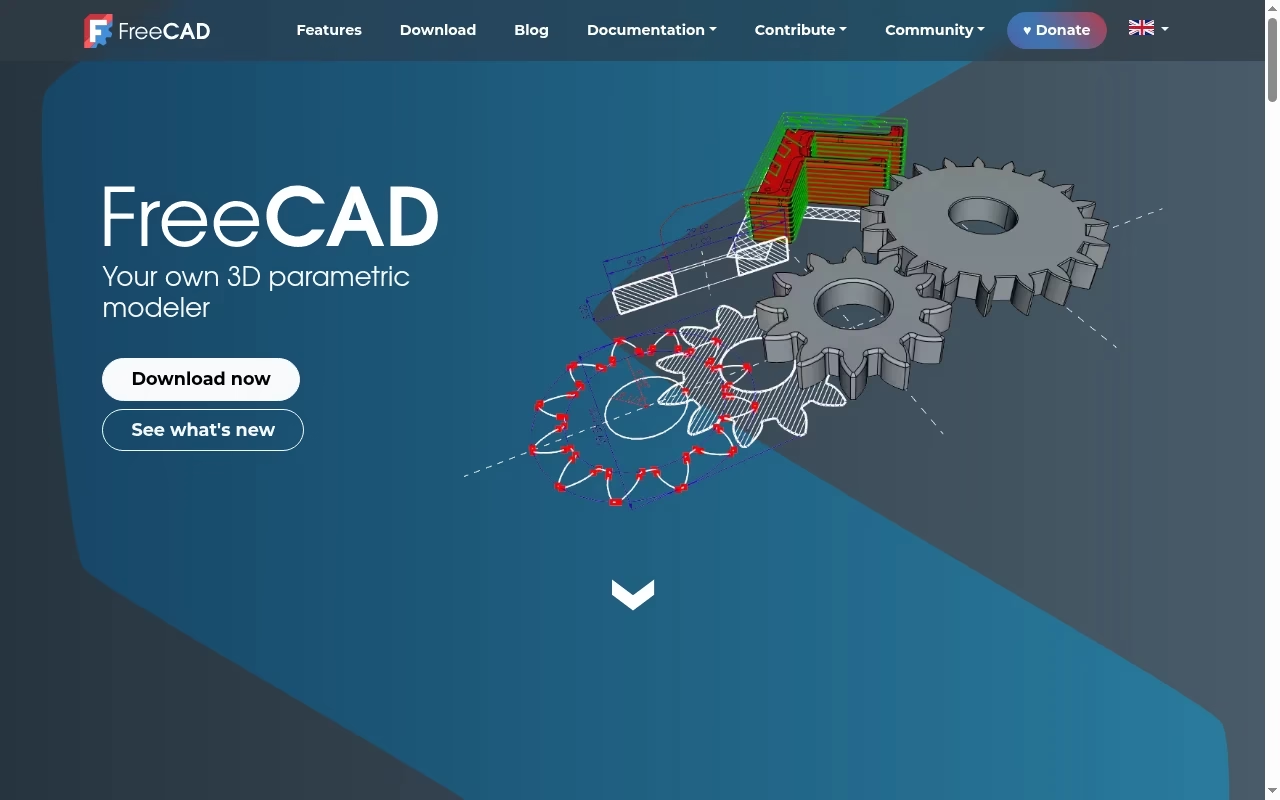
FreeCAD is an open-source parametric modeler. It suits parts whose dimensions and relationships should remain editable: brackets, enclosures and other objects you may revise after a fit check. A sketch-driven model is often a better starting point than sculpting for a precise mechanical job.
Watch for: A parametric history requires learning constraints and dependencies. Imported meshes do not automatically gain a clean editable feature history.
Try before choosing: Model a bracket, change one dimension and check whether dependent features update as intended.
3. Autodesk Fusion: integrated design and manufacturing
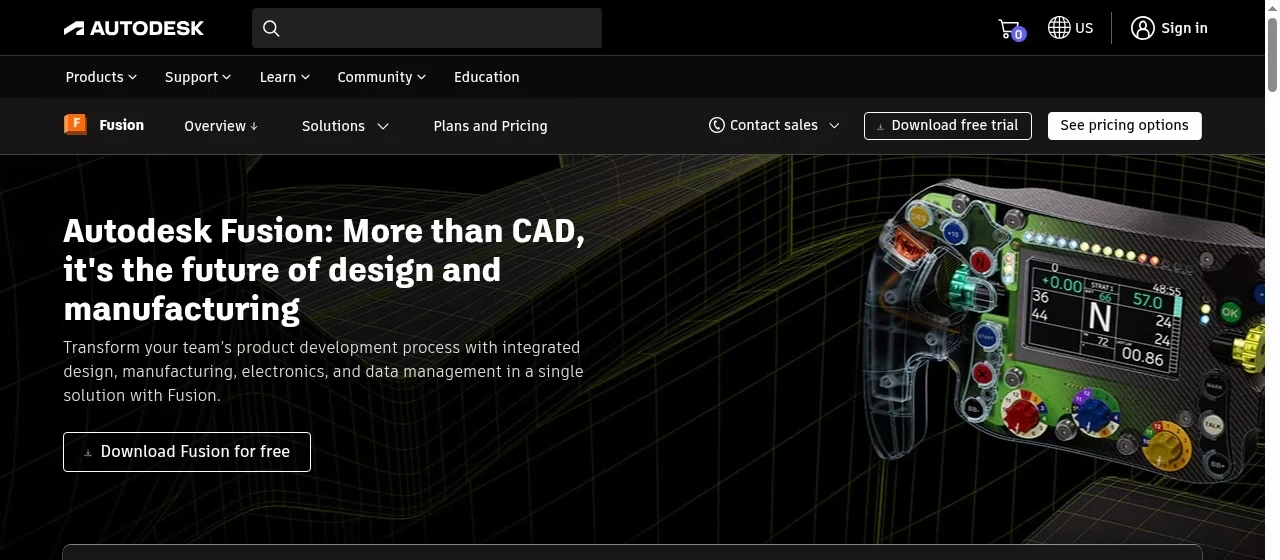
Autodesk Fusion combines design and manufacturing workflows. It is a candidate for makers and professional teams that need more than a standalone mesh modeler. Its appeal is keeping design work connected to wider manufacturing tasks.
Watch for: Personal-use and commercial eligibility are different. Verify your applicable license and any feature limits rather than assuming a free personal offer covers business work.
Try before choosing: Build a small enclosure with measured holes, then inspect the exported mesh and test the licensing terms for your intended use.
4. OpenSCAD: code-defined geometry
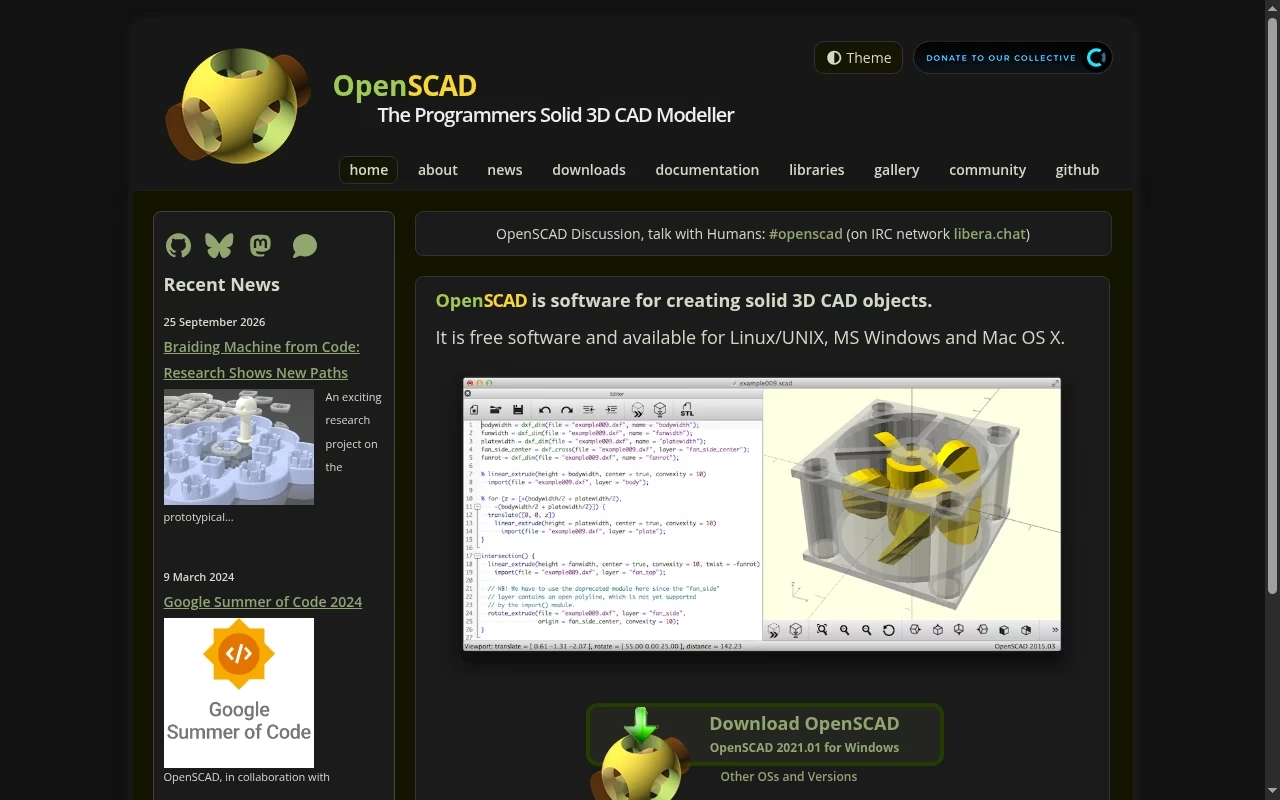
OpenSCAD is a script-based solid modeler. It is useful for repeated or configurable parts when changing dimensions in code is preferable to dragging geometry. A family of spacers or adapters can be defined with parameters and regenerated consistently.
Watch for: It is less natural for organic sculpting and requires comfort with code. A valid script can still create thin walls or disconnected geometry that prints poorly.
Try before choosing: Make one parameterized spacer, change diameter and length, and inspect each result in the slicer.
5. Blender: organic shapes and mesh editing

Blender is a broad open-source 3D suite. It fits organic modeling, sculpting and detailed mesh work better than a beginner expecting an engineering-style sketch workflow. It can be part of a printing pipeline, but the final mesh still needs checks for dimensions and printability.
Watch for: A renderable surface is not necessarily a watertight printable solid. The homepage currently promotes a beta, so choose a supported release deliberately rather than treating the hero version as a stable recommendation.
Try before choosing: Check scale, apply the intended transforms and inspect thin surfaces and overlapping pieces before exporting.
6. UltiMaker Cura: filament slicing
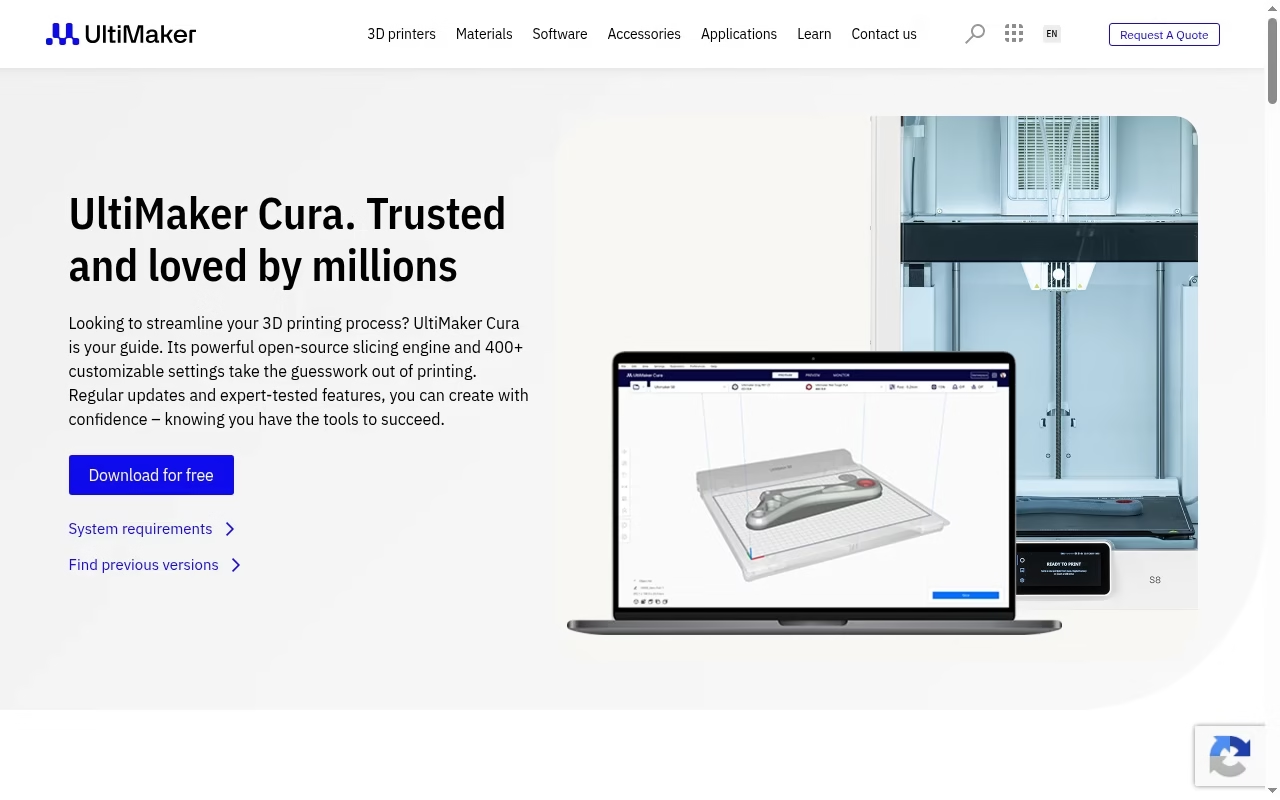
UltiMaker Cura turns a model into printer instructions using machine and material settings. It belongs after modeling in a filament-printing workflow. Printer profiles and extensions can help, but the profile must match the actual machine rather than just look similar.
Watch for: A generic profile cannot guarantee correct start code, bed size or extrusion settings. Do not send output to an unverified printer configuration.
Try before choosing: Load a known small model, verify printer and nozzle, and inspect every layer before a cautious first print.
7. PrusaSlicer: filament slicing with established profiles
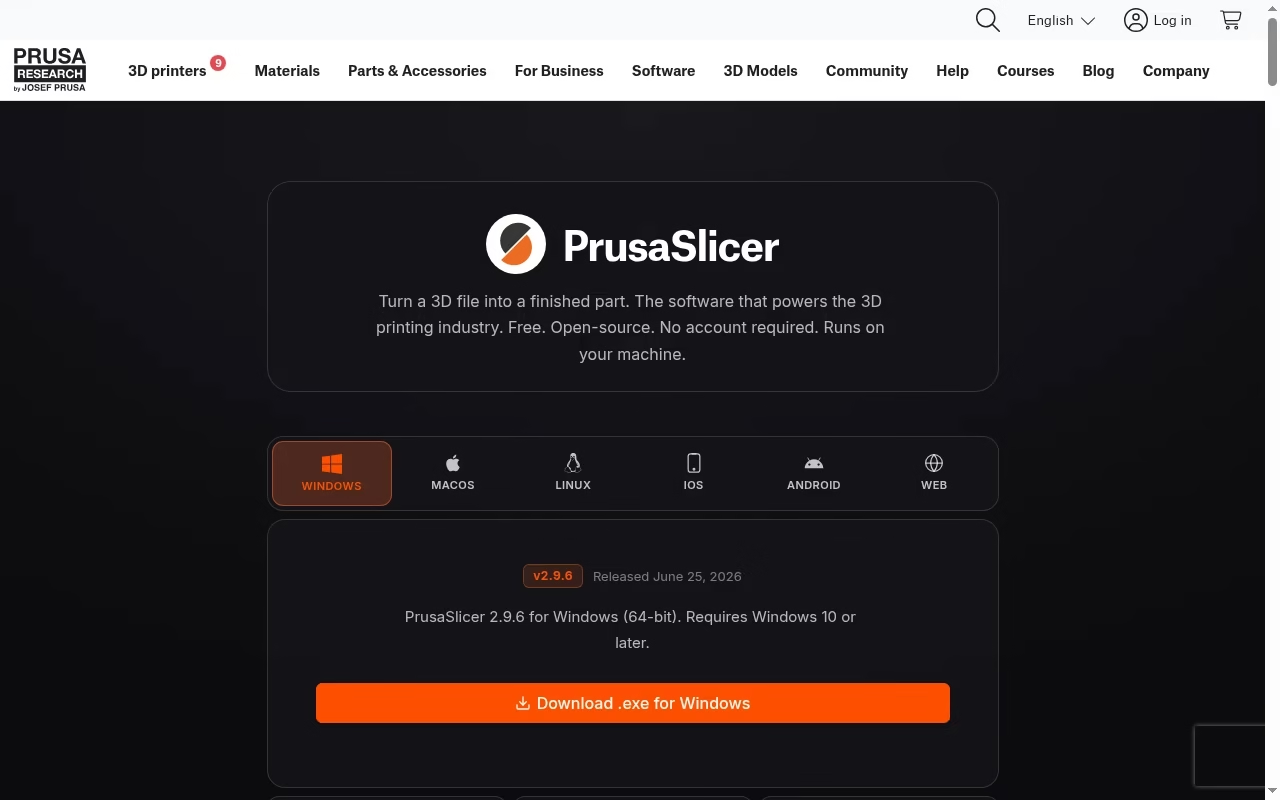
PrusaSlicer is a slicing tool with a workflow built around preparing printable jobs. It is a sensible candidate when its supported printer and material profiles match your setup. Use the preview to evaluate supports, seams and movement, not only the estimated time.
Watch for: Support for a printer must be checked explicitly. The slicer cannot know whether your filament is wet or a nozzle is worn.
Try before choosing: Slice the same small model with your real nozzle and material. Inspect bridging, first-layer behavior and support contact areas.
8. OrcaSlicer: filament tuning and slicing
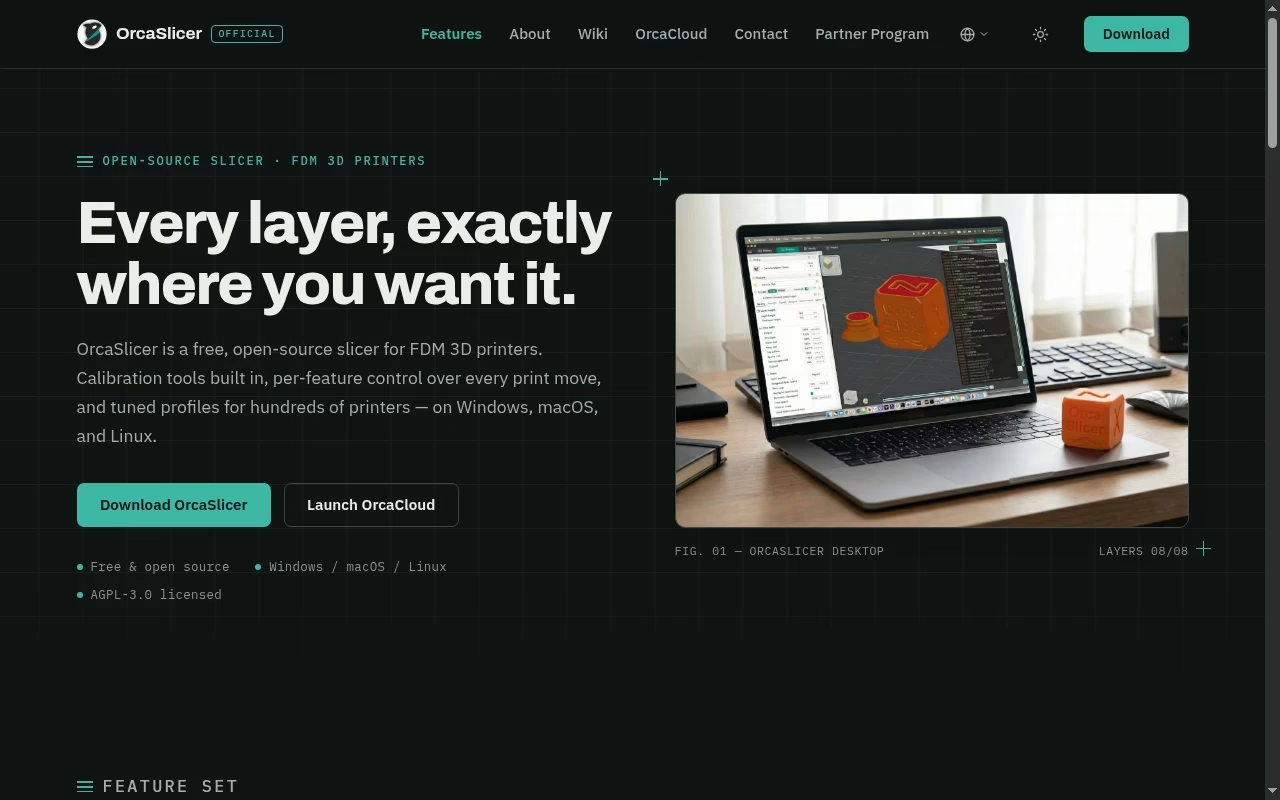
OrcaSlicer is a candidate for users who want slicing and calibration-oriented workflows. It is useful when you are prepared to tune a supported machine and compare changes methodically rather than accepting a profile as a guarantee.
Watch for: Check releases and printer support from the project. Third-party profiles and forks can differ, and a calibration result is specific to the machine, material and conditions.
Try before choosing: Change only one setting at a time on a short test and keep the successful profile with a clear name.
9. Bambu Studio: Bambu-centered print preparation
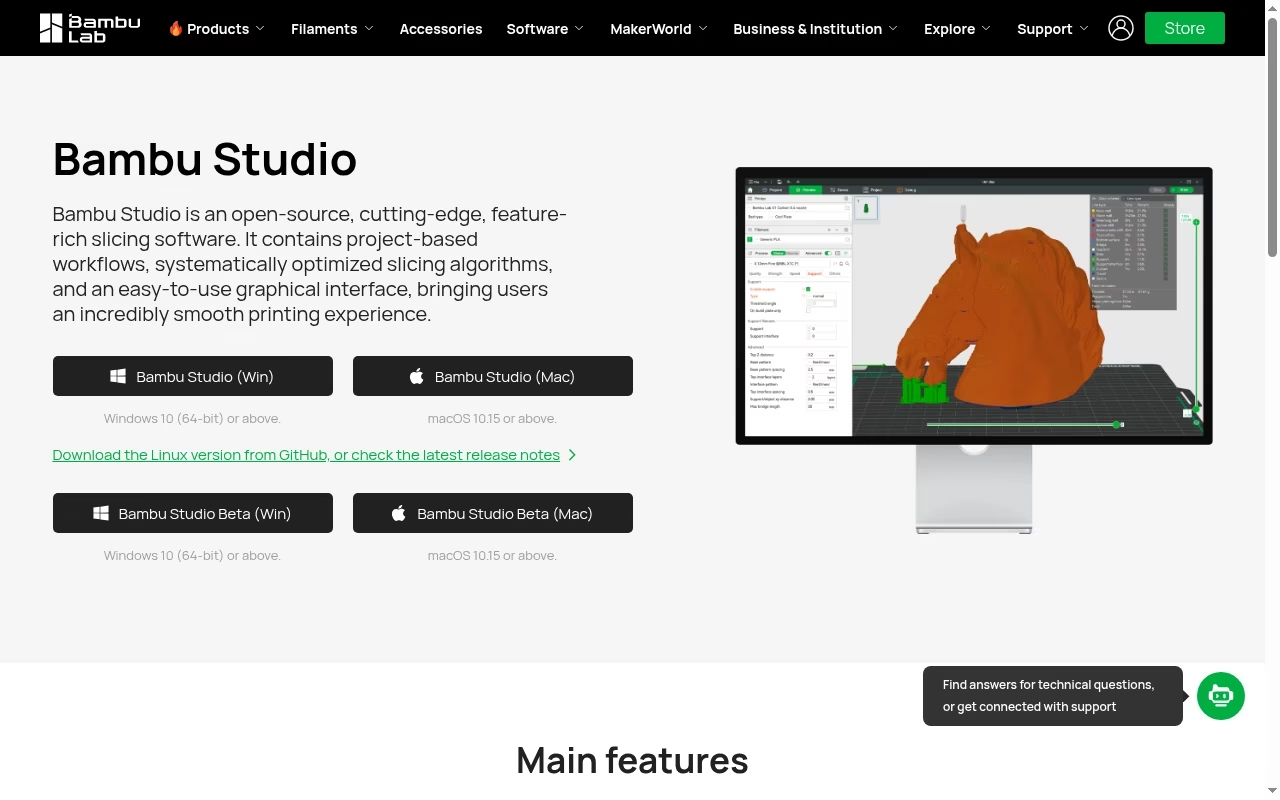
Bambu Studio is the official desktop preparation tool presented by Bambu Lab. It is the natural first option to evaluate for a supported Bambu setup, especially when the workflow depends on the vendor’s print preparation and device ecosystem.
Watch for: Check which features require an account or network access in your environment. Multi-material preparation needs the actual compatible hardware, not merely a colored model.
Try before choosing: Confirm the exact printer, build plate and material, then inspect color changes, purge requirements and the final preview.
10. Lychee Slicer: resin preparation and supports
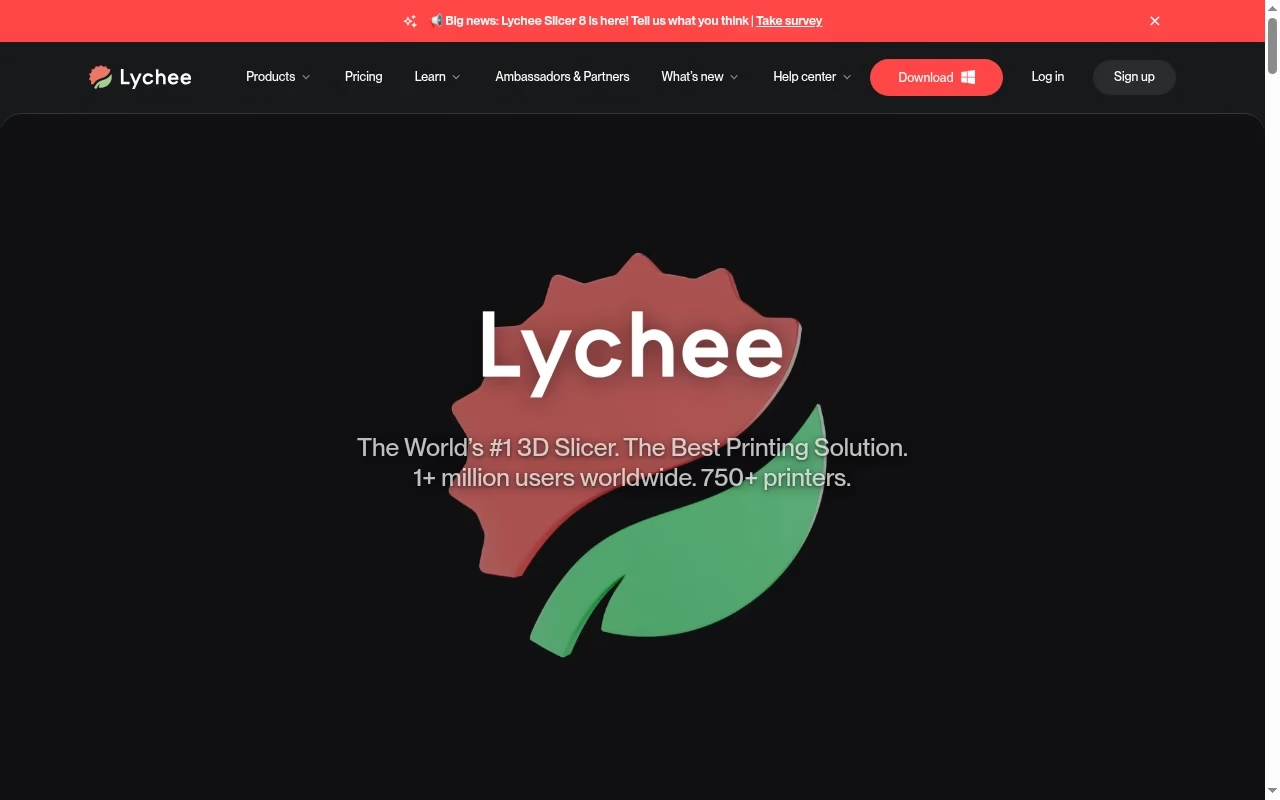
Lychee is a useful shortlist option for resin-oriented preparation. The key work is orientation, support placement and making sure the selected machine profile can produce the required output. Judge it against your actual printer and resin, not a universal best-slicer label.
Watch for: Free and paid features can differ. Resin safety, washing and curing are physical process requirements that software does not remove.
Try before choosing: Use a small supported model, inspect islands and support contacts, and verify the printer profile before exporting.
11. CHITUBOX: CHITUBOX resin workflows
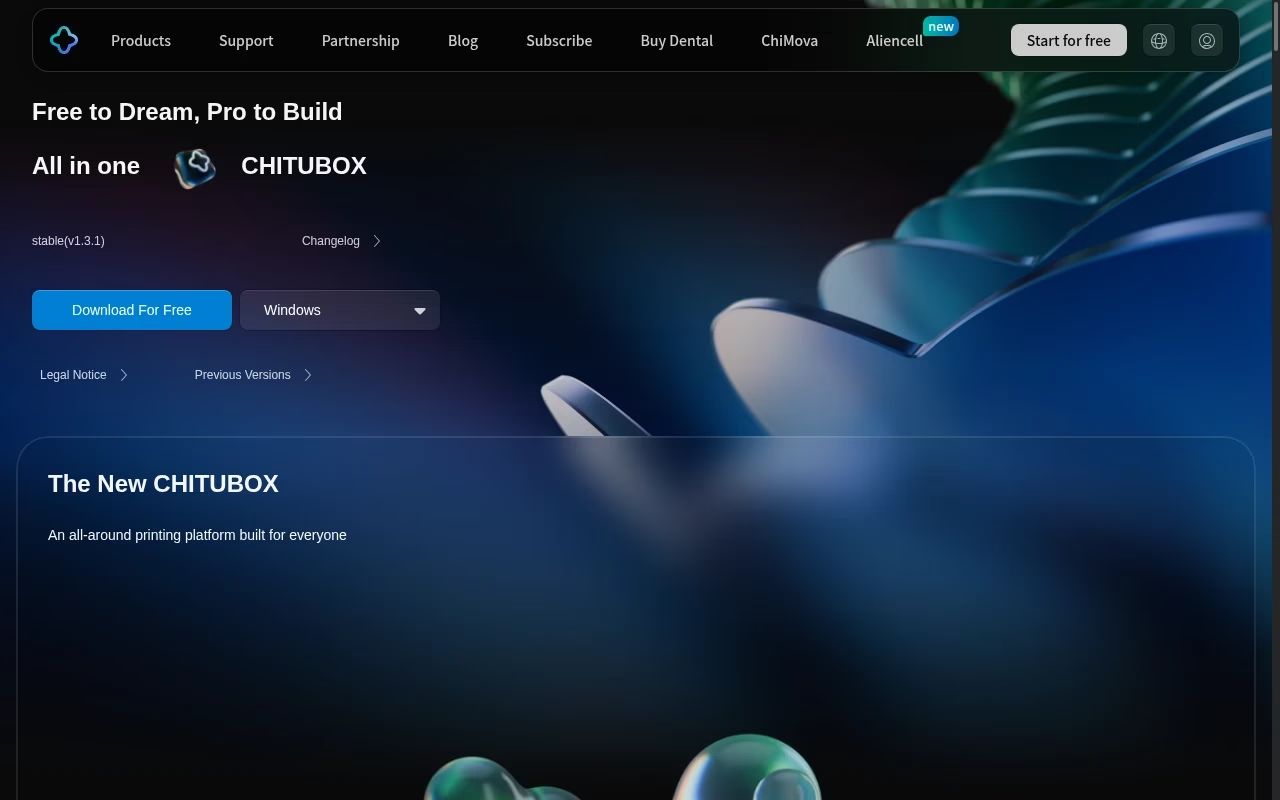
CHITUBOX is a print-preparation ecosystem to check when your resin printer supports its workflow. Its current product page presents an all-in-one CHITUBOX offering; older BASIC and Pro advice should be checked against today’s product structure.
Watch for: Confirm printer compatibility and exported file format. An auto-support command does not establish that every isolated region is supported or that a hollow model has a safe drainage plan.
Try before choosing: Inspect layers for unsupported islands, review orientation and drainage, and confirm exposure settings against your resin and printer guidance.
12. MeshLab: mesh inspection and processing
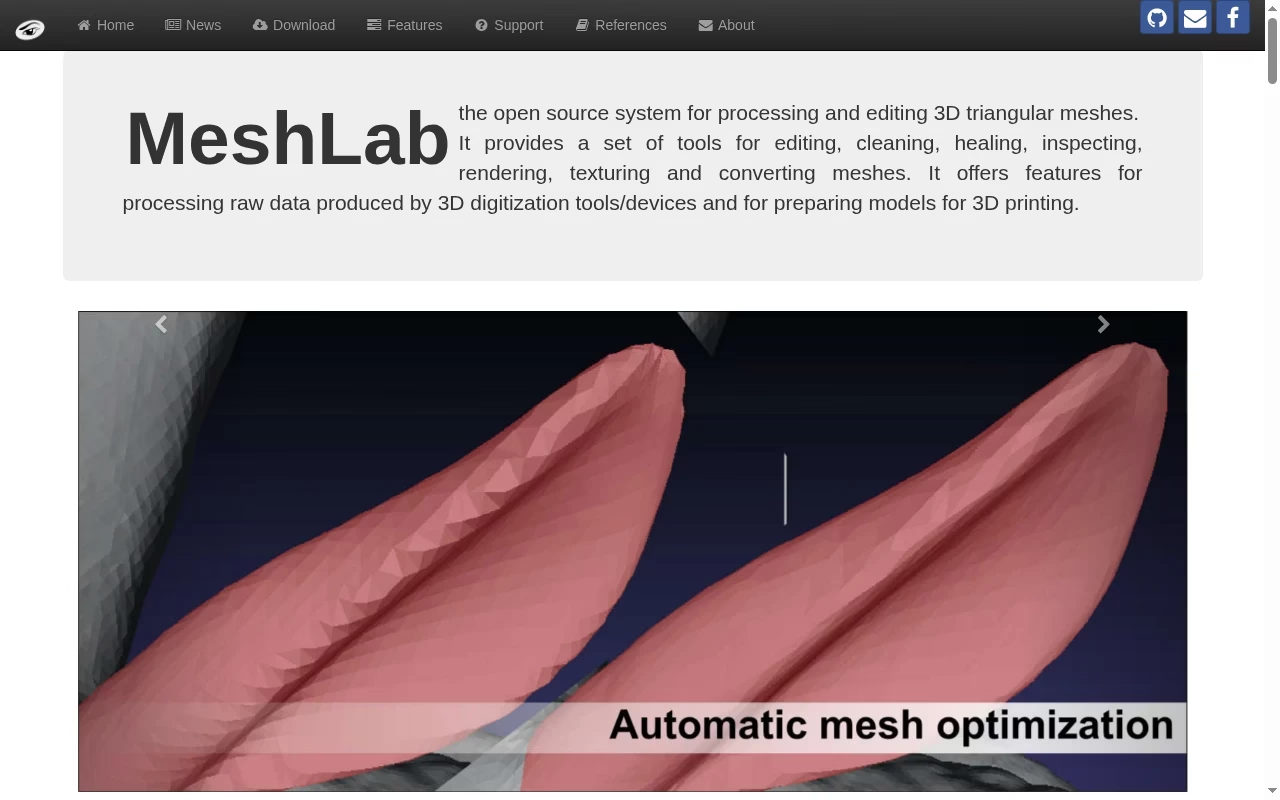
MeshLab is an open-source system for processing and editing 3D triangular meshes. It is useful for inspection, cleanup and mesh-processing tasks when you already have a scanned or exported model. Think of it as a supporting tool, not a slicer that produces a ready machine job.
Watch for: Mesh repair can alter geometry. Keep the original and check measured features after filters or simplification; a cleaner mesh can still be dimensionally wrong.
Try before choosing: Work on a copy, inspect holes and topology, and compare critical dimensions before and after processing.
What a slicer preview can and cannot tell you
The preview shows the instructions the slicer intends to produce. Look for missing walls, unintended gaps, unsupported areas and toolpaths that do not match your design. Estimated time and material are planning aids, not measured results. Real print behavior also depends on machine condition and material. Inventory metrics help track material use in a business, while manufacturing automation systems cover larger operational needs.
Build a model-to-print validation workflow
Keep the editable source, exported mesh and final sliced job separate. Name them with a revision so a previous export cannot be mistaken for the latest design. Check dimensions at the model and slicer stages. A file imported at the wrong scale can look normal on screen while being physically unusable. Digital twin use cases are relevant when the print represents a real system, but a 3D model alone is not a validated digital twin.
Make each change measurable
For a first fit check, use a small section or simple test feature rather than a long complete print. Record the measured result and the exact profile used. Keep project notes in a notes or wiki tool and review steps in a project board. Save the original before mesh repairs and compare important holes and surfaces after cleanup. Do not present a repair command as proof of mechanical suitability.
Choose the slicer by machine compatibility and inspect the layers
The safest shortlist begins with the printer maker’s supported workflow. Confirm bed dimensions, nozzle diameter or resin profile, start and end code, build plate and output format. A slicer can offer hundreds of options, but the important question is whether those options are correct for your hardware. Never copy exposure values from a different resin and machine as universal settings.
Separate software checks from physical safety
Follow the printer and material maker’s ventilation, handling and maintenance guidance. Resin requires appropriate protection and post-processing; filament printing has its own heat and material concerns. In a larger operation, IoT foundations and business IoT use cases can support monitoring, but neither replaces supervision or a verified print profile. Software confidence must not be used as a substitute for physical process checks.
Frequently asked questions
Do I need CAD software and a slicer?
Usually yes if you are designing a new part. CAD or mesh modeling creates the geometry; the slicer prepares machine-specific instructions. If you already have a suitable model, you may only need inspection and slicing, but check rights, scale and printability first.
Which free software is a sensible beginner start?
Tinkercad is a straightforward browser-based place to learn simple shapes. For more precise parametric parts, FreeCAD is worth learning. Use the slicer supported for your actual printer, not a generic recommendation detached from the hardware.
Can Blender produce printable models?
Yes, but a model that looks correct in a render may contain open surfaces, thin walls or overlapping parts. Verify dimensions and topology, then inspect the exported mesh in a slicer before committing to a print.
Can I use a filament slicer for a resin printer?
Only if that tool explicitly supports the particular resin workflow and required output. Resin and filament preparation have different settings and support requirements. Verify the exact machine and job format rather than assuming all 3D slicers are interchangeable.
Does automatic mesh repair make a file safe to print?
No. It can correct some mesh problems while changing geometry or leaving process problems unresolved. Compare the repaired copy with the original, check dimensions and inspect the sliced layers. Mechanical strength and safety still need appropriate validation.
Why is my sliced model the wrong size?
Model formats and applications can handle units differently, and transforms or export settings can change scale. Check a known dimension at every stage. Correct the source or import settings deliberately instead of compensating with an unexplained slicer scale factor.



Leave a Reply