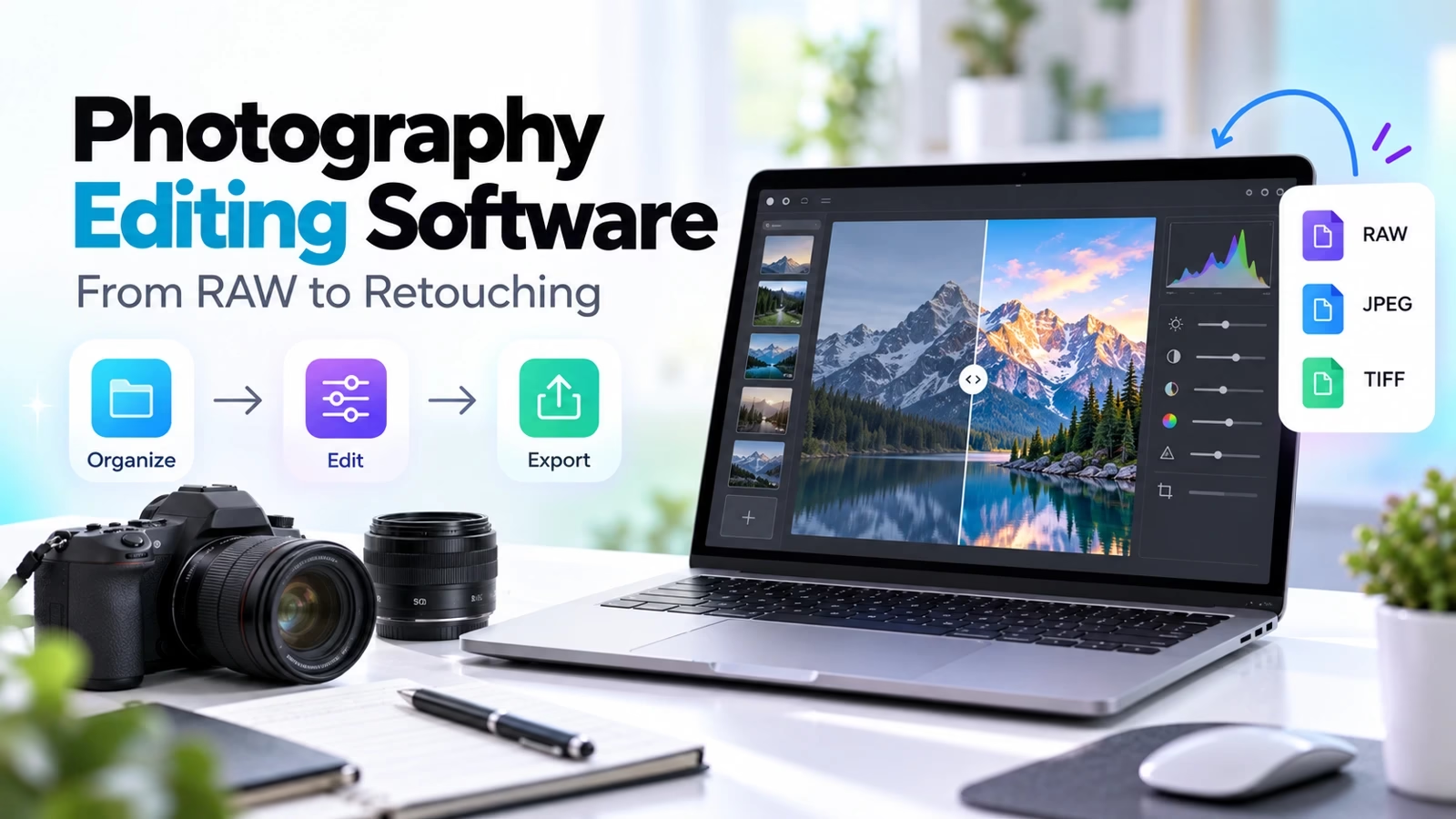

Choose photography editing software around the whole shoot
The right photography editing software depends on the bottleneck. Start with Lightroom for a catalog-led workflow, Capture One for a camera-verified studio session, DxO PhotoLab for RAW and optics work, or darktable for a free organized RAW workflow. Use Photoshop, Affinity or GIMP when layered retouching is the real job. Creator apps cover the publishing tasks that come after editing.
This comparison uses current official product pages, documentation and vendor hero screenshots checked on October 9, 2026. It is a workflow-based shortlist, not a paid-account benchmark. Recommendations are editorial judgments; export fidelity, plan limits and performance should be checked with your own files. Prices and AI allowances change, so compare the live plan before paying.
Separate RAW development, organization and retouching
RAW development interprets camera data. Organization helps you find, rate and deliver photographs. Retouching changes selected pixels or combines layers. One app may cover several stages, but it may not be equally good at each. If your images also become illustrations, iPad drawing tools solve a different problem from processing a shoot.
| Priority | First trial | Required check |
|---|---|---|
| Large organized library | Lightroom, darktable, ACDSee | Import, search and export |
| Studio session | Capture One | Your actual camera tethering |
| Optics and RAW detail | DxO PhotoLab, RawTherapee | Camera/lens support |
| Retouch and layers | Photoshop, Affinity, GIMP | Editable layered handoff |
| All-in-one local workflow | ON1 Photo RAW | Installed version, not future claims |
1. Adobe Lightroom: catalog-led photo workflows
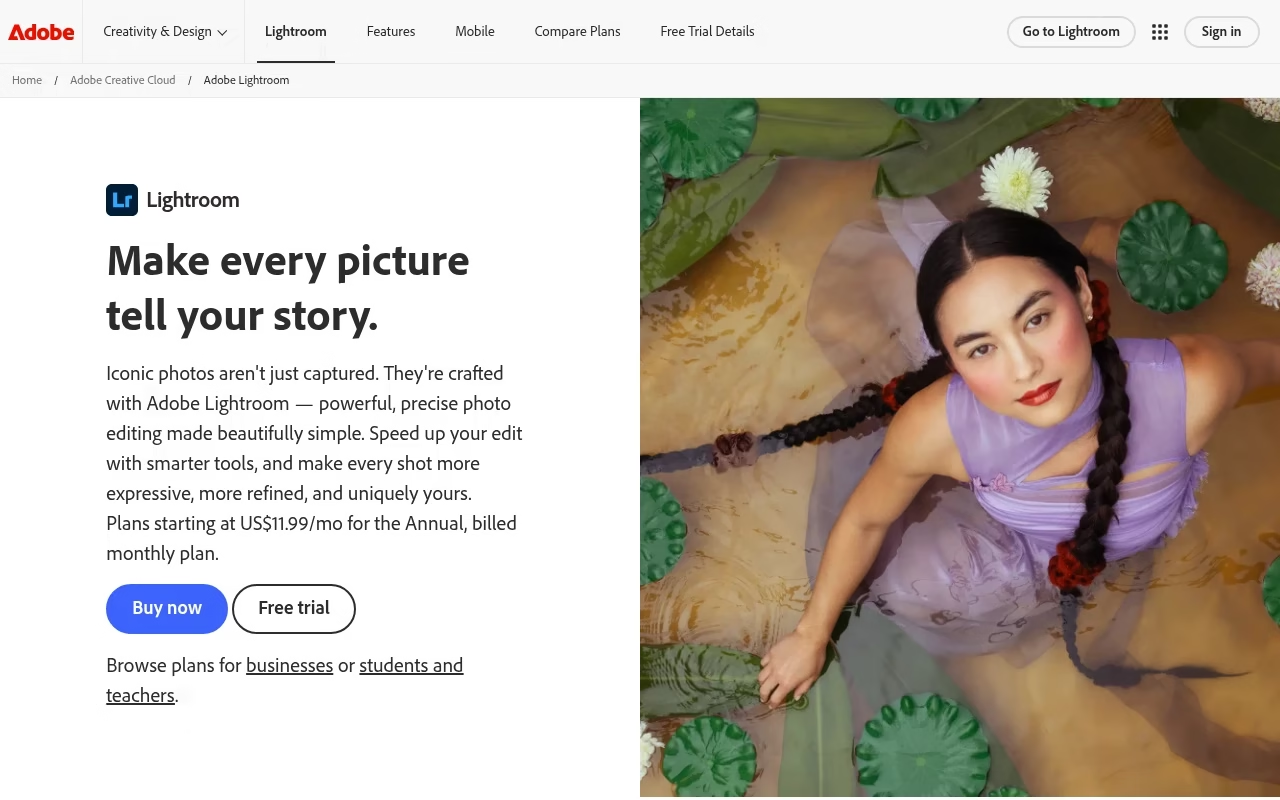
Adobe Lightroom is a strong first trial when importing, organizing and editing a large collection matters as much as changing individual images. Its environment brings photo management and adjustments together. For event and travel photographers, that can be more important than having every compositing feature in one app.
Watch for: Lightroom and Lightroom Classic are different workflow choices. Check storage, local-file handling and plan details instead of treating the product name as one uniform setup.
Try before choosing: Import a small real shoot, mark rejects, edit a sequence and export consistent files. Include your actual camera RAW format.
2. Capture One: tethered and color-focused sessions
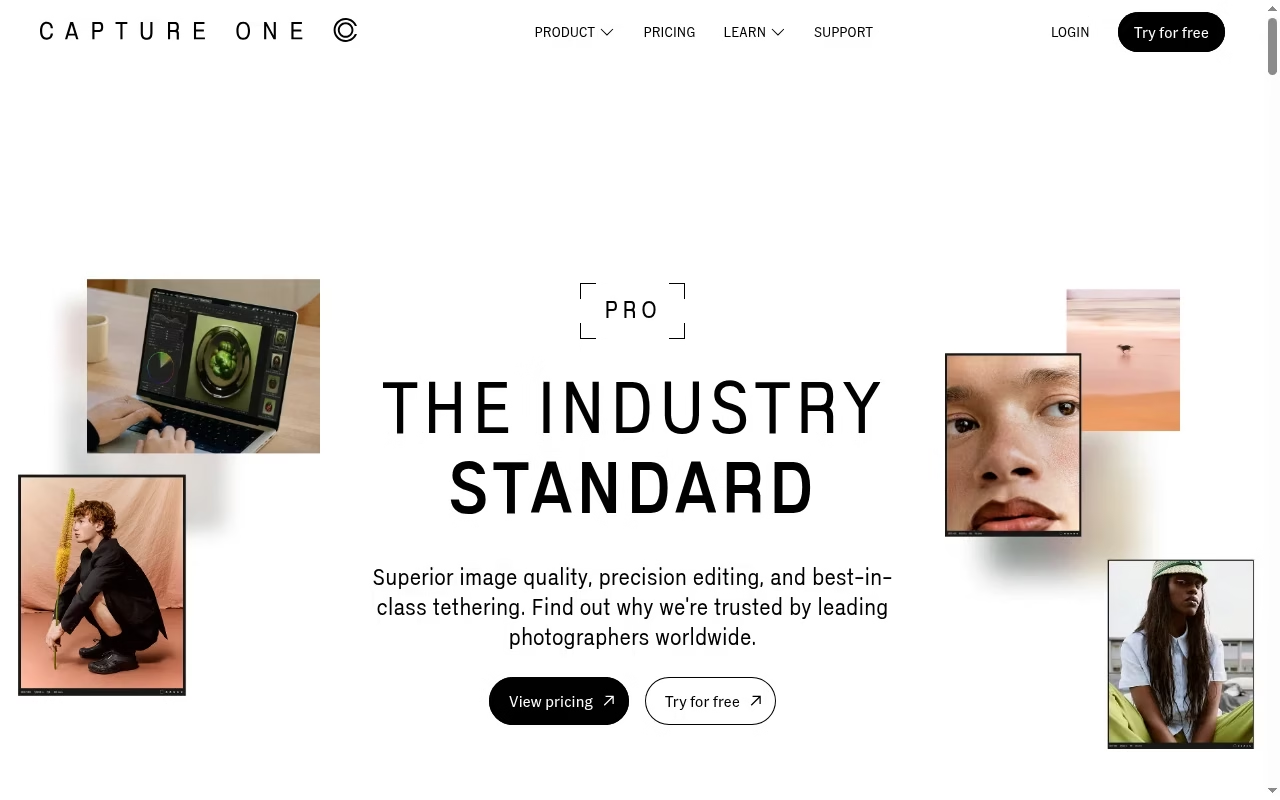
Capture One is a serious candidate for a studio or session-oriented workflow where tethering and controlled color work are central. The product should be tested with your camera and shooting environment, not chosen only because another professional uses it.
Watch for: Camera support, tethering behavior and licensing need an exact check. The default rendering may differ from your current editor, which affects preset migration and client consistency.
Try before choosing: Connect your actual camera if tethering is required, process a short session and compare skin tones and highlight recovery with your existing workflow.
3. DxO PhotoLab: RAW processing and optical corrections
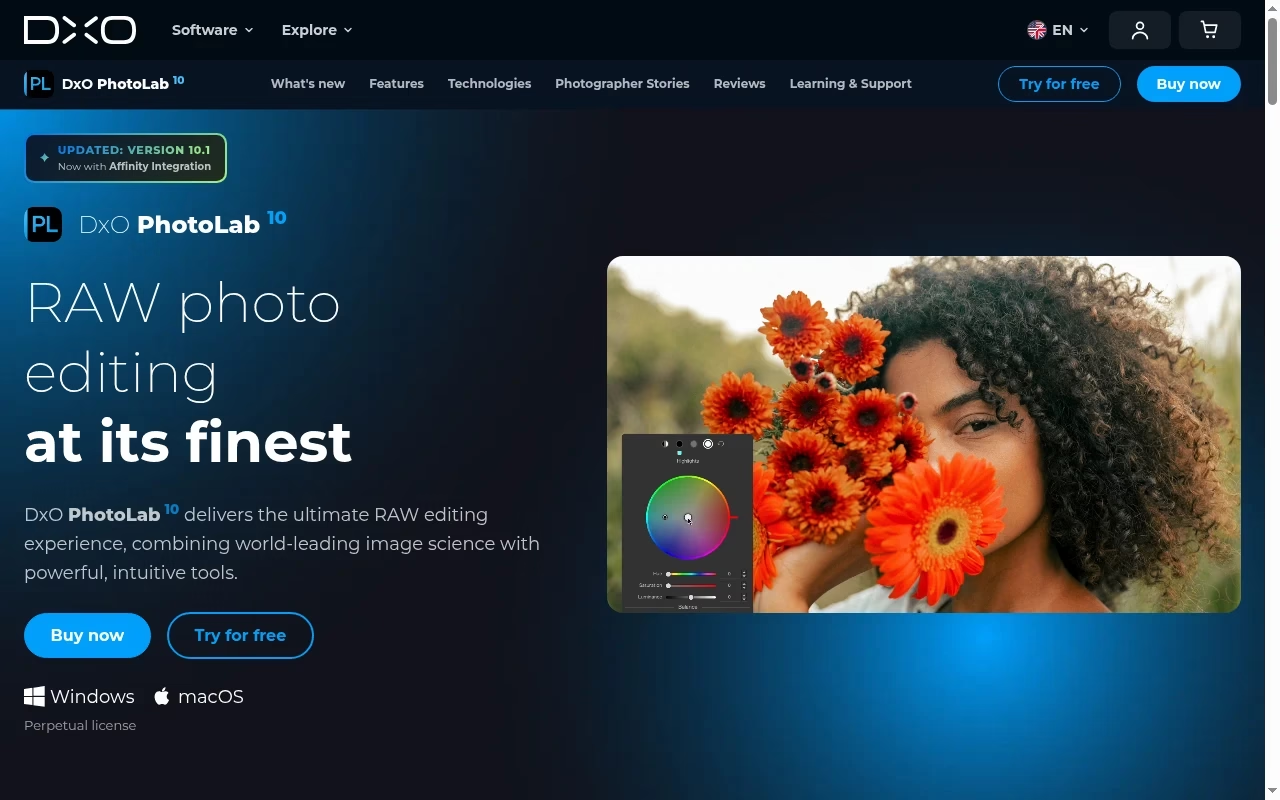
DxO PhotoLab focuses on RAW editing, image quality and optics. Its current product page emphasizes lens correction and precise editing. It is a good shortlist option when difficult noise or lens behavior is a larger problem than cloud collaboration.
Watch for: Check support for the exact camera and lens combination. Edition-specific tools matter, and a correction profile is not proof that every unusual image will look natural.
Try before choosing: Use a high-ISO file and a wide-angle image with visible edge distortion. Inspect detail at normal output size as well as at 100 percent.
4. ON1 Photo RAW: an all-in-one local photo workflow
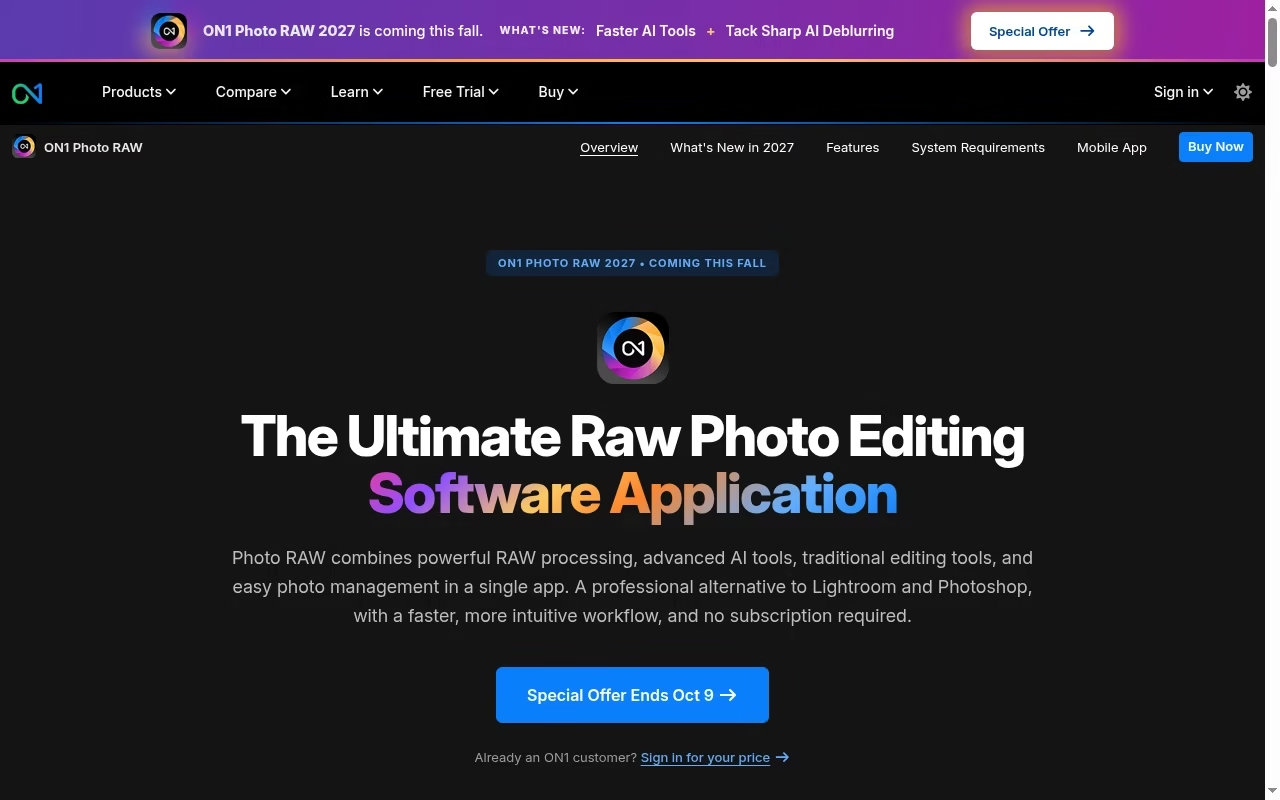
ON1 Photo RAW combines photo management, RAW editing and creative tools. It is a candidate when you want more of the workflow in one application and prefer ownership-oriented options over a cloud-first catalog.
Watch for: The vendor is promoting a coming 2027 release. Do not confuse preorder or announced features with the currently delivered version. Check what ships now and how optional services are licensed.
Try before choosing: Use only the installed release in your trial. Test import, masking, layered work and export on representative files before judging the advertised next version.
5. darktable: free organized RAW development
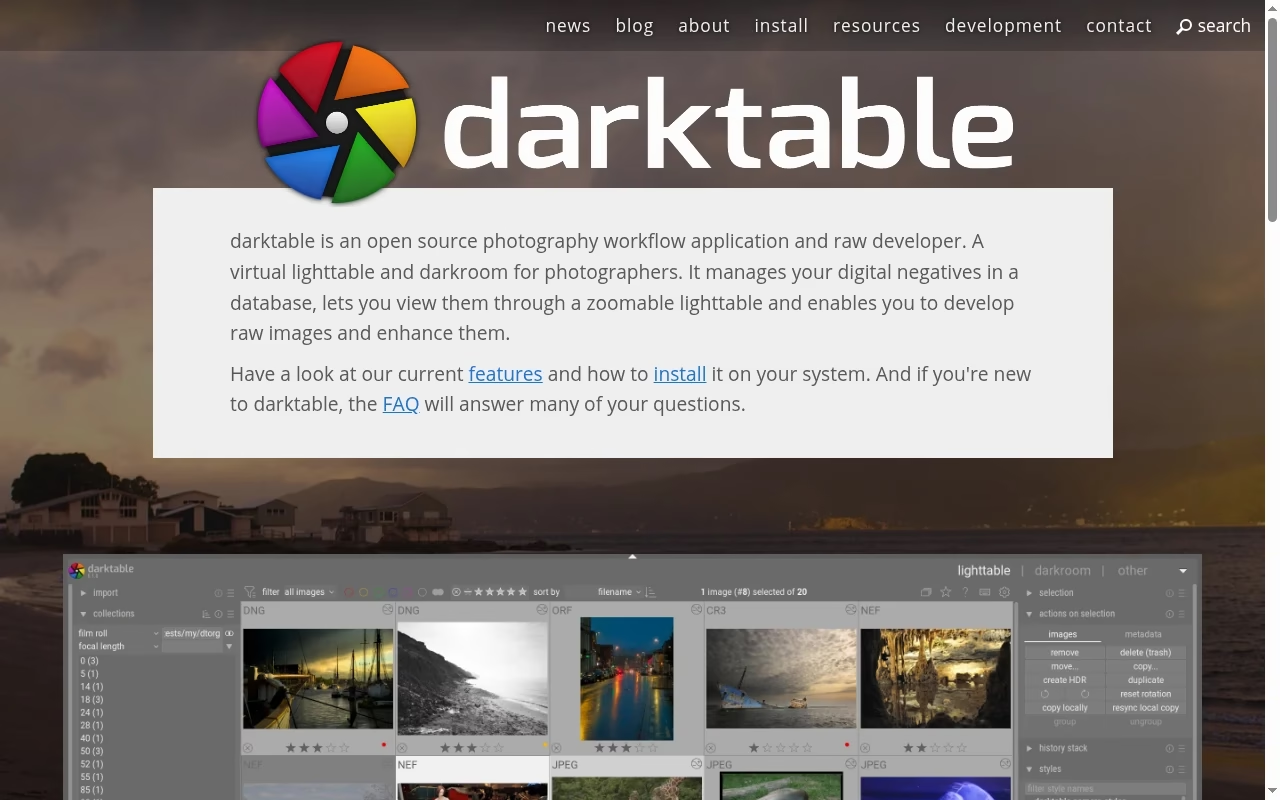
darktable is an open-source photography workflow application and RAW developer. Its database-backed lighttable and darkroom approach suits people who want a free organized workflow and are willing to learn a detailed processing system.
Watch for: The interface and processing concepts take time to learn. Default output can differ from commercial editors, so judging it from the first unadjusted RAW preview is misleading.
Try before choosing: Work through a small shoot and learn the core processing sequence. Compare exported photographs after deliberate edits, not just default previews.
6. RawTherapee: detailed free RAW processing
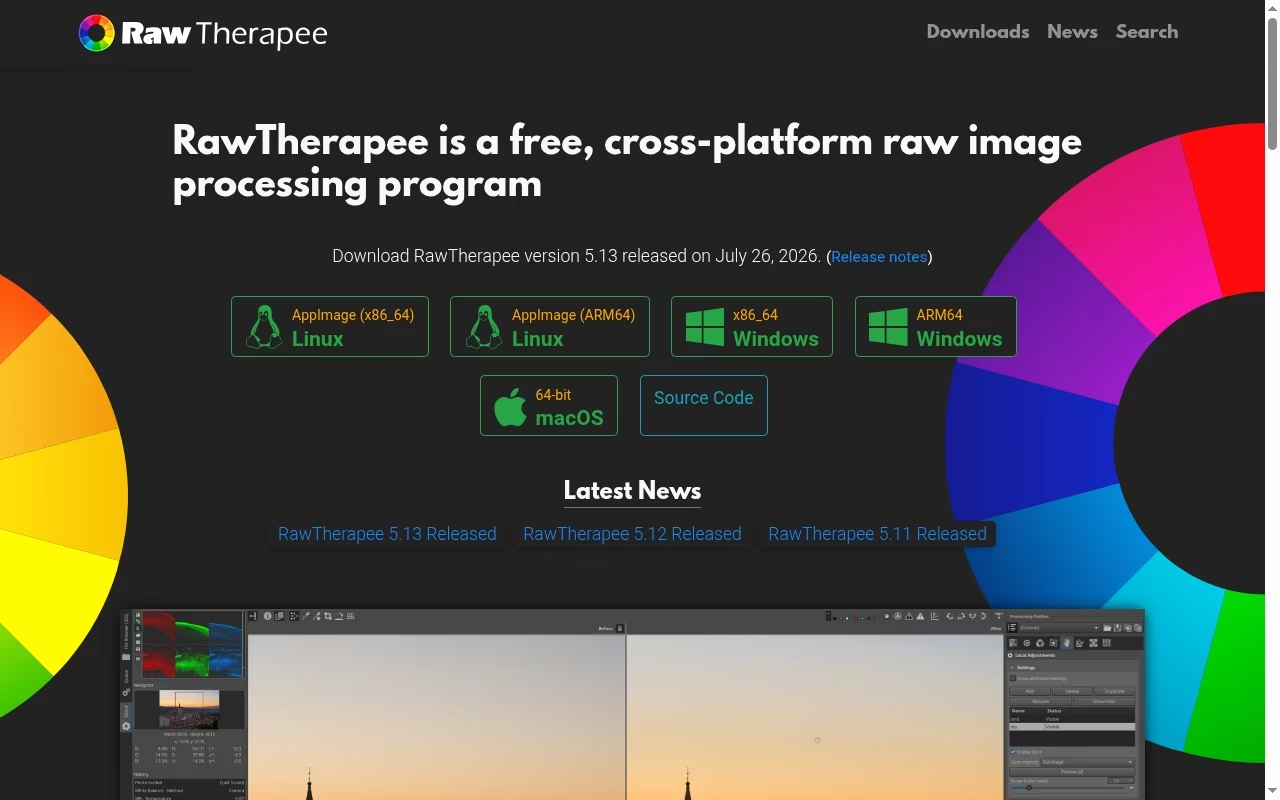
RawTherapee is a free cross-platform RAW processing program. It fits photographers who value detailed control over development and are comfortable learning the processing tools. Consider it for careful image preparation rather than assuming it replaces every catalog or retouching job.
Watch for: Detailed controls can slow a beginner. Check file support and the wider organization workflow, especially if managing a large library is your main bottleneck.
Try before choosing: Process one landscape and one high-ISO image, then compare highlight handling, fine detail and export repeatability.
7. Adobe Photoshop: retouching and compositing
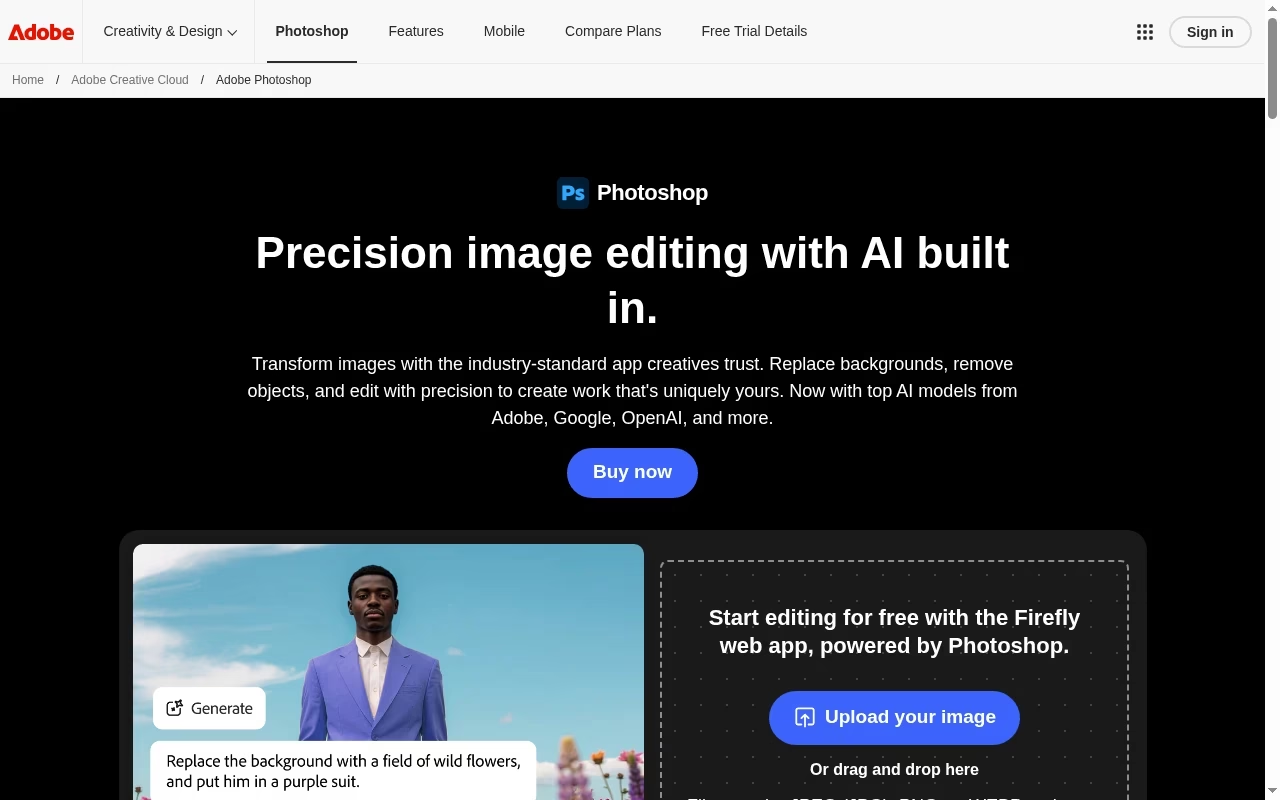
Adobe Photoshop is the candidate when the job needs detailed selections, layers, compositing or substantial pixel-level changes. It is often a complement to a RAW workflow rather than the best place to organize an entire shoot.
Watch for: Subscription and AI allowances should be checked. Generative edits require extra scrutiny in documentary, product and client work because they can change what the image represents.
Try before choosing: Retouch a layered portrait or product image and preserve a clean original. Check whether another editor can reopen and revise the file.
8. Affinity: photo edits with design and layout
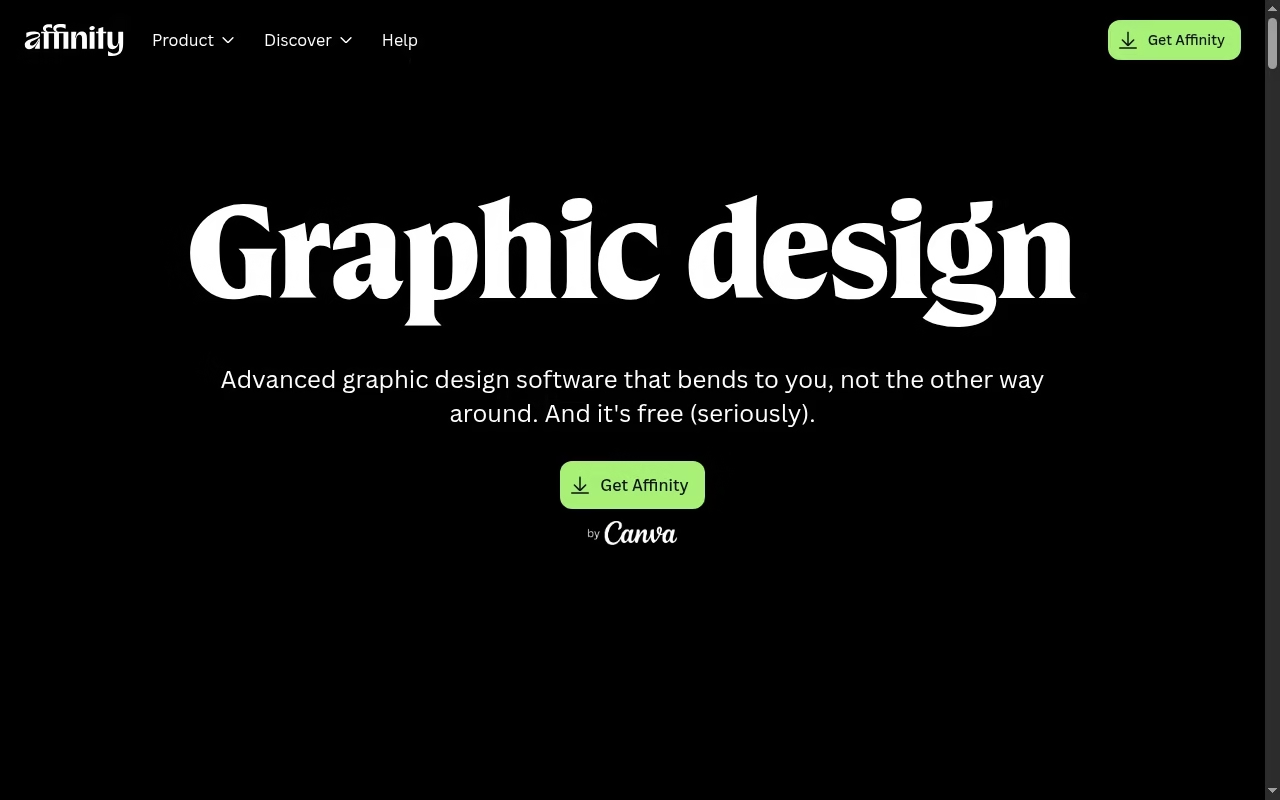
Current Affinity brings photo, vector and layout work into one product and advertises free individual use, with optional Canva AI features. It is worth considering when photography is part of a wider design job and you want to move between image editing and finished assets.
Watch for: Old paid-license comparisons do not describe the current offering. Check RAW support and project compatibility; a combined creative workspace is not the same as a large photography catalog.
Try before choosing: Develop a RAW file, make a layered adjustment and place it in a designed layout. Test the final export and the editable source.
9. GIMP: free pixel editing
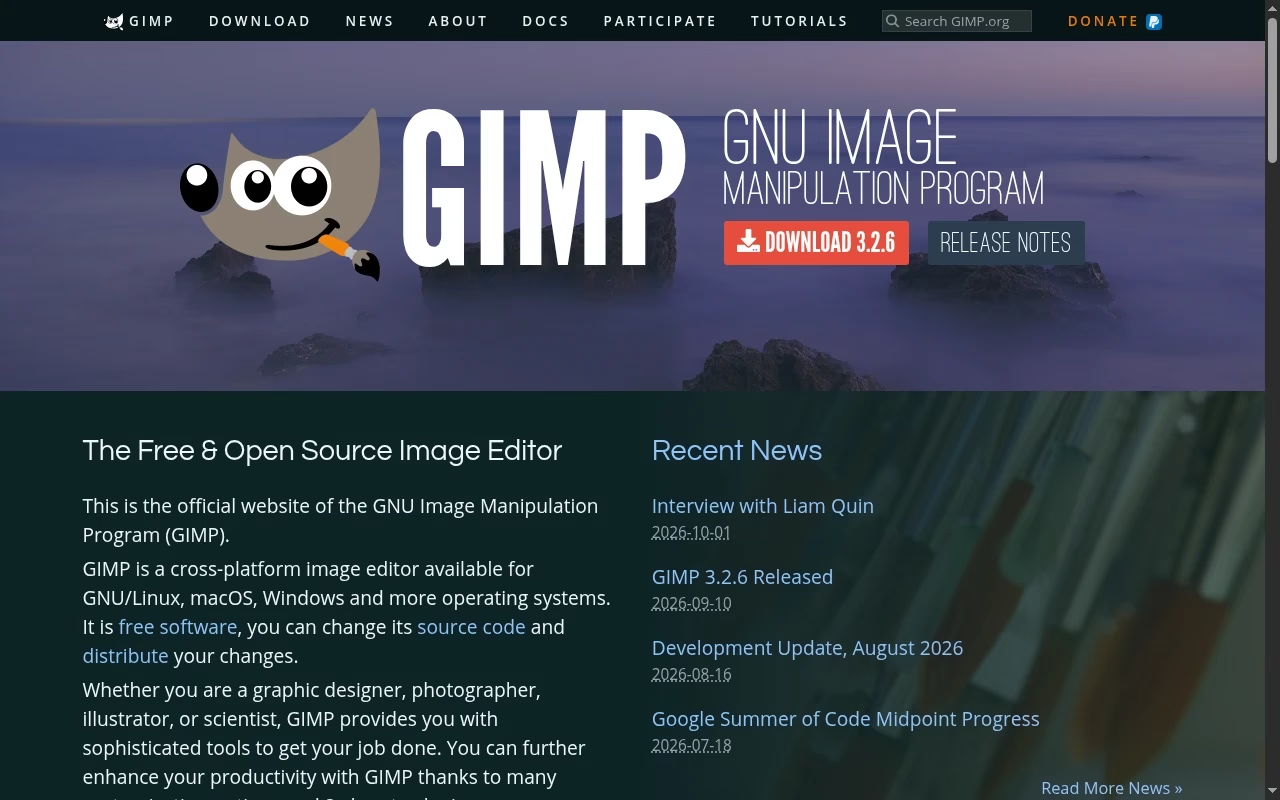
GIMP is a free open-source image editor. It belongs on the shortlist for manual image adjustments, selections and compositing when the budget does not support a commercial editor. Its strengths are different from a catalog-led RAW application.
Watch for: Do not assume it provides the same end-to-end RAW organization workflow as Lightroom or darktable. Check your file path and compatible development tools before planning a RAW-heavy shoot.
Try before choosing: Edit a layered image, inspect color management and export a web copy while preserving the source for future changes.
10. ACDSee Photo Studio: Windows photo management and editing
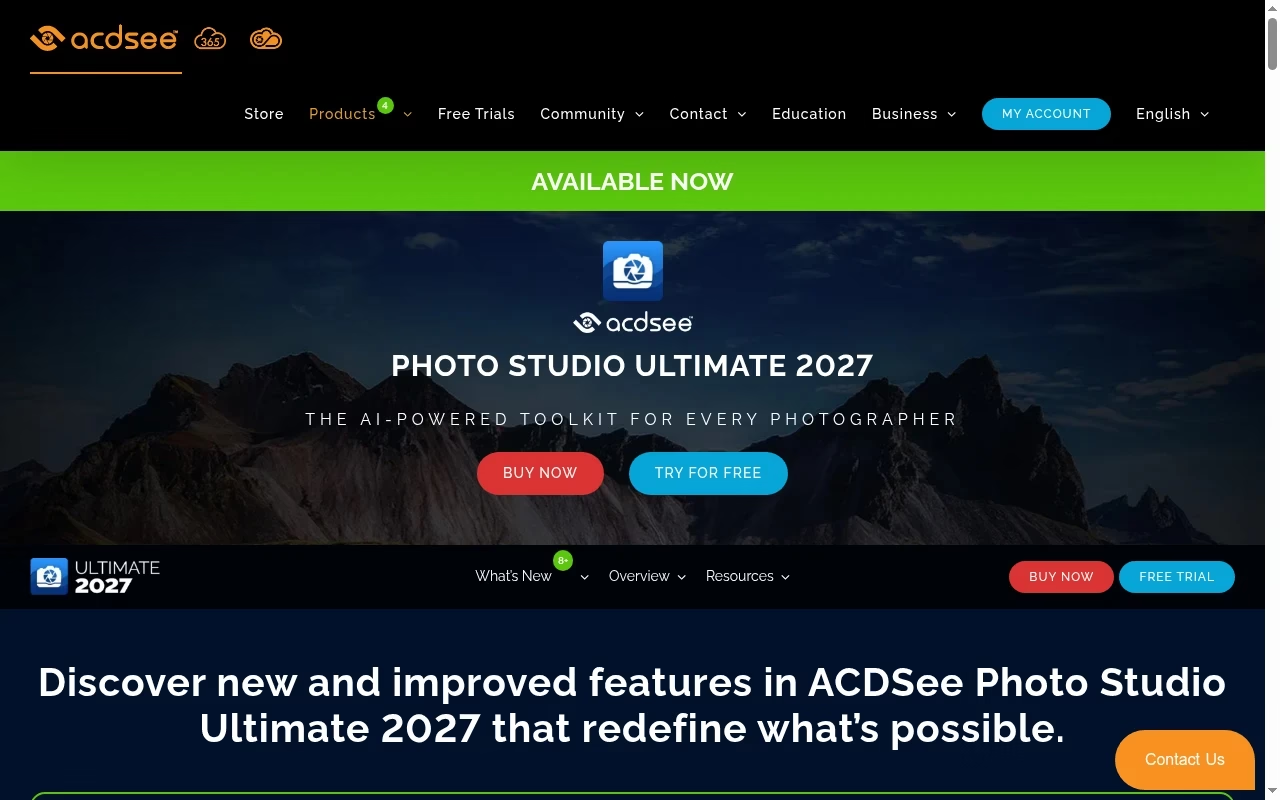
ACDSee Photo Studio Ultimate combines photo organization and editing in a Windows-oriented workflow. The current official page lists the 2027 release as available, which is different from ON1’s coming-release promotion. It is a candidate for people who want browsing and editing in one local environment.
Watch for: Check Windows compatibility, edition details and included AI tools. Similar product names do not guarantee the same capabilities on other platforms.
Try before choosing: Browse a representative folder collection, filter images, develop RAW files and check how edits and metadata travel to exports.
Compare with your own camera files, not demo images
Use a bright portrait, a dim high-ISO image, a backlit subject and a detailed landscape. Edit toward the same intended result, then compare at the final output size. A 100-percent crop reveals defects, but it does not tell the whole story of a small web export or a print. Screenshot tools can record settings and review notes. Keep the image files themselves for meaningful comparison.
Build an editing workflow that protects the originals
Make an import and backup plan before editing. Keep original files separate from delivery copies and know whether changes live in a catalog, sidecar or layered file. Do not delete the only source after a successful JPEG export. Our backup-method comparison explains why recovery depends on more than creating one extra copy.
Make culling and delivery repeatable
Rate and reject images before detailed retouching. Apply consistent base corrections to a sequence, then handle local exceptions. Use project boards for client review stages and shared notes tools for agreed crop, color and naming requirements. When a shoot becomes a campaign, flyer apps or app-design tools may handle the final layout; export specifically for that destination.
Test color, file size and editable handoff before committing
Export one web image, one print-oriented file and one editable source if the recipient needs it. Check dimensions, color profile, sharpening and visible banding. Ask the print provider for requirements rather than using a generic preset for every job. A smaller file is useful only if it still satisfies the destination’s quality requirements.
Keep AI edits accountable
Inspect edges, repeated textures and altered details after automated or generative work. Do not quietly change documentary meaning. For a multimedia delivery use video editing tools; text-to-video generators are a different workflow and should not be mistaken for documentary footage. Collect visual references through inspiration tools without assuming those images are licensed for reuse.
Frequently asked questions
Which photography editor is best for a beginner?
Choose around the first task. Lightroom is worth testing for organizing and processing a shoot, while a focused pixel editor may be better for occasional retouching. Use your own files and complete an import-to-export trial before committing to a subscription.
Is free software enough for RAW photography?
It can be. darktable and RawTherapee are serious free RAW options, but they require learning and exact camera support checks. A free editor is a good fit only if its organization, processing and delivery workflow meets your needs.
Do I need Photoshop as well as Lightroom?
Not for every shoot. A RAW editor can handle many exposure, color and local adjustments. Add a layer-based editor when you need complex retouching, composites or editable layered delivery rather than purchasing both by default.
Will my presets look the same in another editor?
Usually you should not expect identical results. Editors use different processing methods and default renderings. Rebuild the intended look with representative files and compare exports; a matching preset name does not prove a matching image.
Should I choose ON1 or ACDSee based on the newest year?
No. The current pages have different release states: ON1 promotes a coming version, while ACDSee lists its 2027 version as available. Compare the software actually delivered, your operating system and the workflow you need, not the year on the marketing page.
How do I avoid losing edits during migration?
Keep originals, catalog backups, sidecars and important layered files. Export finished reference images and test a small migration first. Check ratings, metadata, masks and adjustments before moving the full library or canceling the previous tool.


Leave a Reply