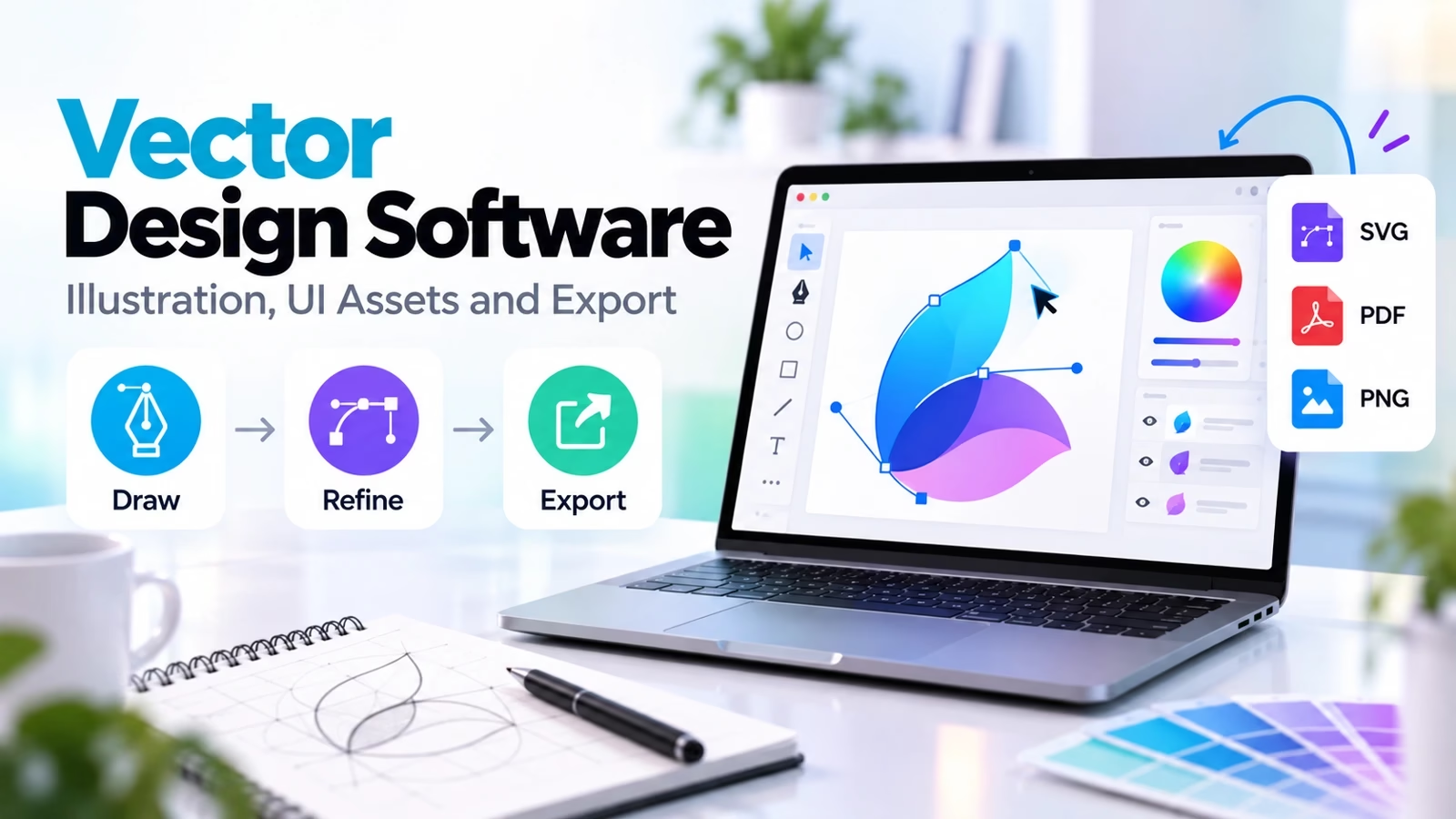

Choose vector image software by the file you must deliver
Vector image software stores shapes and paths that can scale without the same pixelation as a raster image. Start with Illustrator or CorelDRAW when production compatibility is the constraint, Inkscape for free SVG editing, and Figma Draw, Sketch or Penpot when the asset lives inside a product-design workflow. Our app-design tool comparison helps separate illustration from prototyping.
This comparison uses current official product pages, documentation and vendor hero screenshots checked on October 9, 2026. It is a workflow-based shortlist, not a paid-account benchmark. Recommendations are editorial judgments; export fidelity, plan limits and performance should be checked with your own files. Prices and AI allowances change, so compare the live plan before paying.
Vector versus raster: what actually changes?
A vector logo can be resized by recalculating its paths. A photograph is normally a grid of pixels. Placing a photograph inside an SVG does not turn it into scalable vector detail. Likewise, automated tracing approximates visible edges; it does not recover a designer’s original paths. Drawing apps for iPad are useful for sketching, but check whether their final output is vector or raster.
| Workflow | First options | Handoff check |
|---|---|---|
| Brand and print | Illustrator, CorelDRAW, Affinity | Fonts, color and source format |
| Free SVG illustration | Inkscape | Filters and browser rendering |
| Apple drawing | Curve, Amadine | Device and export limits |
| Interface assets | Figma Draw, Sketch, Penpot | Developer-ready SVG |
| Small SVG or logo task | Boxy SVG, Vectr | Clean paths and rights |
1. Adobe Illustrator: professional illustration and print
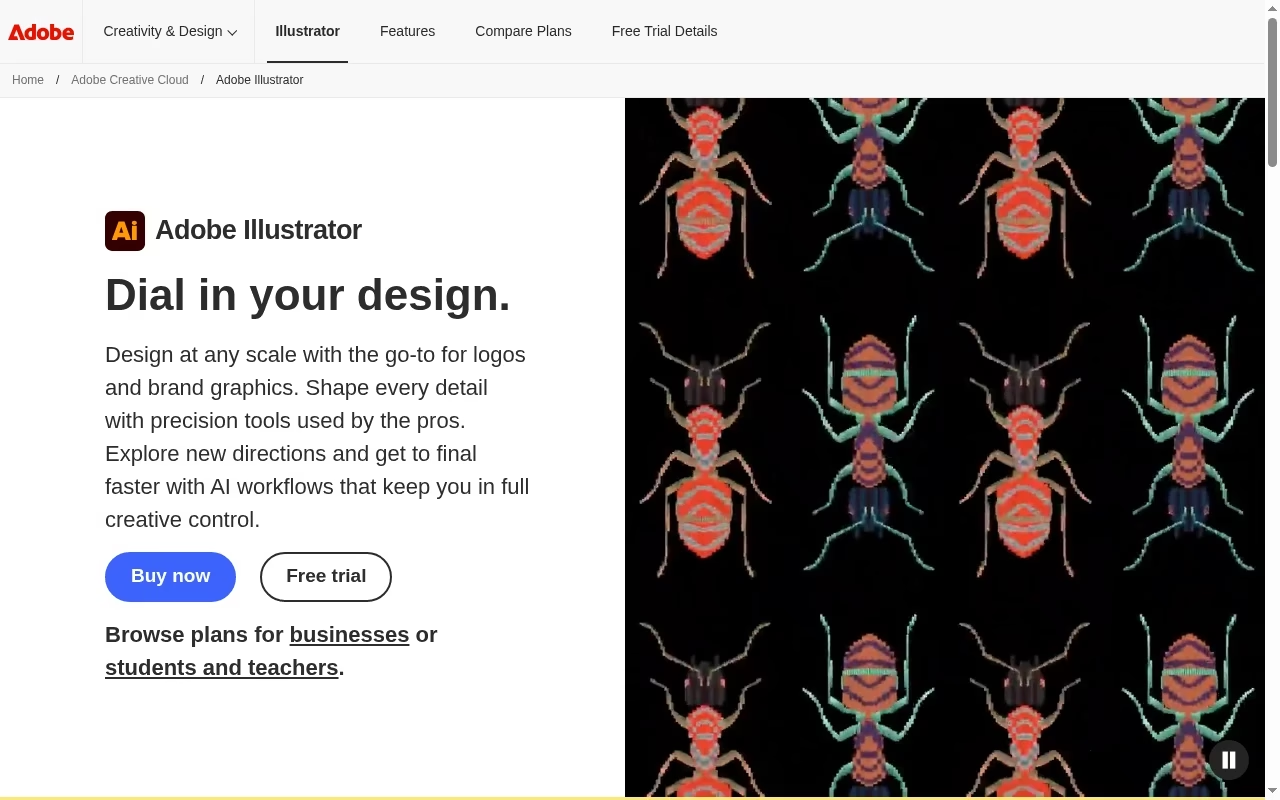
Adobe Illustrator is the obvious trial when a client or production partner specifically expects an Illustrator workflow. Its vector drawing environment fits logos, complex illustration and repeatable brand assets. The value is strongest when format compatibility and a familiar production pipeline matter as much as drawing speed.
Watch for: A subscription and a broad interface may be unnecessary for simple SVG icons. Confirm the exact files your printer or client expects rather than assuming a PDF is interchangeable with an editable source.
Try before choosing: Rebuild a logo with curves, text and a spot-color requirement. Open the exported file with the receiving partner before deciding.
2. Affinity: a mixed vector and pixel workspace
The current Affinity product combines vector, photo and layout work. Its site describes free use for individuals, with optional Canva AI features. That is a material change from older advice centered on a paid Affinity 2 license. It is a strong candidate for a designer who switches between scalable shapes, raster textures and page composition.
Watch for: Check the current platform and AI-account requirements. Existing Affinity projects and third-party formats should be trialed rather than assumed compatible with every new workflow.
Try before choosing: Open one old project, adjust vector paths and export both a print PDF and a web SVG. Compare masks, text and effects.
3. Inkscape: free desktop SVG work
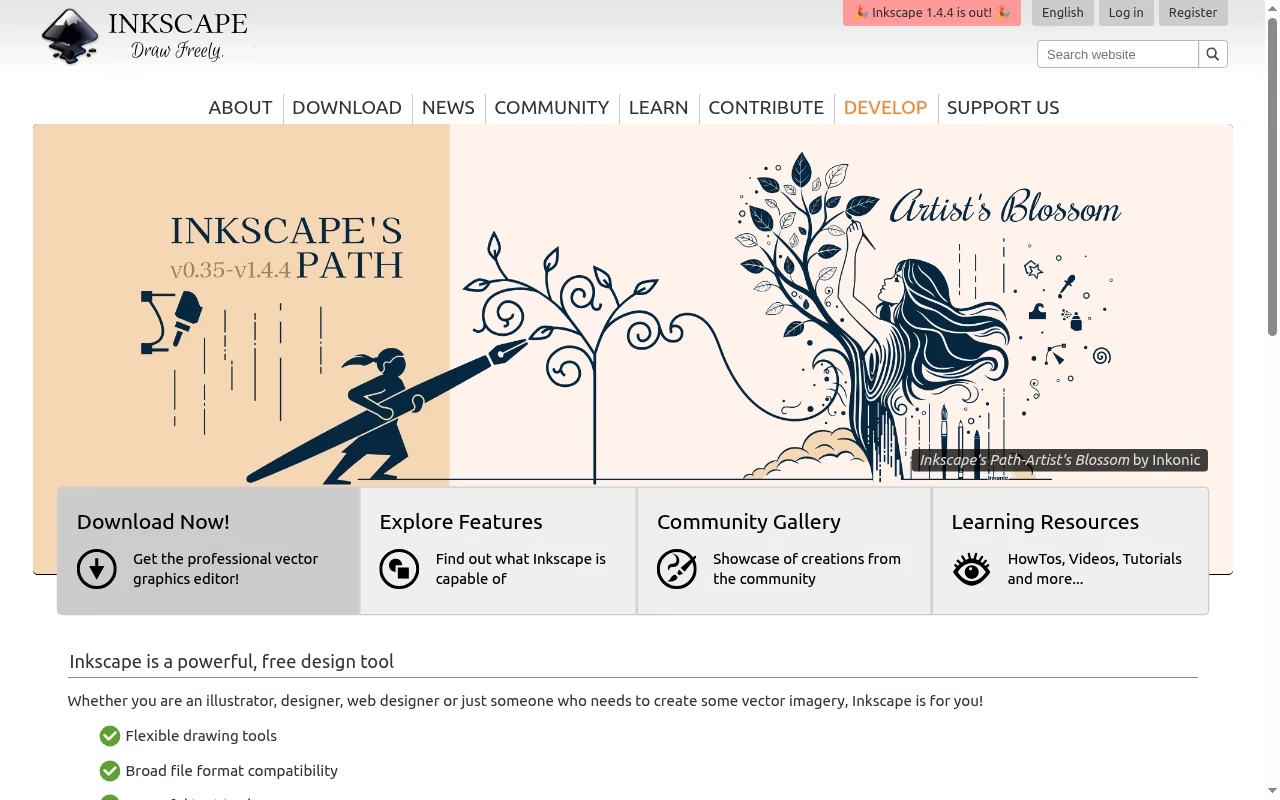
Inkscape is a free, open-source vector editor built around SVG. It belongs near the top of a shortlist for people who need real path editing without a subscription. Use it for illustration, diagrams and scalable graphics when SVG is the natural delivery format.
Watch for: SVG compatibility does not remove differences in fonts, filters and print handling between applications. Check the production requirements before treating it as a replacement for a commercial prepress workflow.
Try before choosing: Create an icon set with consistent strokes, export it and inspect the icons in a browser at small and large sizes.
4. CorelDRAW: graphics and production design
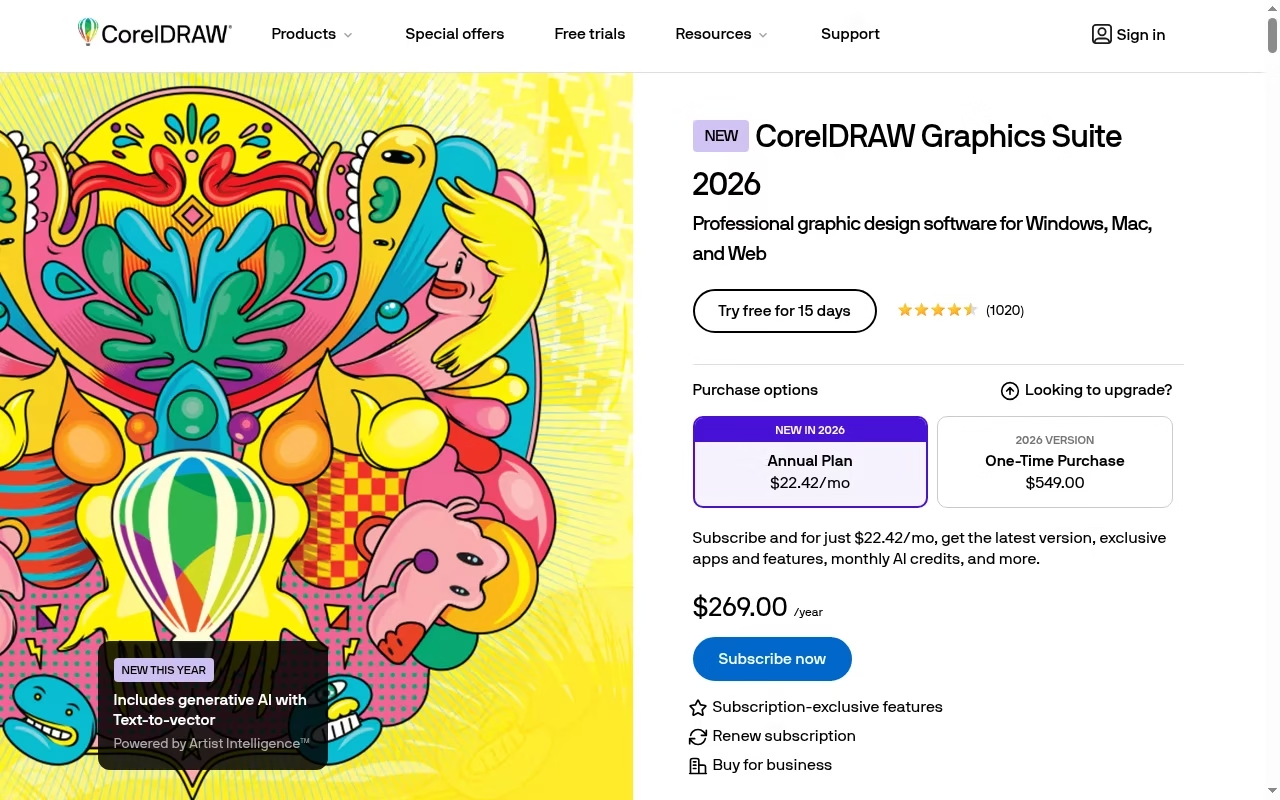
CorelDRAW is a mature graphics suite with vector illustration and page-layout tools. It is especially worth trialing when a sign, print or production partner already uses CorelDRAW files. Choosing the same production environment can reduce translation problems at handoff.
Watch for: Licensing options and included applications can differ. A long feature list should not distract from checking your actual output requirements and the operating system you use.
Try before choosing: Send a small production sample with curves, type and color requirements to the shop that will make the final item.
5. Linearity Curve: drawing on Apple devices
Linearity Curve advertises vector design across iPad, Mac and iPhone. It fits an Apple-centered sketch-to-vector workflow and people who prefer drawing directly on a touch device. The product positioning emphasizes precise vector design without a crowded interface.
Watch for: Check feature and export limits for the plan you intend to use. A convenient tablet workflow still needs a dependable route to the final print or digital file.
Try before choosing: Draw a curved mark on iPad, continue on the desktop if that is your workflow, and check the exported paths for unwanted points.
6. Figma Draw: illustration inside a product-design workflow
Figma Draw adds illustration tools inside Figma. Consider it when vector assets are used in the same environment as screens, components and collaborative design review. The main benefit is keeping illustration connected to the product rather than moving assets through several tools.
Watch for: It is not automatically a substitute for a print-focused illustration suite. Confirm Figma Draw access on your plan and test complex SVG effects in the destination.
Try before choosing: Make a small illustration, reuse it in a screen design and inspect the exported SVG in the browser that will display it.
7. Sketch: Mac-based interface assets
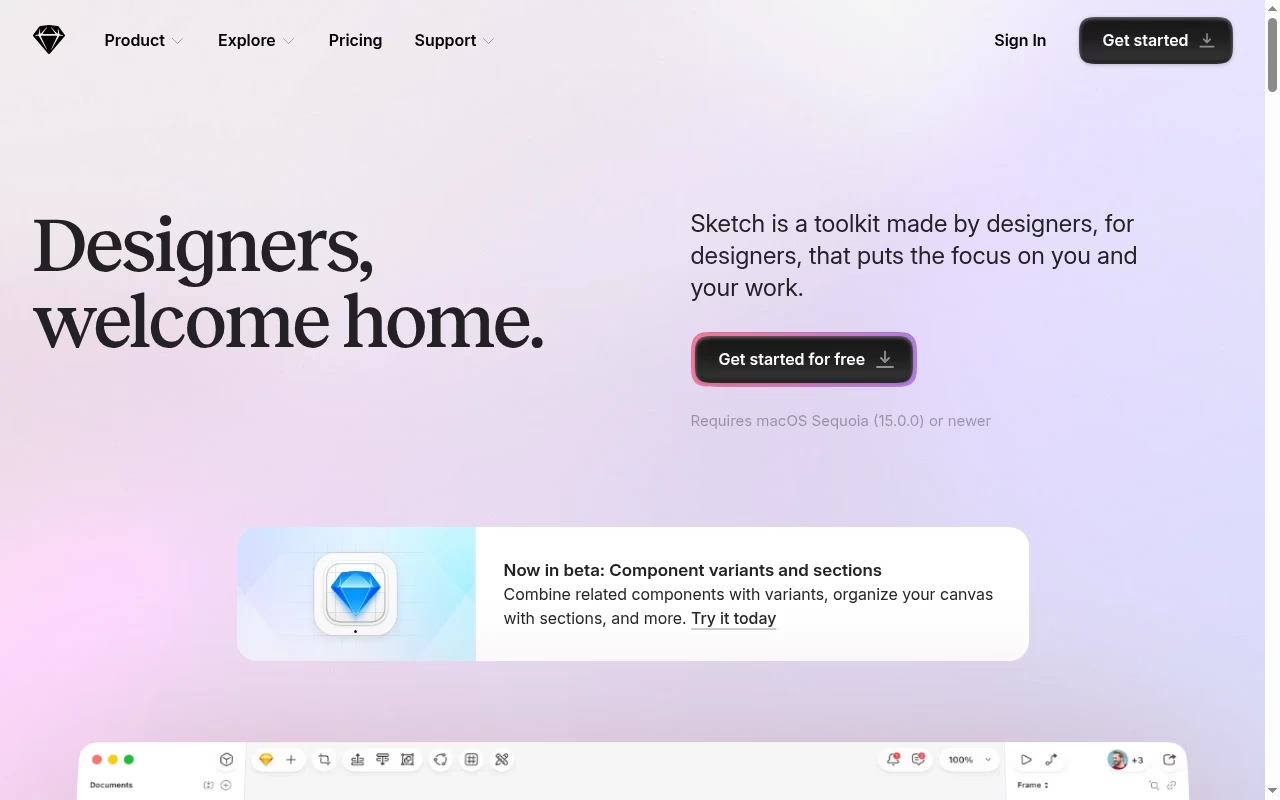
Sketch is a Mac-native design toolkit with vector editing, prototyping and handoff. Its current site lists macOS Sequoia or newer for the editor. It is a sensible option for a Mac team whose vector work is mainly icons and interface elements.
Watch for: Browser collaboration is not the same as a full cross-platform native editor. A Windows-heavy team should test the actual review and handoff workflow before choosing it.
Try before choosing: Create a component with vector icons, share it with a developer and confirm they can inspect and export what they need.
8. Penpot: open-source collaborative product design
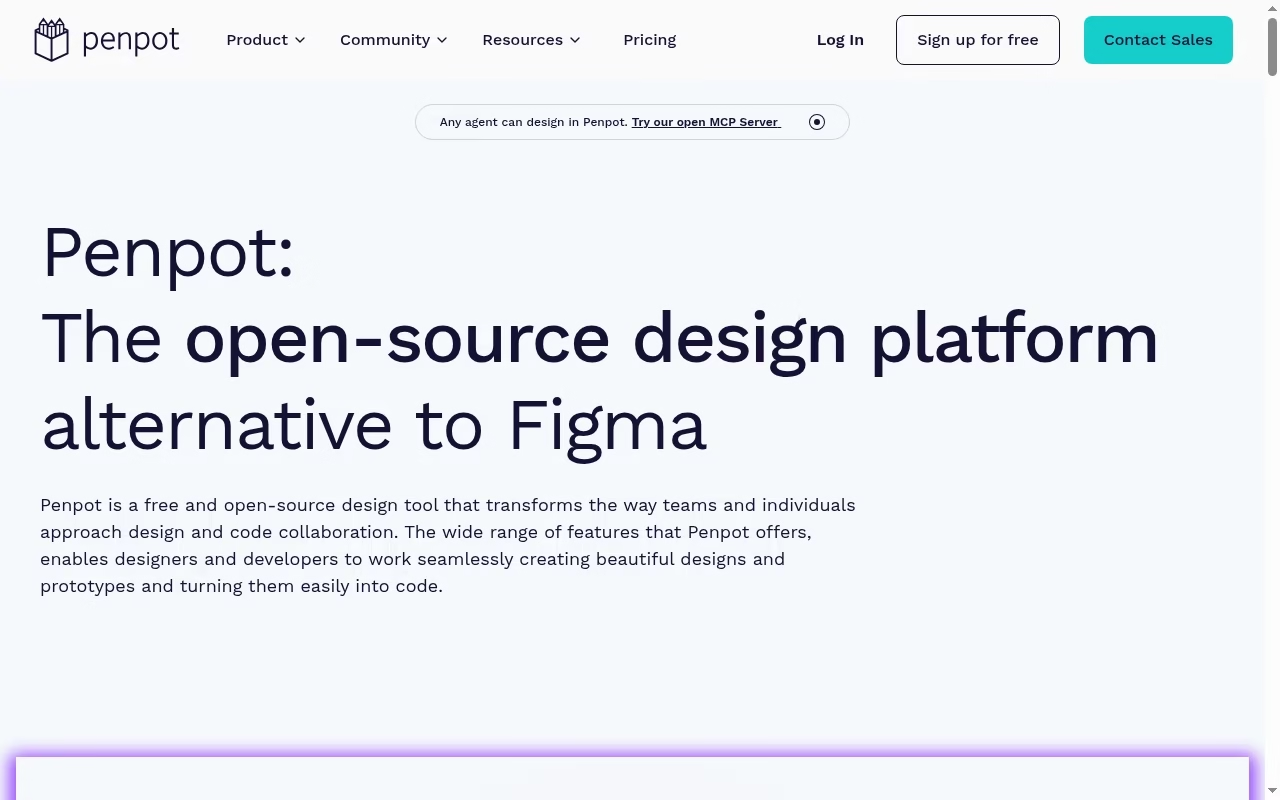
Penpot is an open-source design platform positioned as an alternative to Figma. It fits teams that want collaborative interface design and open-web foundations rather than a dedicated desktop illustration suite. Its approach is relevant when deployment control is part of the decision.
Watch for: Self-hosting adds maintenance and access-control work. Do not assume an open-source license makes operating a team workspace free of cost or responsibility.
Try before choosing: Try a small component library, inspect SVG output and evaluate permissions in the hosted or self-managed deployment you will actually use.
9. Amadine: focused Apple vector drawing
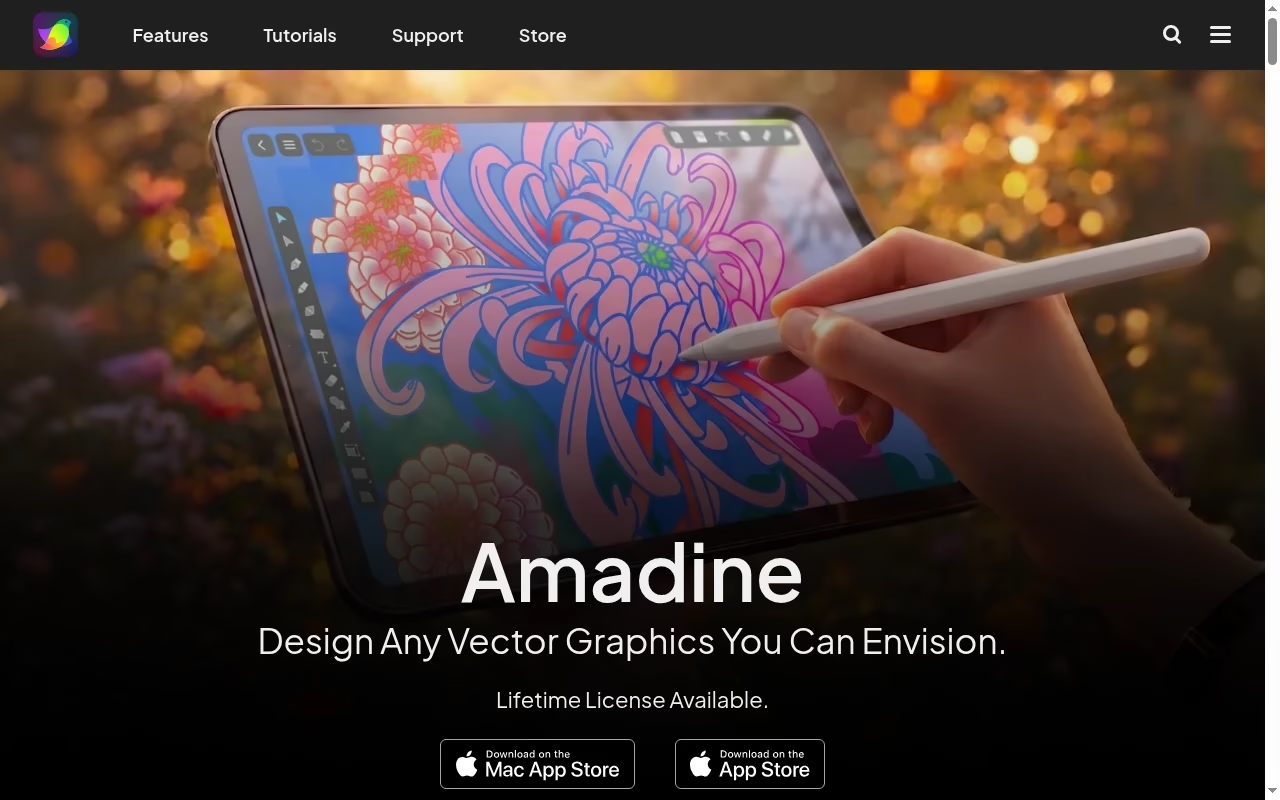
Amadine presents vector graphics tools for Apple-device workflows. It is worth a look for people who want illustration and shape editing without starting with a large production suite. A focused editor can be easier to evaluate against a small, well-defined task.
Watch for: Check desktop and mobile licenses, supported operating systems and required file formats. Smaller scope is useful only if it includes your essential export.
Try before choosing: Create a logo with custom curves and outlined lettering, then inspect it at thumbnail size and in the required output format.
10. Boxy SVG: SVG editing close to the web
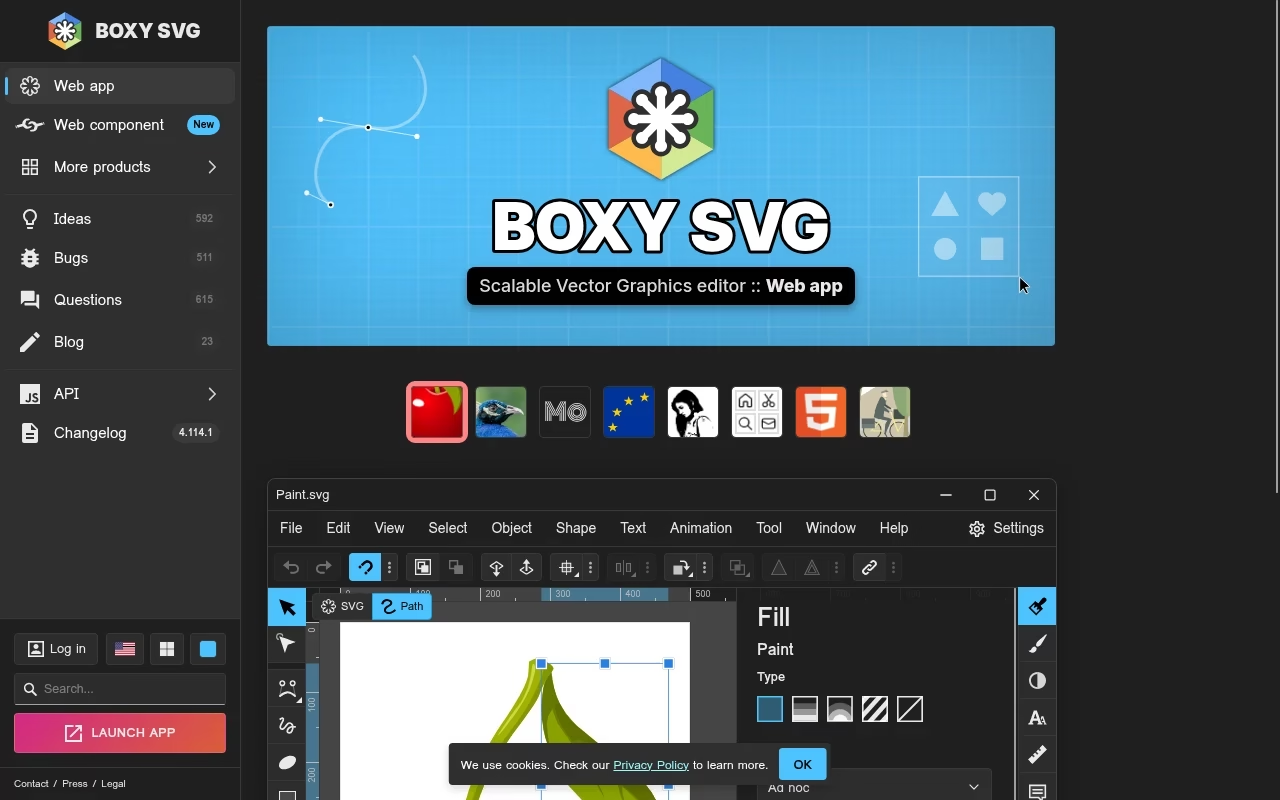
Boxy SVG focuses on SVG graphics. It is a practical shortlist option when the final asset will be used on a website and the job is editing shapes, text and paths in that format. Its focused scope is more relevant to web SVG work than to a complex multi-page print job.
Watch for: Browser and desktop availability, licensing and supported SVG features should be checked for your environment. SVG text depends on font availability unless it is converted appropriately.
Try before choosing: Edit a responsive icon and test it against a dark background, at small sizes and in multiple browsers.
11. Vectr: quick cloud-based vector and logo work
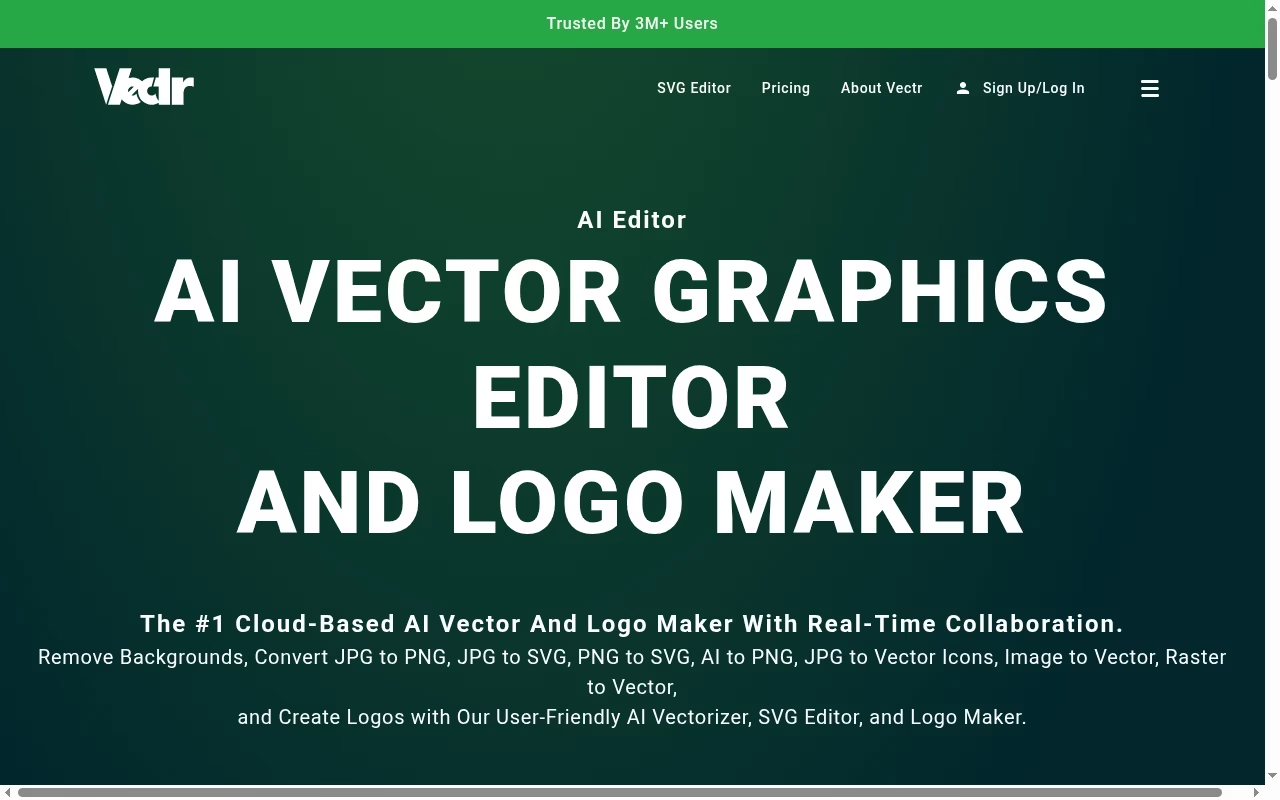
Vectr currently promotes a cloud-based AI vector graphics editor and logo maker with collaboration and raster-to-vector functions. It is a candidate for a quick starter workflow when you want to turn a simple idea or image into editable vector content.
Watch for: Older descriptions of Vectr as a wholly free basic editor may not reflect its current AI-led offering. Generated or traced output needs cleanup, and asset rights still need checking.
Try before choosing: Trace a simple high-contrast mark. Count unnecessary nodes and inspect tiny details before treating the result as production-ready.
Do not choose a tool by a screenshot alone
Build the same three assets in each finalist: a small icon, a curved logo and a text-heavy diagram. Count how long it takes to edit paths, align objects and export. For inspiration use visual discovery alternatives and creator tools, but keep inspiration separate from permission to copy. A purchased asset can also carry limits on redistribution or use in a logo.
Prepare a vector file that survives the next workflow
Start with the final destination. A website needs a compact SVG that looks correct in a browser; a printer may require a PDF, specific color handling and outlined or supplied fonts. Avoid exporting everything as a PNG just because it is easy. A UI/UX design team can define product requirements, while mobile app design specialists may need the original component structure instead of a flat graphic.
Keep the artwork editable and the export simple
Preserve an original with live text and named layers. Make a delivery copy with the agreed font treatment and reduced path complexity. Check clipping masks, gradients and effects after export. For motion, 2D animation tools may need grouped vector elements; whiteboard animation tools have different asset requirements. A print campaign can use flyer design tools for layout after the logo is finished.
Use a real export test before moving a team
Open the output in the receiving application and compare it with the original. Zoom in on joins, tiny gaps and letters. Test dark and light backgrounds. If the asset goes into a website, inspect it at actual mobile size, not only on a large design canvas. Keep one known-good sample for future upgrades so a changed exporter does not quietly damage the production pipeline.
Document what a successful file looks like
Record file format, dimensions, naming, fonts and rights. A PDF editor can help review the print artifact, and screenshot tools can capture rendering differences for review. These supporting tools do not replace the vector source. Reject a traced logo if its curves wobble or small details disappear at the intended size.
Frequently asked questions
What is the best free vector image software?
Inkscape is a strong starting point for a free desktop SVG workflow. Current Affinity also advertises free individual use, which makes older price comparisons incomplete. Check operating-system support and test the required export before choosing either.
Can I turn any photo into a vector image?
You can trace a photo, but the result is an approximation made of shapes. A detailed photograph can create a large, complicated file and lose natural tonal detail. Tracing works better for simple high-contrast artwork than for realistic portraits.
Is Figma a replacement for Illustrator?
For interface icons and product illustrations it can be a good fit, especially with Figma Draw. That does not make it a universal replacement for print illustration or specialized production workflows. Compare the actual file and color requirements.
Which format should I use for a website logo?
SVG is often suitable for a shape-based logo because it scales and can stay compact. Check font handling, filters, embedded images and browser rendering. Keep a raster fallback where a particular destination does not accept SVG.
Why does my SVG look different after export?
Fonts, effects, masks and feature support can differ between applications. The exported file may reference a font that is absent on the receiving device. Open the SVG in the actual destination and compare it with a reference before delivery.
Should I convert all text to outlines?
Use the treatment required by the recipient. Outlines can prevent missing-font problems but remove live text editing and can reduce accessibility. Preserve an editable original and make a separate delivery copy rather than destroying the only source.


Leave a Reply