
Editorial check: September 29, 2026. US App Store prices are snapshots, not prices guaranteed in India or another store. App support and Apple Pencil hardware compatibility are separate. No app was hands-on tested for this article.
A good iPad drawing app matches the artwork you make and the hardware you own. Procreate is a one-time-buy painting studio. Fresco offers a capable free raster-and-vector canvas. Concepts is better for editable ideas on an infinite canvas. Sketchbook is an easy free starting point. ibis Paint X gives manga and mobile illustrators a crowded toolset. Clip Studio Paint is the deeper comics workspace, with a recurring iPad plan. These are different jobs, not ten interchangeable “best” apps.
Quick comparison: best iPad drawing app by project
On a phone, swipe the comparison table sideways to see all columns.
| App | Best for | US starting price | Main limitation |
|---|---|---|---|
| Procreate | Raster illustration and painting | $12.99 one-time App Store purchase | iPad only; canvas/layers constrained by hardware |
| Adobe Fresco | Free painting with raster + vector brushes | Free download; optional Adobe bundles | Check cloud/account flow before project handoff |
| Concepts | Infinite-canvas ideation and editable strokes | Free; $4.99/month or $39.99 Essentials one-time | Free plan has five layers |
| Sketchbook | Quick sketching with a clean interface | Free; optional $2.99 Premium Bundle | Advanced masks/layer grouping in paid bundle |
| ibis Paint X | Manga-style and mobile illustration | Free with purchases; membership $4.49/month | Ads and optional paid tools affect workflow |
| Clip Studio Paint | Comics, panels and multi-page work | 30-day trial; PRO single-device $4.89/month US in-app listing | iPad requires subscription for ongoing use |
| Infinite Painter | Natural brushes with a flexible workspace | Free download; Pro options | Layers and canvas size depend on device/tier |
| ArtRage Vitae | Natural-media oils and watercolor | Paid App Store listing; verify local price | Raster paint is not editable vector artwork |
| Tayasui Sketches | Clean, paper-like sketching | Free with paid options | Check which tools are included before subscribing |
| MediBang Paint | Cross-device comics and team projects | Free with Premium options | Cloud sync needs a MediBang account |
Prices checked on the US App Store or official vendor pages September 29, 2026. The App Store can change local prices and in-app offers. A “Free” download does not mean every feature is free.
Before choosing: your iPad and Pencil matter
First identify your exact iPad in Settings → General → About. Apple’s compatibility list is by model, not simply “new iPad” or connector type. Apple Pencil Pro works with iPad Pro M4/M5, iPad Air M2/M3/M4 and iPad mini A17 Pro, with the iPadOS minimum Apple specifies. An older iPad Air 4/5 or iPad Pro 11-inch 1st-4th generation instead uses Apple Pencil 2; the Apple Pencil (USB-C) also works on many USB-C iPads. The base iPad (A16) and 10th generation support USB-C Pencil and 1st generation with an adapter; they do not support Pencil Pro.
This matters for brush feel: Apple explicitly lists tilt but NO pressure sensitivity for Apple Pencil (USB-C), while Pencil Pro supports pressure. If a Procreate or Fresco brush depends on pressure, the USB-C Pencil cannot provide that signal; an app setting cannot add a sensor the stylus lacks. Pencil Pro’s squeeze, barrel roll and haptics are hardware capabilities, but the action you get depends on an app implementing them. A finger or ordinary stylus can still make marks in many apps. Check each app’s minimum iPadOS before installing: current US listings say Procreate 16.3, Fresco 18.0, Concepts 15.0, Sketchbook 14, ibis Paint X 15.0 and Clip Studio Paint 18.0 or later.
Apple Pencil compatibility by iPad model https://support.apple.com/en-us/108937
Apple Pencil feature comparison https://www.apple.com/apple-pencil/
1. Procreate – best one-time-buy painting studio
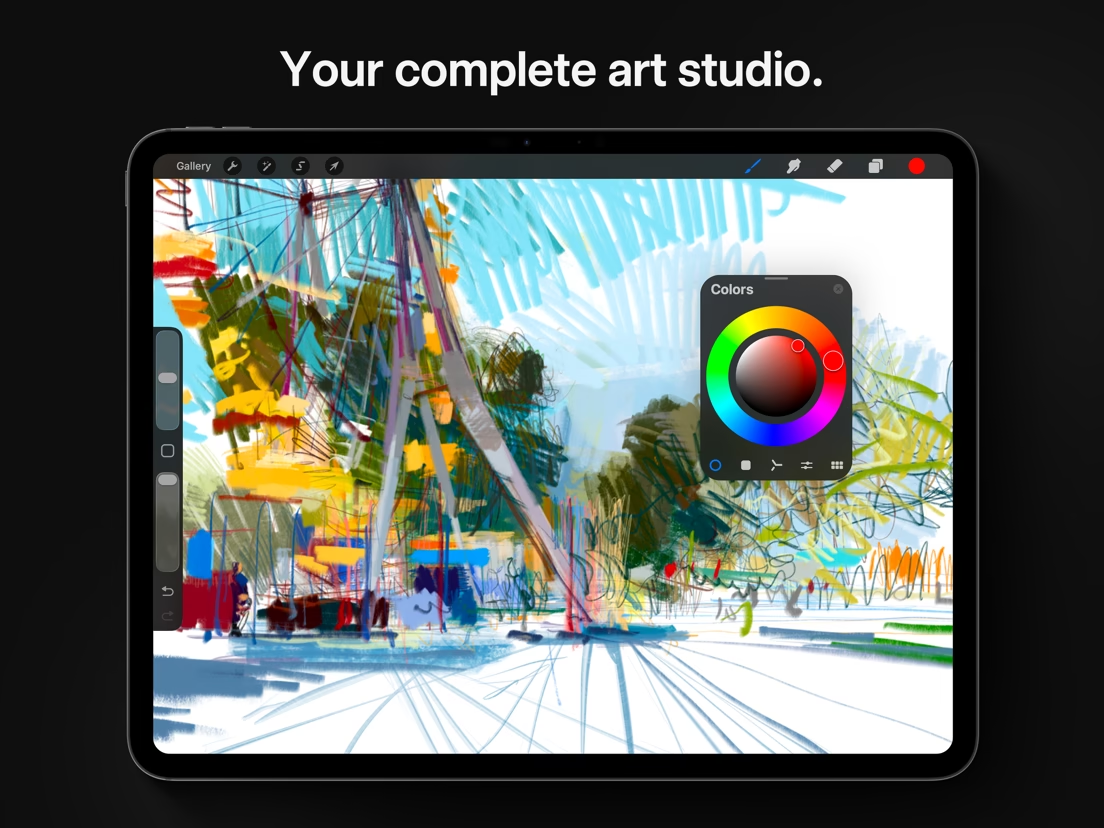
Procreate combines brushes, layers, masks, painting tools, Page Assist for sketchbooks/comics and time-lapse recording in an iPad-first interface. The US App Store lists $12.99 as a one-time purchase, not a free trial. Its listing currently requires iPadOS 16.3 or later. Apple Pencil improves precision; a compatible pressure-sensitive Pencil matters if pressure-responsive brush strokes are part of your art.
For a poster illustration, sketch on separate layers, paint shapes, and export a final image for print after checking size and color settings. This is a raster-first workflow: if a client needs fully editable vector curves or an SVG logo, use a vector-oriented product instead. Canvas dimensions and available layers depend on iPad memory, so test the intended print size before committing to a long piece. The absence of a monthly fee is not a guarantee every future major app remains free.
Procreate official feature overview https://procreate.com/procreate
2. Adobe Fresco – best fully free painting starting point
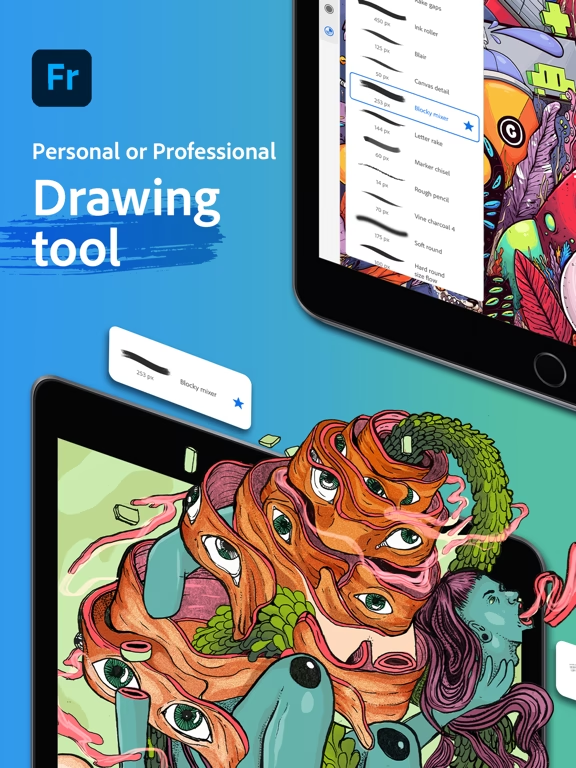
Adobe says Fresco’s drawing-and-painting features are free, including thousands of brushes and live, pixel and vector brush options. The US listing is Free with optional in-app purchases for Adobe bundles; it requires iPadOS 18.0 or later and explicitly mentions Apple Pencil Pro compatibility. Free Fresco is a real option for someone who wants to combine natural-looking paint with resizable vector strokes without buying an app first.
For a mixed-media sketch, block colors with raster brushes and use vector strokes for line art you might resize. Before promising a teammate an editable file, test the export format and cloud sync on the free workflow you actually use. Fresco is a drawing app, not full desktop Photoshop or Illustrator; optional bundles shown in the store should not be mistaken for required Fresco subscriptions.
Adobe Fresco official product page https://www.adobe.com/products/fresco.html
3. Concepts – best infinite canvas for visual thinking
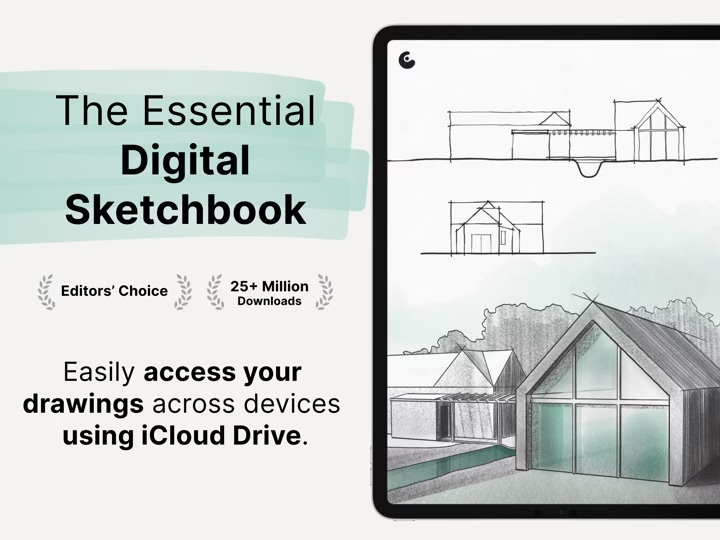
Concepts uses an infinite, flexible vector-based sketchbook suited to diagrams, architecture notes, product ideas and rough designs. Its Basics plan is free with infinite canvas, unlimited drawings/folders and five layers. The official pricing page lists Everything at $4.99/month or $29.99/year, and an Essentials one-time purchase at $39.99 on one platform. Essentials adds selection/editing, infinite layers and stronger exports, while some brush/object packs are separate unless you subscribe.
For a floor plan, start with a sketch on the free canvas, then check whether you need later repositioning, scale, PDF export or more than five layers. An infinite canvas is not the same thing as a print-ready artboard: set export dimensions and check the output. For polished textured painting, Procreate or Fresco is a more direct fit; for spatial notes you may rearrange, Concepts is easier to justify.
Concepts official tier breakdown https://concepts.app/en/pricing-explained/
4. Sketchbook – best low-friction free sketchpad
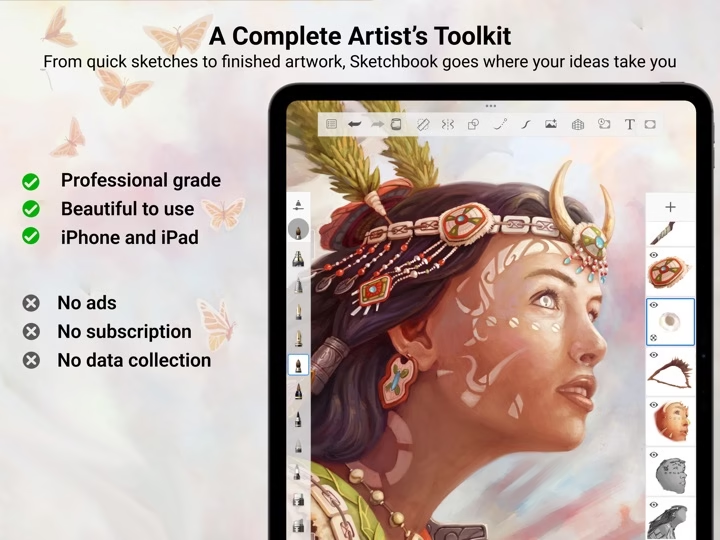
Sketchbook offers a straightforward drawing surface with customizable brushes, guides, rulers and layers. The US listing is Free with in-app purchases, with a $2.99 Premium Bundle in the displayed store. The vendor confirms this is a one-time purchase, not a subscription; it adds brush creation, color tools, layer groups, clipping/alpha masks, PDF export and more. Purchases do not transfer between iOS and Android stores.
A beginner can use the free app for gesture sketches without learning a large production interface. If you need clipping masks or grouped layers for many character parts, price the bundle rather than assuming those advanced tools are free. The current US listing requires iPadOS 14 or later, making it a potential option on older hardware that cannot run newer Fresco or Clip Studio versions.
Sketchbook Premium Bundle features https://www.sketchbook.com/premium-bundle
5. ibis Paint X – best for a feature-heavy manga-style free app
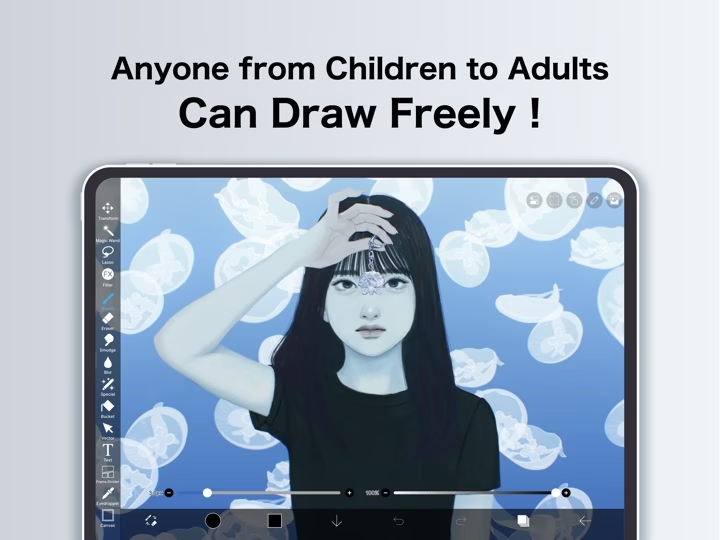
ibis Paint X offers a large brush and material library, layer tools, reference aids and drawing-process recording according to its current US App Store listing. The app is Free with in-app purchases, not a promise of an ad-free workflow. The US listing shows a $4.49 monthly Premium Membership, $27.99 annual membership and a separate $15.99 ad-removal upgrade. It currently requires iPadOS 15.0 or later.
For a character sheet or a panel, its ready-made assets and brushes can help you start quickly. The trade-off is a busier interface and paid-option decisions. Check whether a brush you need is free, premium or available by watching an ad before building a repeatable workflow around it. Do not assume the ad-removal purchase unlocks Premium Membership or vice versa.
ibis Paint X US App Store listing https://apps.apple.com/us/app/ibis-paint-x/id450722833
6. Clip Studio Paint – best for comics and complex line work
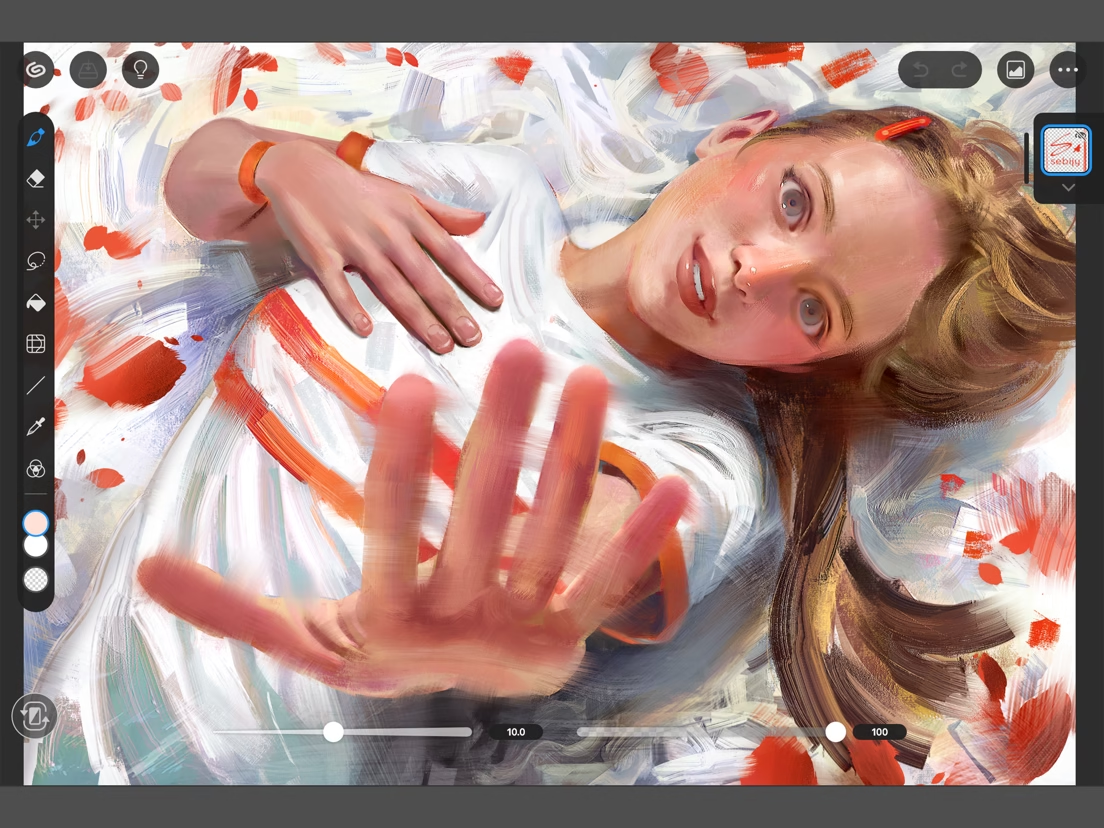
Clip Studio Paint has a specialized toolset for comics, illustration and animation, including vector line correction and page/balloon tools. The iPad App Store lists a free 30-day trial and subscription plans: PRO single-device $4.89/month or $28.90/year in the US listing; EX single-device is listed at $9.69/month. The official purchase page separates iPad annual/monthly plans from its perpetual Windows/macOS license. Do not buy the desktop perpetual license expecting it to unlock iPad. The current iPad app requires iPadOS 18.0 or later.
If you make serialized comics, test a full page with panel borders, word balloons, your brush presets and export settings during the trial. PRO versus EX matters if your project requires more advanced multipage or animation work; consult the live feature matrix before choosing a tier. For a single casual painting, the ongoing subscription and denser workspace are probably unnecessary.
Clip Studio official plans and device rules https://www.clipstudio.net/en/purchase/
Clip Studio feature matrix https://www.clipstudio.net/en/functional_list/
7. Infinite Painter – best for natural-media painting with room to grow
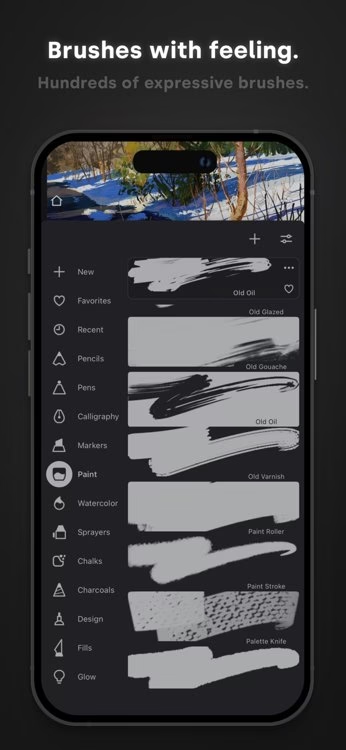
Infinite Painter’s current App Store listing describes a large brush library, pressure and tilt support, layer groups, guides and editable shapes. The free download includes a limited workspace and a seven-day trial of the wider toolset; maximum layer count depends on canvas size and device.
Test a painting at your final export size and add enough layers to match a real project. Check the free-versus-Pro boundary before you commit your work to a larger canvas.
Choose it for brush variety and a customizable painting workspace. Its editable shapes do not make every stroke an exportable vector file.
Official product and feature details https://apps.apple.com/us/app/infinite-painter/id1146543227
8. ArtRage Vitae – best for oil and watercolor that respond like physical paint
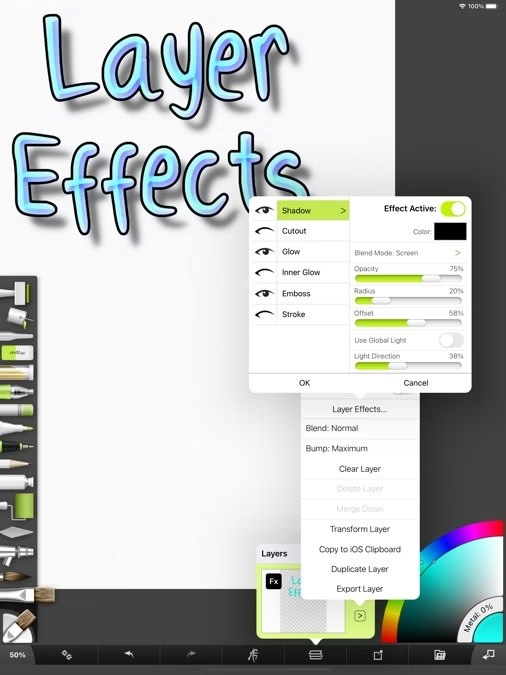
ArtRage Vitae’s developer listing describes simulated oils, watercolor, palette knives, canvas texture, layers and reference images. The iPad app is presented as a paid natural-painting product; local App Store pricing may differ.
Paint a small still life and test how colors blend when wet, then export a PNG for review. If you need vectors for a logo, a natural-media painter is the wrong starting point.
Choose it when tactile paint behavior matters more than a large asset library or comics production.
Official product and feature details https://apps.apple.com/us/app/artrage-vitae-mobile-painting/id1521959252
9. Tayasui Sketches – best for an uncluttered sketchbook
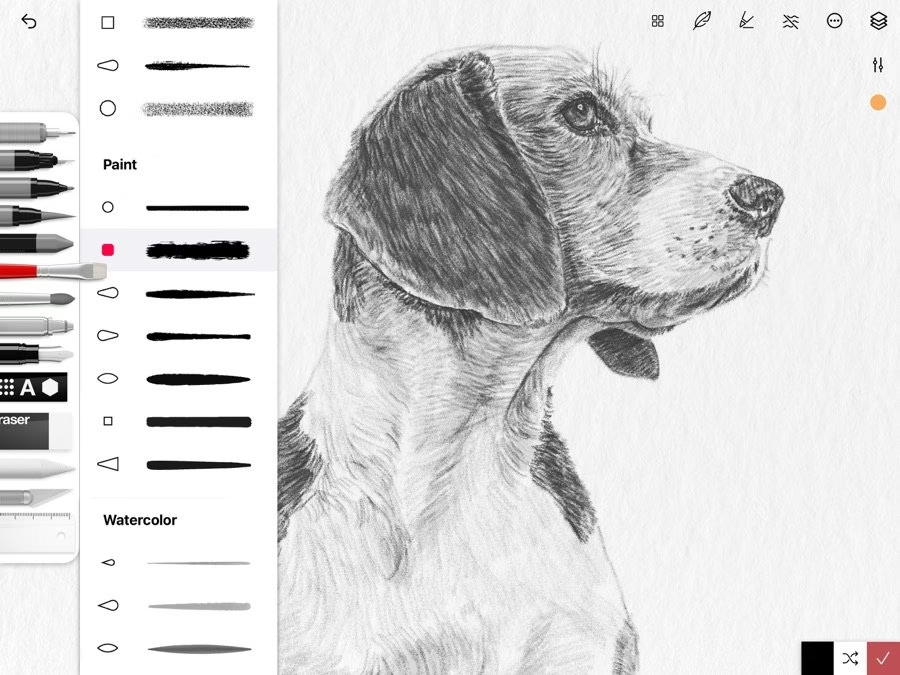
Tayasui Sketches lists watercolor tools, layers, PSD exchange, cloud sync and Apple Pencil support. Its listing includes both in-app Pro purchases and subscriptions; do not assume the entire toolkit comes with the free download.
Sketch one subject with your preferred brush and check which layer and export actions are in your tier. Test sync with a nonessential sketch before relying on it across devices.
Choose it for a quiet drawing surface. If you need a deep comics production toolkit, compare Clip Studio or MediBang.
Official product and feature details https://apps.apple.com/us/app/tayasui-sketches/id641900855
10. MediBang Paint – best for comic pages across devices
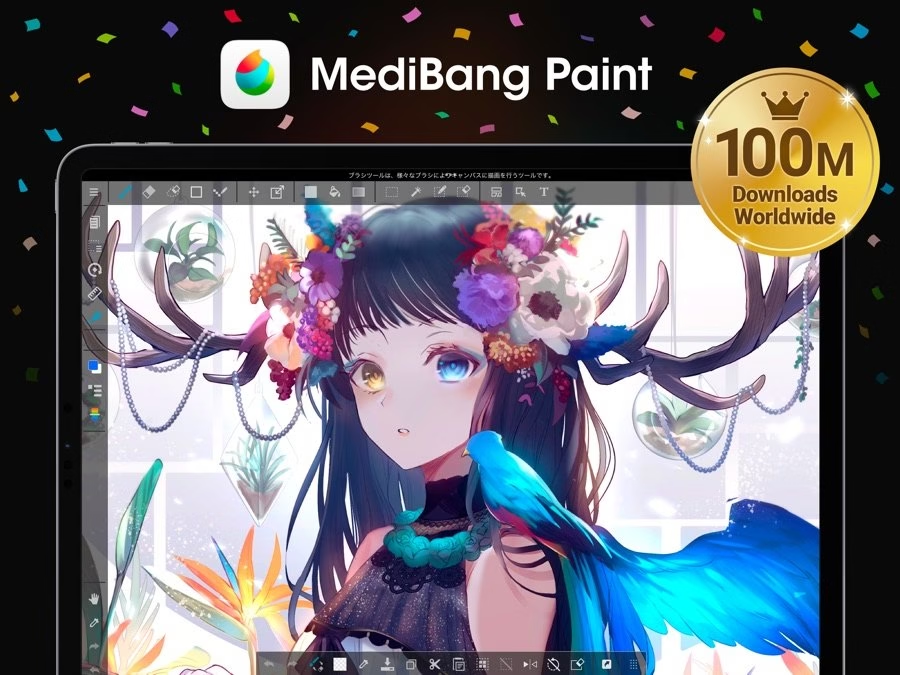
MediBang Paint’s iPad listing describes brushes, screentones, comic panels and fonts, with a cloud workflow that can continue work across platforms. It also lists group projects and Premium-only extra resources. Cloud features require a MediBang account.
Make a two-panel page, place text and export it, then reopen your work on your second device. Test account and sync behavior before involving a team.
Choose it when cross-device comic production matters more than a minimal sketchpad; compare subscription extras against your actual asset needs.
Official product and feature details https://apps.apple.com/us/app/medibang-paint-drawing-art/id1003588804
How to test an iPad drawing app in one project
• Choose one real deliverable: a print illustration, a logo, a floor-plan sketch or a four-panel comic. A random five-minute doodle will not expose the actual limits.
• Check the exact model and Pencil generation, then install the app on the iPad you will actually use. Confirm minimum iPadOS and storage.
• Make a canvas at the final dimensions. Add a dozen layers, import one reference image, use your most important brush and export to the client’s required file format.
• Reopen the export on another device. Look for flattened layers, altered fonts, lost vector editability, cropped content and cloud-only assets.
• Only then compare cost: one-time app, optional bundle, per-platform purchase or recurring subscription. Include storage and team workflow if relevant.
Frequently asked questions
What is the best free drawing app for iPad?
Adobe Fresco is the strongest free painting starting point here if your iPad runs iPadOS 18. Sketchbook is simpler and supports iPadOS 14. Concepts offers a free infinite canvas but limits the free plan to five layers. The right one depends on your hardware and whether you paint or plan.
Does every drawing app support Apple Pencil Pro?
App Store claims vary. Fresco’s current listing explicitly states Apple Pencil Pro compatibility; Procreate’s site describes Apple Pencil support. The Pencil Pro first must be compatible with the iPad itself. Squeeze, barrel roll and hover behavior may differ by app, so verify the exact feature you need.
Does Apple Pencil USB-C have pressure sensitivity?
No. Apple’s comparison lists tilt and precision but marks pressure sensitivity unavailable on the USB-C Pencil. If pressure controls your line weight, use a compatible pressure-sensitive Pencil model instead.
Is Procreate free?
No. Its US App Store price was $12.99 at this review; it is a one-time app purchase. It should not be confused with optional in-app purchases in other drawing apps.
Can I use a Clip Studio desktop lifetime license on iPad?
Not as a substitute for the iPad plan. Clip Studio’s purchase page labels its perpetual license for Windows/macOS and lists annual/monthly plans for iPad. Confirm the current license rules before buying.
Which app should I use for editable vectors?
Concepts uses editable vector-based strokes for sketching, and Fresco has vector brushes. For final logo files, test the exact SVG/PDF export and editability required by your client; a raster Procreate export is not a vector file.
More on Just Create App
Drawing apps across devices https://justcreateapp.com/best-drawing-apps
Flyer maker apps for a finished layout https://justcreateapp.com/top-flyer-maker-apps
2D animation software https://justcreateapp.com/best-2d-animation-softwares


Leave a Reply