

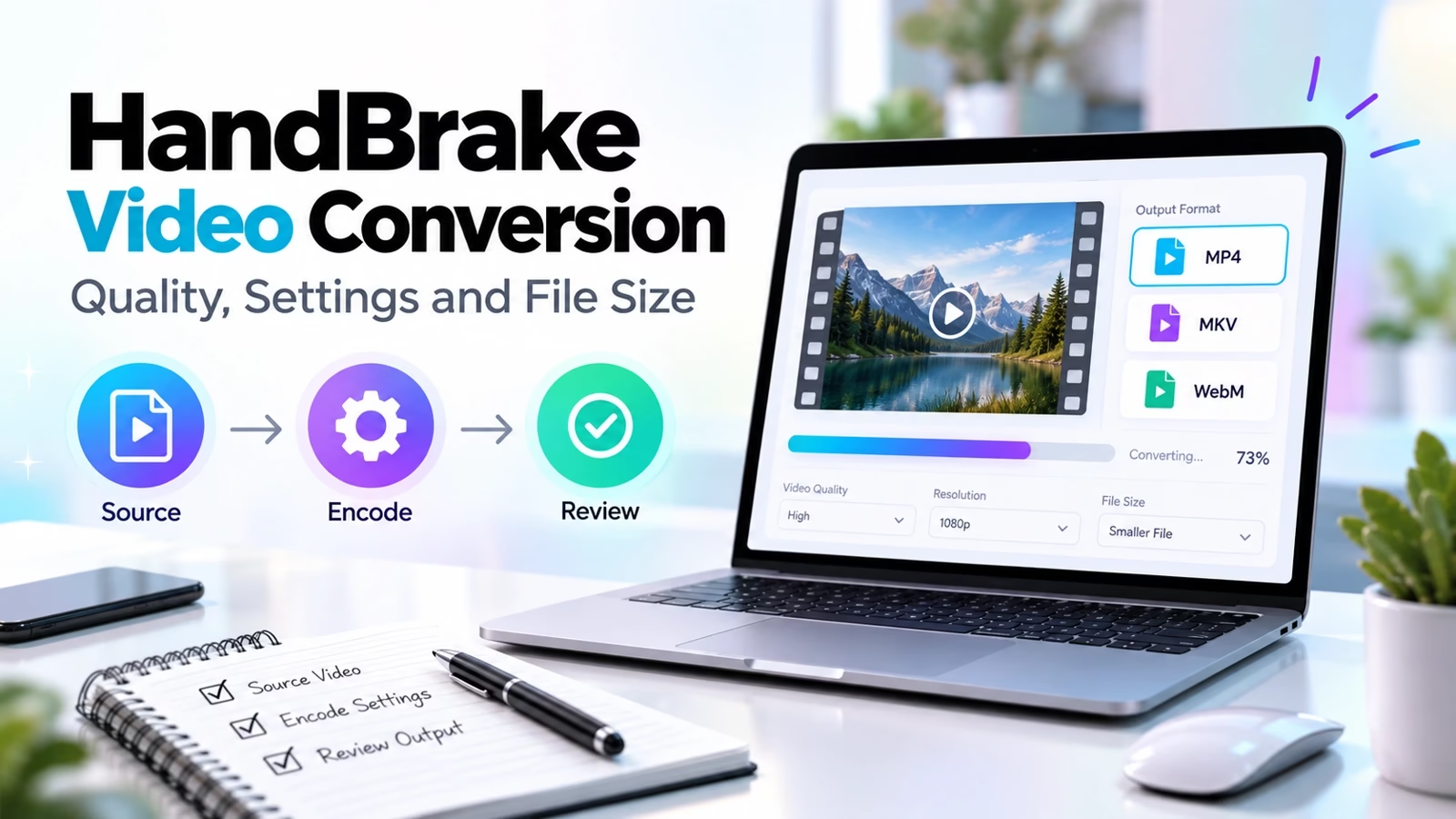

Start with a compatible preset, then change only what you need
HandBrake video conversion software is a free, open-source transcoder for Windows, macOS and Linux. For a broad first trial, the official documentation recommends Fast 1080p30. That preset is a starting point, not a universal answer: it can reduce a higher-resolution or higher-frame-rate source. If preserving 4K or 60 fps matters, choose accordingly. A video editor is the better tool when you need a timeline, titles or a cut, rather than just a conversion.
This guide is based on the HandBrake project’s current product page and official documentation checked on October 9, 2026. The workflow below is documented guidance and a proposed test, not a locally executed encode benchmark. No compression percentage, measured encoding time or quality score is claimed.
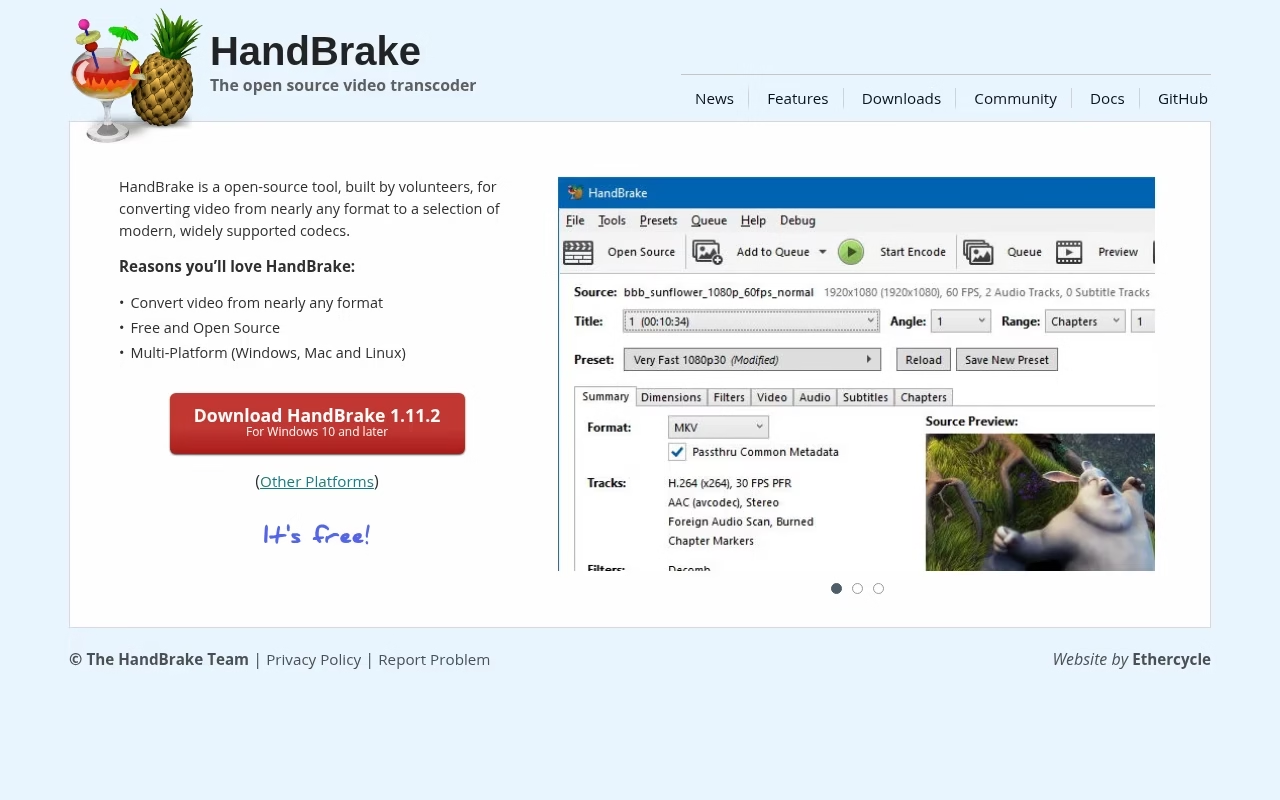
What HandBrake does, and where it fits
HandBrake decodes a supported source and encodes a new video file. The job might be making a copy that plays on a particular device or reducing a file to share. Do not use the transcoded copy as your only archive. If the original is a screen capture, our Mac screen-recording guide covers capture decisions that conversion cannot undo. A blurry source cannot gain real detail just because the output has more pixels.
Container, codec and preset are different decisions
MP4 and MKV are containers that hold video, audio and other tracks. H.264, H.265 and AV1 are video codec choices. A preset is a bundle of settings. Choosing an MP4 filename does not, by itself, guarantee that the video codec inside will play on an older device. Creator workflows need the correct delivery format, not just a familiar file extension.
| Goal | Starting approach | What to verify |
|---|---|---|
| Broad everyday playback | General MP4/H.264 preset | Resolution, frame rate and audio |
| Keep a 4K or 60 fps delivery | Preset with the required limits | Do not silently downscale or cap fps |
| Smaller file, no strict cap | Constant quality plus short tests | Detail and unpredictable final size |
| Strict upload limit | Suitable Social preset or bitrate planning | Source duration and total file size |
| Faster encoding | Supported hardware preset | Quality/size and device decoding |
A careful first conversion, step by step
Open a non-confidential source you have the right to use. Confirm its duration, dimensions and frame rate. Select a preset matched to the destination. Set a new output filename so the source stays untouched. Review every important tab before adding the job to the queue. A project board can track review for a team, but a completed queue item is not proof that the file is acceptable.
1. Check dimensions and cropping
Look at the dimensions preview and automatic crop. Black borders may be intentional, and removing them can change the composition. Do not assume a 1080p source must always be resized. Upscaling cannot restore detail lost in the original. Verify the final visible area against the source, especially for screen recordings with text near an edge.
2. Choose frame-rate behavior deliberately
A preset can impose a maximum frame rate. The official example says a 720p30 preset reduces a 1080p60 source to 720p and peak-limits it to 30 fps. If motion cadence or an editing workflow needs a specific frame rate, inspect that control instead of relying on the preset name alone. Play a motion-heavy sample after conversion.
3. Review video, audio and subtitles
Choose the encoder and quality method. Then check audio track selection and mixdown: a preset can produce stereo and omit or pass through surround audio depending on its design. Confirm the intended language track. Subtitle handling also needs a deliberate choice; inspect whether the output contains a selectable track or visible burned-in text. Shared production notes can record those delivery requirements.
4. Preview, encode and check the result
Use a short preview or selected range before the complete job. Check difficult scenes, captions and audio sync. After the full encode, open the output outside HandBrake on the actual playback device. Confirm the start, middle and end, duration, dimensions and track behavior. The queue finishing only confirms that encoding finished, not that your chosen settings were right.
Constant quality: let the file size follow the content
Constant quality sets a quality target and lets the encoder allocate bitrate according to the source. The resulting size is not fixed. Two clips with the same duration and settings can produce different sizes because motion, noise and detail differ. The official quality guide recommends constant quality unless there is a specific reason not to use it.
RF values are encoder-specific
For x264 and x265 the official recommended starting ranges are RF 18-22 for SD, 19-23 for 720p, 20-24 for 1080p and 22-28 for 4K. A lower RF means higher quality for those encoders. These are trial ranges, not guarantees. Do not copy the same number to SVT-AV1 or another encoder and expect the same visual result. The official guide explicitly says the scales are not comparable.
Some other encoders, including Apple VideoToolbox, reverse the numeric direction: higher numbers mean higher quality. The HandBrake quality control moves right for higher quality, but the number itself must be read in the context of the selected encoder. Change only a small amount and compare a sample. An unusually high quality setting can make the output larger than the source without restoring already-lost detail.
Average bitrate: useful when a size limit is the constraint
Average bitrate targets the amount of video data over time. It can help when the file must fit a cap, but the quality depends on how hard the source is to encode at that bitrate. Include audio and container overhead in planning. If a suitable official Social preset covers your source duration and limit, start there and still verify the result. Do not claim a fixed final size from a constant-quality setting.
A planning example, not an encode result
Suppose the video is 600 seconds and a video-only budget is 100 decimal MB. The approximate bitrate is 100 × 8 ÷ 600 = 1.33 megabits per second. That is a budget calculation, not a measured output. If 100 MB is the total upload limit, reserve room for audio and overhead and aim below it. A two-minute action clip and a ten-minute static lecture have very different quality demands at the same size.
Speed, quality and hardware encoding
The official performance documentation treats encoder, encoder preset, resolution and filters as major influences on encoding time. Hardware encoding can be fast, but availability depends on your hardware and platform. A faster preset or encoder is not an unconditional quality improvement. Compare size and appearance at your required output rather than picking the fastest option blindly.
Do not confuse a HandBrake preset with an encoder preset
A HandBrake preset configures the overall job. An encoder preset adjusts how the encoder balances computation and compression. The encoder preset guide explains that separate control. Slower settings can spend more time on compression decisions, but the practical benefit needs a sample test on your own source. There is no universal encoding-time promise.
Protect source quality before trying to shrink the file
Avoid repeated lossy conversions. Start from the best available original and make one delivery copy. Keep your source and settings until the recipient has checked it. Backup and recovery planning is relevant for source footage; a small distribution copy should not quietly become the only surviving version. If you need visual references, annotation tools can record a defect, but compare moving footage as well as still frames.
Conversion is also different from creating new content. Text-to-video tools and AI video prompts help with generation, while whiteboard animation software handles explainers. HandBrake does not replace those production stages. It should prepare a delivery artifact after the content and its rights are settled.
Build a small quality test before a long queue
Choose short ranges with difficult material: motion, dark gradients, fine detail and text. Keep resolution and audio choices unchanged while comparing two quality settings. Watch both on the target screen at a normal distance and inspect important details close up. Log the encoder, quality value and preset. This isolates the tradeoff instead of changing five settings and guessing which one helped.
Record what you observed, not what you expected
For each sample write down file size, visible defects and any playback failure. If you did not measure encoding time, do not label the method faster. If the destination re-encodes uploads, inspect the published result too. An excellent local output may still degrade downstream. Keep the acceptance rule practical: readable text, correct motion, correct language, usable subtitles and playback on the intended device.
Troubleshoot the output before deleting the original
If the output is bigger than expected, inspect quality, codec, resolution and source complexity. If it will not play, verify codec and audio support instead of simply renaming the extension. If the frame looks cropped, review dimension settings. If audio or subtitles are absent, check selected tracks and what the preset changed. Small-business production tools can support the wider process, but the delivery file needs its own check.
Use a final handoff checklist
Confirm filename, duration, dimensions, frame rate, container, codec, audio language, subtitle behavior and total size. Play the delivered copy, not just a temporary preview. For archival or client work, retain the original and a record of settings. If a hard upload cap remains unmet, revise the target deliberately and test again rather than promising a quality level that the size budget cannot support.
Frequently asked questions
What are good HandBrake settings for a 1080p video?
The official Fast 1080p30 preset is a broad starting point. For x264 or x265, the quality guide gives RF 20-24 as a recommended 1080p trial range. Check whether 30 fps is appropriate for your source and destination; do not silently reduce a 60 fps video if preserving that motion matters.
Does a lower RF always mean better quality?
For x264, x265 and SVT-AV1, a lower RF means higher quality within that encoder. Other encoders can reverse the direction, including Apple VideoToolbox. Quality numbers are not comparable between encoders, so check the selected encoder and compare a preview.
Why is my converted file larger than the original?
A high quality target, different codec, retained detail or inefficient settings can produce a larger file. A lossy source already discarded information, and re-encoding at an extremely high quality cannot restore it. Try small quality adjustments on a sample rather than assuming larger output means better visible quality.
Should I choose H.264, H.265 or AV1?
Choose around playback support first. H.264 is a sensible broad-compatibility starting point; H.265 or AV1 may fit newer destinations, but support and encoding cost must be checked. Test the actual device or platform before converting a large library.
Can constant quality guarantee a file under 100 MB?
No. It lets size vary with source complexity. For a hard cap use a suitable documented Social preset or bitrate planning with room for audio and overhead, then verify the actual output size and quality.
Is hardware encoding always better?
It can be much faster on supported hardware, but the quality and compression tradeoff depends on encoder, settings and source. Compare a short sample for file size and visible defects. Do not transfer a software encoder’s quality number to hardware and expect an equivalent result.
Can HandBrake restore a blurry video?
It cannot recover detail that was absent or lost in the source. Upscaling adds pixels, not original evidence. Keep the best available source, avoid repeated lossy conversion and judge the delivery at its real viewing size.
Is this guide based on an executed compression test?
No. It uses current official documentation and an inspected product-page capture. The workflow and bitrate example are guidance for a test you can run; no measured reduction, processing speed or visual score is asserted.



Leave a Reply